How to change a NIC's metric

Sometimes Mudfish does not work correctly even with Full VPN mode enabled for a basic functionality test.
Problem reports occasionally show that this is caused by a network adapter's metric. This article explains how Windows users can change the metric of a NIC (Network Interface Card).
First, open the settings for the TAP-Win32 adapter v9 network adapter by following these steps:
-
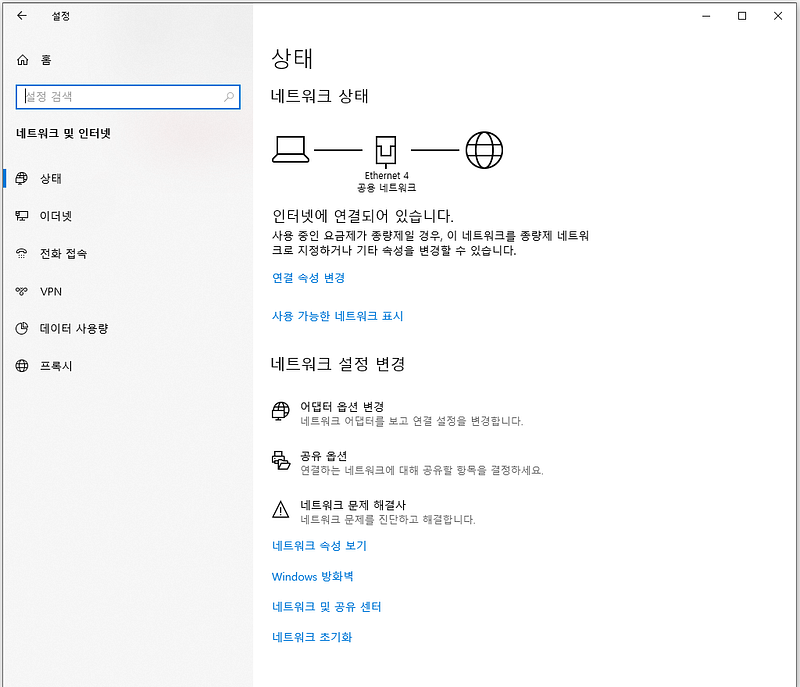
Open Control Panel → Network and Internet → Change adapter options.
-
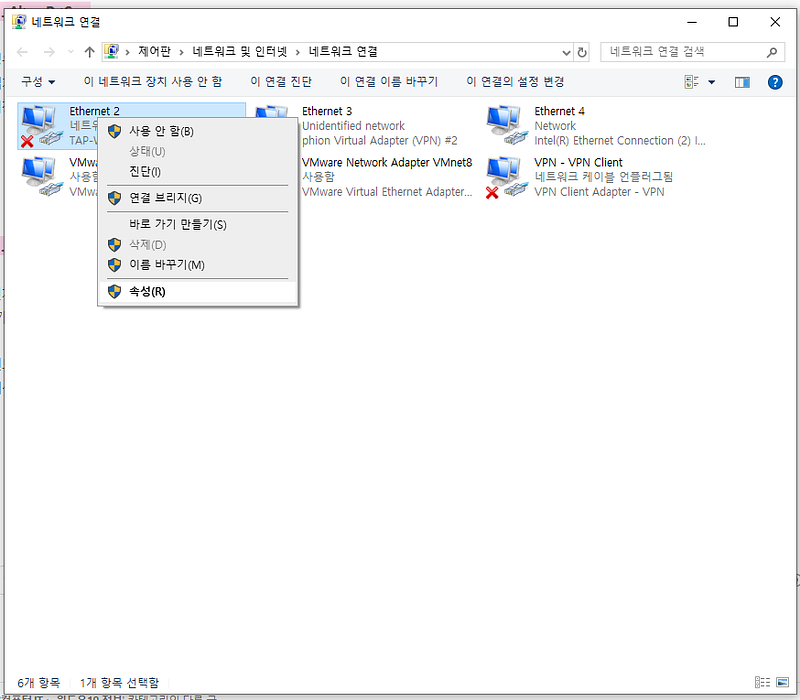
Find TAP-Win32 adapter v9 and open its "Properties".
-
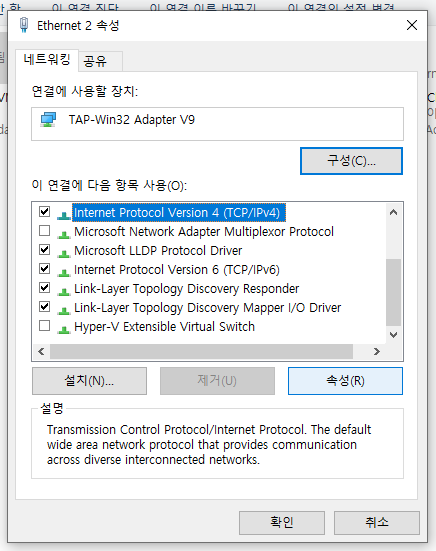
Open the "Properties" for Internet Protocol Version 4.
-
Click "Advanced".
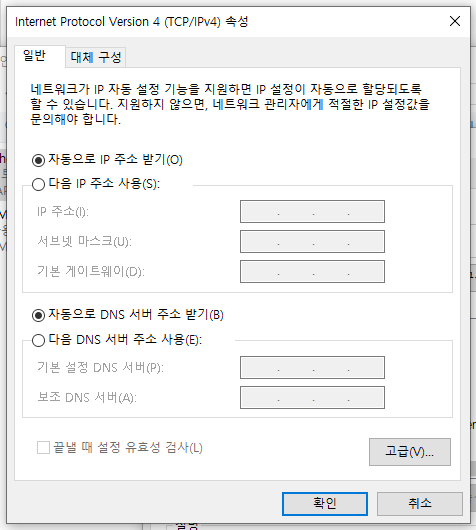
-
Clear the "Automatic metric" checkbox.
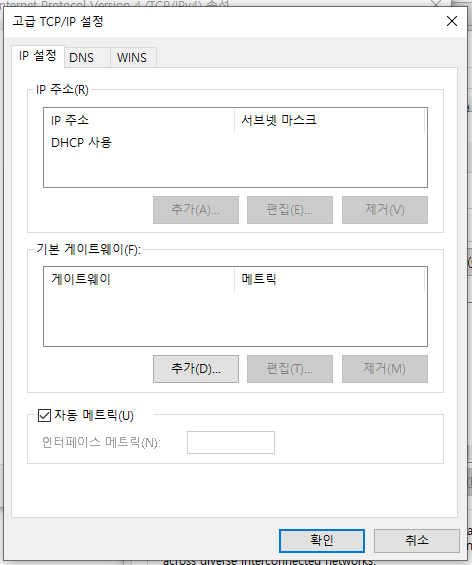
After clearing "Automatic metric", enter the value you want in the "Interface metric" field.
Q. What value should I enter?
Use a metric for TAP-Win32 adapter v9 that meets the following criteria:
-
It should be greater than the metric of the Ethernet or Wi-Fi adapter used for your Internet connection.
-
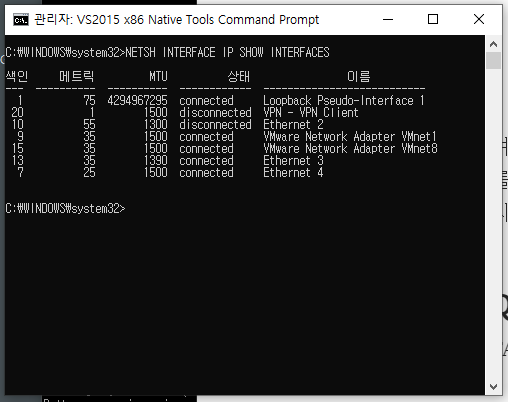
Run
NETSH INTERFACE IP SHOW INTERFACESin Command Prompt. A value greater than the metrics listed in its output is sufficient. For example, for the output shown below, use a value greater than 55.