Packet Capture with Mudfish for Android
The Mudfish Android app can capture network packets that pass through Mudfish and upload them to the technical support team without requiring a separate packet capture app. This feature is useful when requesting support for a new game or troubleshooting a connection issue.
A packet dump can contain server IP addresses, DNS queries, and unencrypted network traffic. While capturing packets, avoid signing in, making payments, or entering personal information. Only perform the actions required to reproduce the issue, and keep the capture as short as possible.
Before you begin
-
Update the Mudfish app to the latest version and sign in.
-
If Mudfish is connected, tap Disconnect first. The app does not allow you to change its settings while the VPN connection is active.
-
Stop browsers, video streaming, file downloads, cloud synchronization, and other network activity unrelated to the issue. Unrelated traffic can make the packet dump harder to analyze.
-
Make sure traffic from the target app will pass through Mudfish.
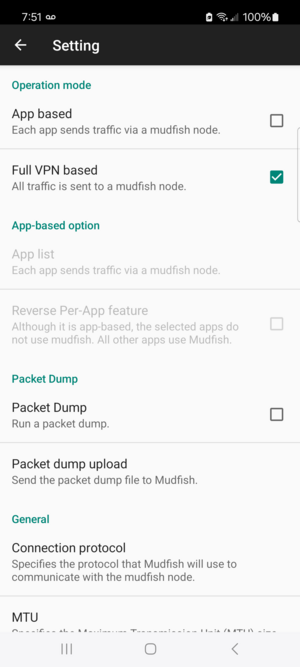
- The simplest option is to select Setting → Operation mode → Full VPN based.
- If you use App based mode, make sure the target app is included in App list. When Reverse Per-App feature is enabled, selected apps bypass Mudfish, so check this setting carefully.
The packet dump contains only traffic that passes through the Mudfish VPN. If the target app does not use Mudfish, the required packets will not be captured.
How to capture packets
-
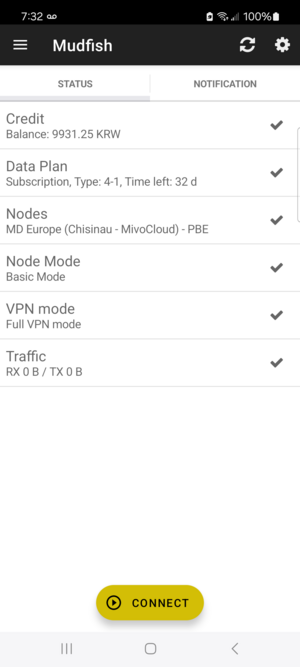
After signing in, tap the Setting icon in the upper-right corner of the main screen.
-
Select the Packet Dump checkbox. Enabling this option deletes any previous capture and creates a new packet dump file.
-
Return to the main screen, select the Mudfish node you want to use, and tap Connect. If Android asks for permission to create a VPN connection, allow it.
-
On the Status tab, confirm that Packet Dump — Enabled is displayed. This status item also shows the current packet dump file size.
-
Open the app or game you want to analyze and reproduce the issue. For example, start the game, connect to its server, and continue until the problem occurs. A short capture that includes one reproduction of the issue is normally sufficient.
-
When you have reproduced the issue, return to Mudfish and tap Disconnect.
-
Tap the Setting icon again and clear the Packet Dump checkbox. You must stop the packet dump before uploading it.
The Android app stops adding packets when the captured data reaches approximately 2MB. Keep the reproduction short. If the file size no longer increases, disable and re-enable Packet Dump to start a new capture.
Uploading the packet dump
-
Make sure Packet Dump is disabled, and then select Setting → Packet dump upload.
-
In the Reason for upload field, briefly explain what the capture is for. The following details are helpful:
- App or game name
- Server or region you connected to
- Date and time when you reproduced the issue
- Expected behavior and what actually happened
- Steps used to reproduce the issue
Example:
2026-08-07 21:10 KST, Example Game disconnects after character selection on the Japan server. -
Tap OK to upload the file, and wait for the upload to finish.
-
When the upload completes, the app displays the URL of the newly created Mudfish forum topic. Open this URL to confirm the submission and check for replies from the technical support team. Topics containing packet dumps are created in private mode.
Troubleshooting
"Stop the packet dump first." is displayed
Disconnect Mudfish, clear the Setting → Packet Dump checkbox, and then select Packet dump upload again.
"There are not enough packets to upload." is displayed
This message appears when the packet dump file is smaller than 1KB. Check the following items and capture the packets again:
- Confirm that Mudfish was connected during the capture.
- Use Full VPN based mode, or confirm that the target app is included in App list when using App based mode.
- Perform an action in the target app that generates network traffic.
The packet dump file size does not increase
The target app might not be using Mudfish, or the capture might have reached the approximately 2MB size limit. Check the operation mode and app list. If the capture has reached the limit, disable and re-enable Packet Dump to start a new capture.
The upload does not finish or no result URL appears
Try uploading again over a stable network connection. If the problem continues, open the menu in the upper-left corner of the main screen, select Send problem report, and include the time of the packet capture and a description of the upload problem.
The packet dump file is stored in the Mudfish app's private Android storage, so it is not normally accessible from a file manager. Use the app's Packet dump upload feature to send it.