Dashboard
These screenshots show Mudfish Launcher 6.5.5 on Linux in Basic item mode. If the first sign-in opens the item mode selector, choose Basic. Simple mode has a different layout.
Navigation

The main menus are at the top. Support opens the forums, private support, problem reports and self-diagnosis. Open the person icon at the upper right for account and credit options.
Item provides item purchases and management. Status shows processes, nodes, traffic and access logs. Advanced contains tools such as CLI and Packet Dump. Setup contains node, program, traffic and snapshot settings. Click the Mudfish logo to return to the dashboard.
Configuration progress

Click Connect to apply the equipped items. A progress bar of 100% means configuration is complete. If it is still incomplete after one or two minutes, check process logs and error messages under Status.
Status details
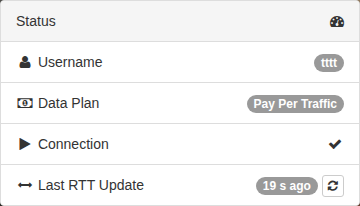
The status panel shows the username, data plan, connection state and last RTT update. Additional entries, such as Full VPN, depend on enabled features. Use Status → Process to inspect running processes and logs.
Credits and items
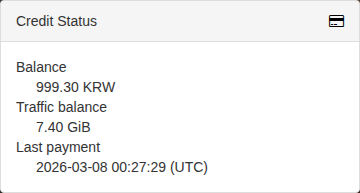
Credit Status shows the remaining balance, estimated traffic allowance and last payment time. To top up, open the person icon → Credit → Buy. Pay-Per-Traffic accounts can have a negative balance.
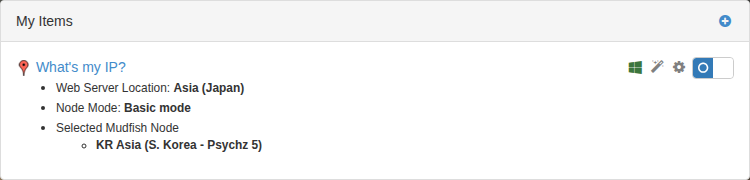
Each equipped item shows its destination, node mode and selected nodes. Click its name for status and settings. Use the switch on the right to enable or disable the item.
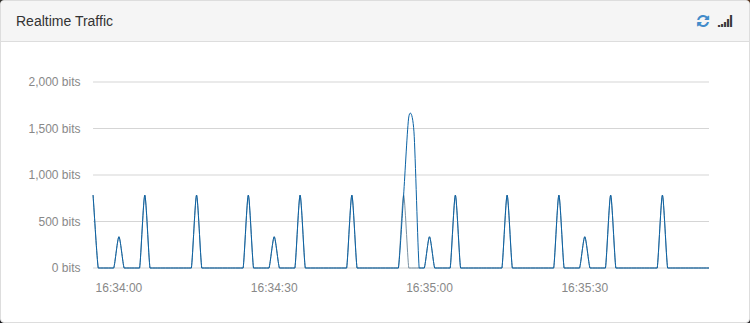
Realtime RTT and traffic graphs appear while the program is connected. Check the traffic changes while using a game or website. The screenshot shows actual measurements from the test account.