Connect to the Muddog VPN
The Connection screen
Open Muddog, then select Connection at the top. On Windows, open muddog from the Start menu; on macOS, open Muddog from Applications. Muddog 2 has no login screen for using the VPN.
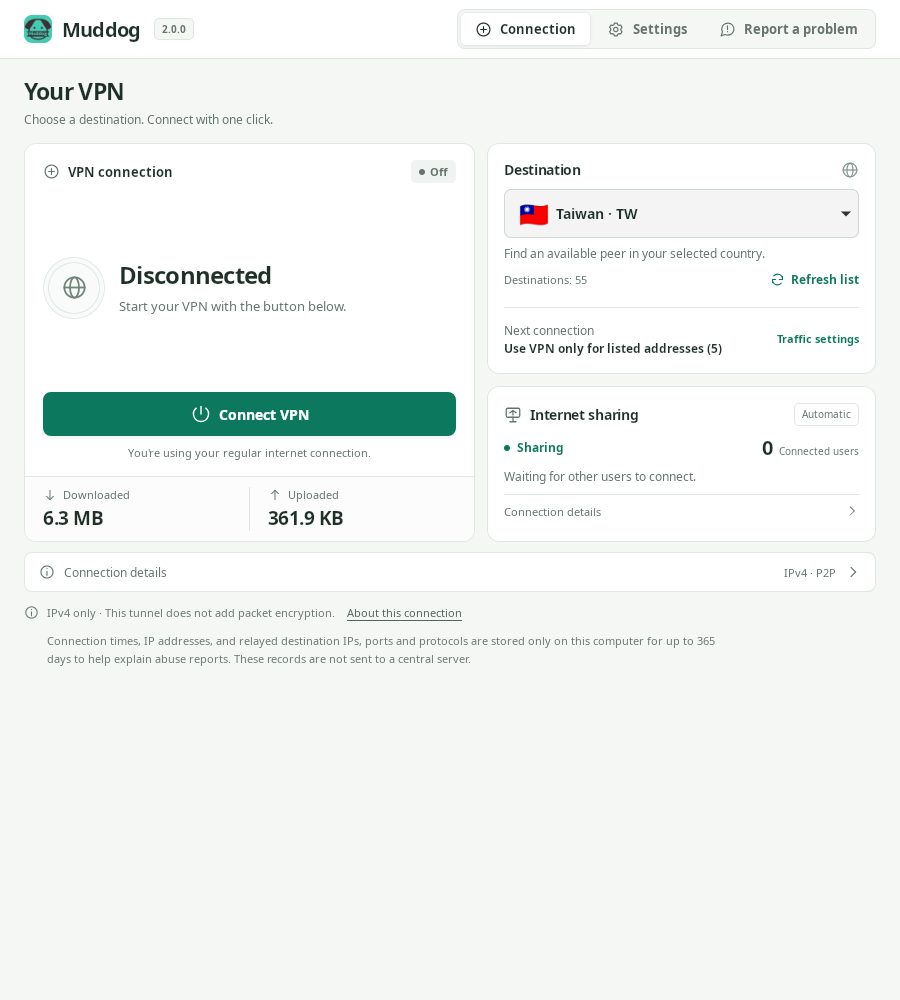
VPN connection — Muddog 2.0.0 (Linux)
| Screen area | What it shows |
|---|---|
| VPN connection | Your VPN status, connect/cancel/disconnect buttons, and data sent and received during the most recent VPN connection |
| Destination | Country selection, country list refresh, and traffic settings for the current or next VPN connection |
| Internet sharing | The status of sharing your connection with others and the number of connected users |
| Connection details at the bottom | Tunnel IP, the connected peer, and detailed VPN status messages |
Choose a country and connect
- Under Destination, select a country. Choose Automatic if you do not need a specific country.
- Check Next connection. To change it, open Traffic settings, configure VPN traffic, and save.
- Click Connect VPN.
- When Connected appears, open the website or app you want to use. In per-app mode, you must launch the app from Muddog.
Your country selection is saved immediately. If the list is empty or does not include your preferred country, click Refresh list. These countries are not a fixed list of servers, so a connection can fail if no participant in that country is available.
While connecting, a progress message shows the current attempt, such as attempt 2 of up to 10. Muddog tries different peers up to 10 times, but may stop earlier if no peers remain. This number is not the number of available users. Each peer gets a 10-second connection establishment wait. Server requests take additional time, so the overall process is not guaranteed to finish within 100 seconds.
You can click Cancel connection while waiting. If the connection fails, check Connection details and click Reconnect, or choose another country.
Verify your connection
After connecting, open the public IP check page to compare your IPv4 address before and after connecting. The Tunnel IP is an address used inside the VPN, so it differs from the public IP address that websites see.
The browser used for this check must also be covered by your VPN traffic settings.
- Use VPN for all internet traffic: Open the IP check page in your browser.
- Specific IP addresses or ranges: If the check page falls outside the selected range, it may show your regular connection's IP address. Also check access to the destinations you actually route through the VPN.
- Per-app VPN: Fully close the browser, then launch it again from Muddog before checking.
IPv6 connections use your regular internet connection, while per-app VPN on Windows blocks IPv6 traffic from selected apps. If your IP address appears unchanged or you cannot access websites, see Troubleshooting.
Change countries or disconnect
To change countries, click Disconnect and wait for Disconnected. Then choose another country and connect again. If a connection attempt is in progress, click Cancel connection first.
Also click Disconnect when you have finished using the VPN. Closing the window does not disconnect the VPN. If you have closed it, reopen the app to disconnect. Internet sharing continues even after you disconnect your personal VPN.
If you lose contact with the peer after connecting, you must start a new VPN connection manually. Automatic retries during connection establishment are separate from reconnecting an established VPN. Muddog does not block your regular internet connection if the VPN disconnects.