Connection settings
Use Settings to choose how DNS reaches Mudfish and whether to use a proxy. To change DNS providers or DoH/DoT, see DNS servers.
Apply settings
Change options on the Settings page, then select Apply settings. If DNS is running, applying changes briefly stops and reconnects it. Captured web connections may close, so reopen the affected website or app afterward. If DNS is stopped, the new settings take effect the next time you start it.
Discard changes cancels unsaved edits. Display language takes effect immediately without applying the DNS settings.
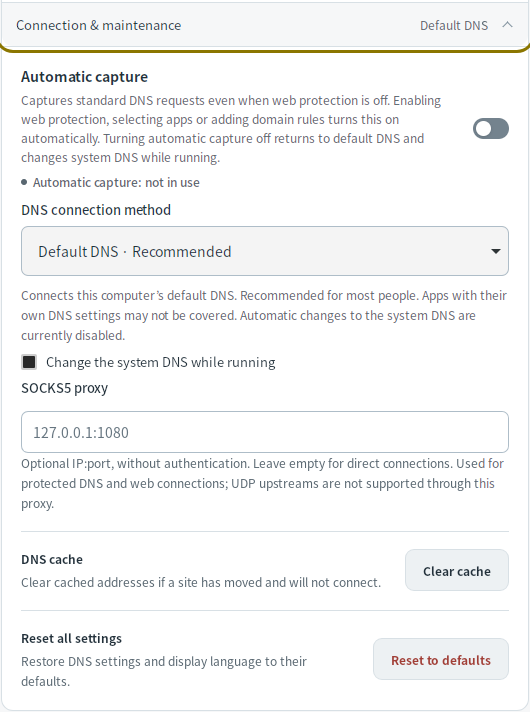
DNS connection method
On Windows and Linux, open Settings → Connection & maintenance to change how DNS reaches the app.
| Method | Coverage |
|---|---|
| Default DNS | Connects the computer's default DNS to Mudfish while running and restores it on stop. Apps that use a different DNS server may bypass it. |
| App DNS · WFP / App DNS · WinDivert (Windows) | Captures standard DNS requests, including requests sent to DNS servers chosen by apps. |
| Include app-specified DNS · eBPF (Linux) | Captures standard DNS requests, including requests sent to DNS servers chosen by apps. Requires Linux 6.6 or later. |
| Virtual network · Wintun (Windows) / Use a virtual network · TUN (Linux) | Handles requests through a dedicated virtual DNS interface. Does not capture requests to other DNS servers chosen by apps. |
macOS uses its DNS Proxy, and Android uses its VPN permission to handle DNS. Apps' own encrypted DNS connections, such as a browser's DoH or Android Private DNS, are not decrypted or forced through the configured DNS servers.
Automatic capture
On Windows and Linux, Automatic capture handles standard DNS even when web protection is off. Enabling web protection or setting app/domain rules prepares capture automatically; select Apply settings to activate it.
To turn capture off, first turn off web protection and clear the app and domain lists. Turning capture off returns to Default DNS with system DNS changes enabled.
SOCKS5 proxy
Under Connection & maintenance, enter an IP address and port in
SOCKS5 proxy, such as 127.0.0.1:1080, then apply the settings. Leave it
empty for direct connections. Proxy authentication is not supported.
The proxy is used for protected DoT, DoH, TCP DNS, Mudfish TCP, and web connections. Disable or replace enabled UDP servers, including Mudfish UDP, before using it. If the proxy fails, these connections do not fall back to a direct connection.