Web protection
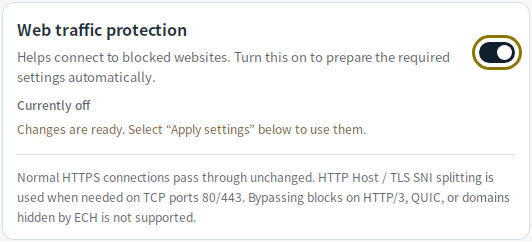
Web traffic protection is an optional Windows/Linux feature that may help with some website blocks. It is off by default and works alongside DNS protection.
Enable web protection
- Open Settings and turn on Web traffic protection. The required automatic capture settings are prepared automatically.
- Select Apply settings.
- Select Start DNS if DNS is stopped.
- Reopen the affected website or app to establish a new connection.
Coverage and requirements
Web protection changes how HTTP Host and HTTPS TLS SNI data is sent on TCP ports 80 and 443. For HTTPS, it tries a normal connection first and uses splitting when needed. It does not decrypt HTTPS content or require a certificate installation.
Linux web protection requires Linux 6.6 or later with eBPF. Selecting individual apps also requires cgroup v2 and kernel BTF support.
The download page lists macOS as supporting DNS protection only. For macOS and Android, see the DNS setup guide.
HTTP/3 (QUIC), hostnames hidden inside Encrypted ClientHello (ECH), and web traffic on other ports are outside the splitting feature's coverage. Results depend on the network. Reopen existing connections after applying changes.
Choose apps or add exceptions
By default, web protection applies to all apps and domains. Use App and domain rules to select apps or add exceptions. These rules also affect DNS protection, even when web protection is off.
Check a connection
Enable recent domain recording to see web processing results. A Split sent result confirms that initial data was sent, not that the website responded successfully. If the site still does not open, follow the troubleshooting guide.