Quickstart
If you're first to use the mudfish program, this page is for you. With the following steps, you can check that it's working properly or not.
Download and install Mudfish
Download the Mudfish installer from Mudfish Download link.
Choose the installer for your operating system. For detailed instructions, see Installation.
Create an account
Visit https://mudfish.net and select "Sign Up" from the sign-in page. Enter your preferred username, email address, and password to create an account.
Verify your email address using the confirmation email. An unverified address may limit your ability to reset your password. Email verification also adds a small amount of free trial credit so you can briefly test all Mudfish features without purchasing credits.
When you need more credits, select "Credits → Buy" under the website's main links and choose an available payment method. Your updated balance will appear on the dashboard. The free test item below does not require a credit purchase.
Launch Mudfish
-
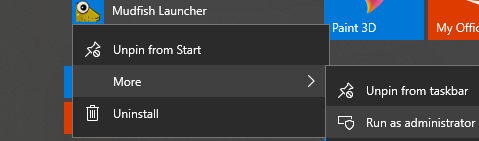
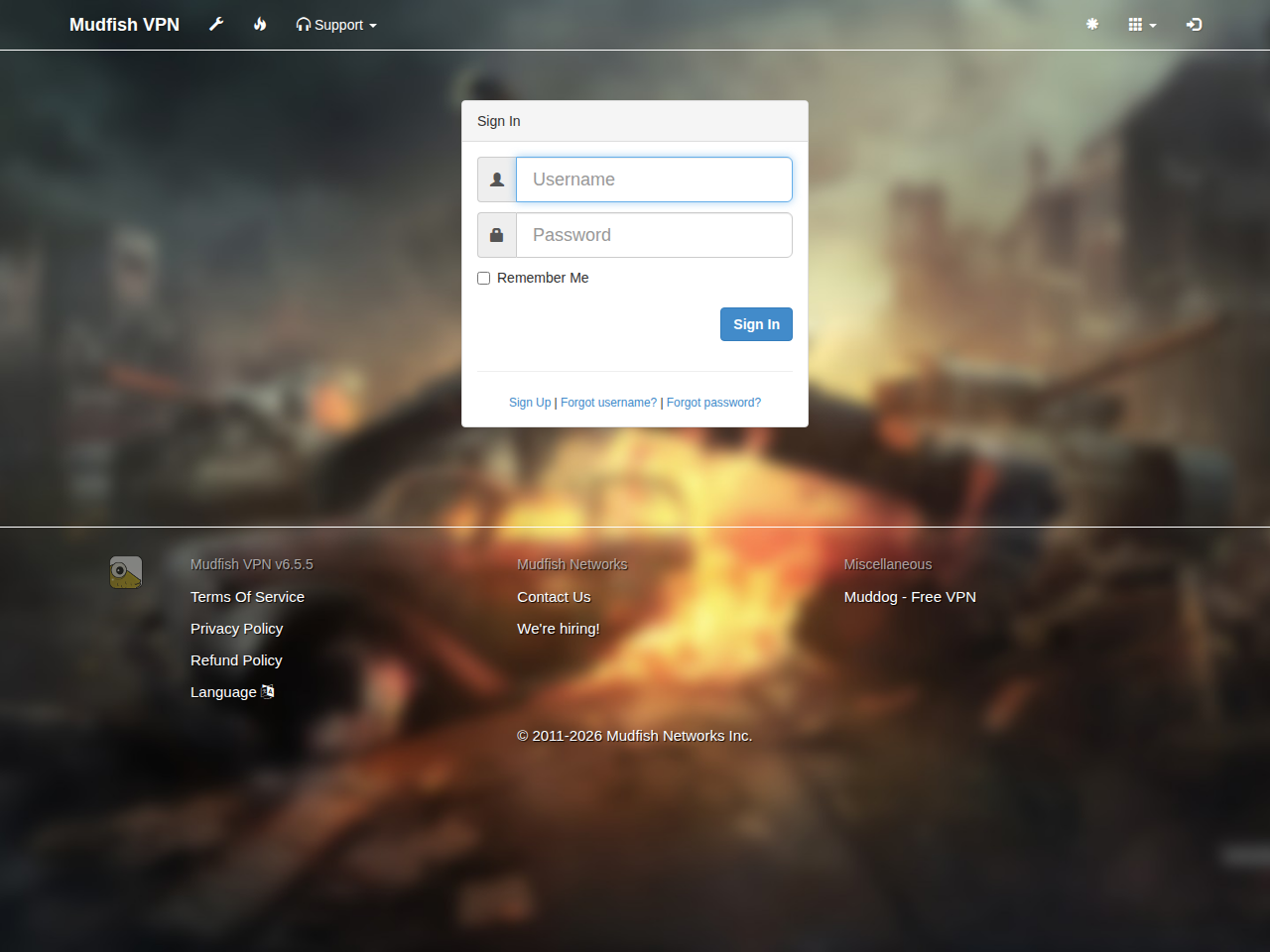
Run Mudfish Launcher and sign in with your Mudfish account. On Windows, right-click the launcher and select "Run as administrator".
-
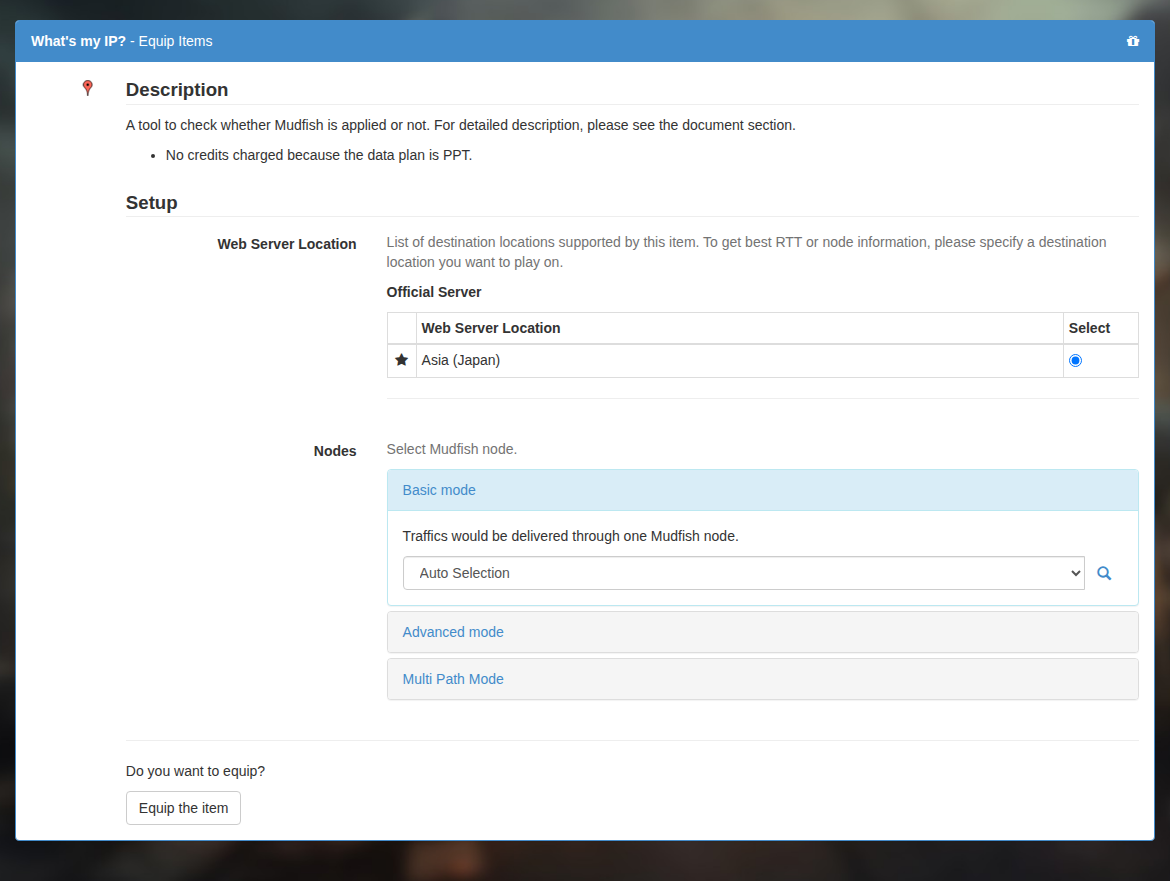
Visit 'Item → Equip Items' menu and click 'Site' tab. There you can find 'What's my IP?' item and buy it. (No any credits required because it's free to use)
-
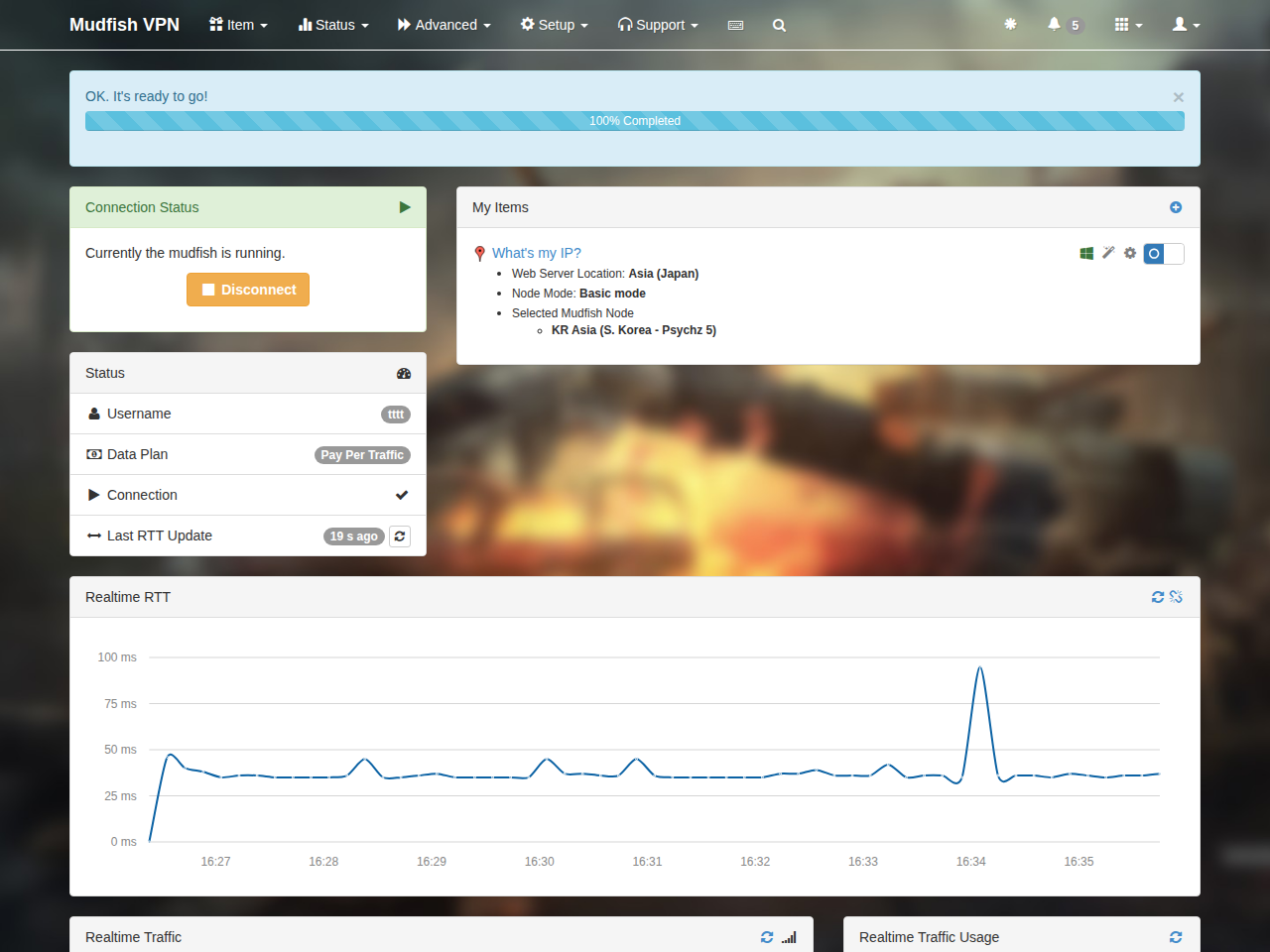
Click Connect. When it starts, the configuration will be done automatically so please wait a moment until it shows that it's done.
-
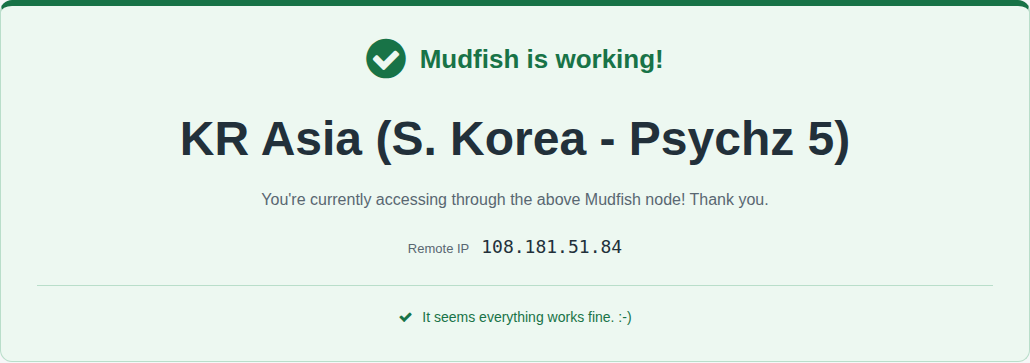
Visit https://myip.mudfish.net site. If it works correctly, the site would say "It's working."
Select "Remember Me" if you want to skip signing in each time. If you have questions about the program, your account, or credits, contact the Mudfish forums.