Mudfish with TeamViewer
Method 1: TeamViewer proxy settings
-
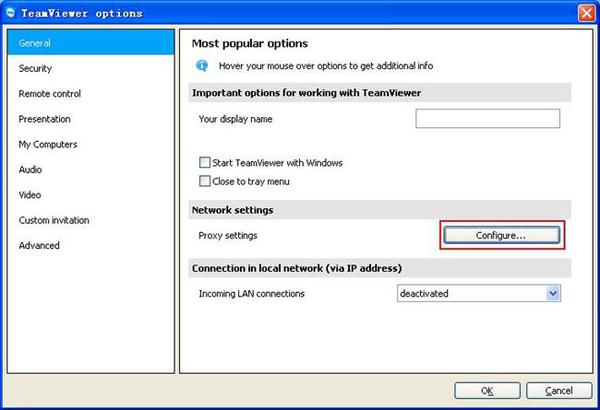
Open TeamViewer's “Extras → Options” menu, then open the proxy settings.

In this Korean screenshot, “기타” means “Extras” and “옵션” means “Options”.
-
Under “General → Network settings → Proxy settings”, click “Configure”.
-
Select “Use manual proxy” and enter:
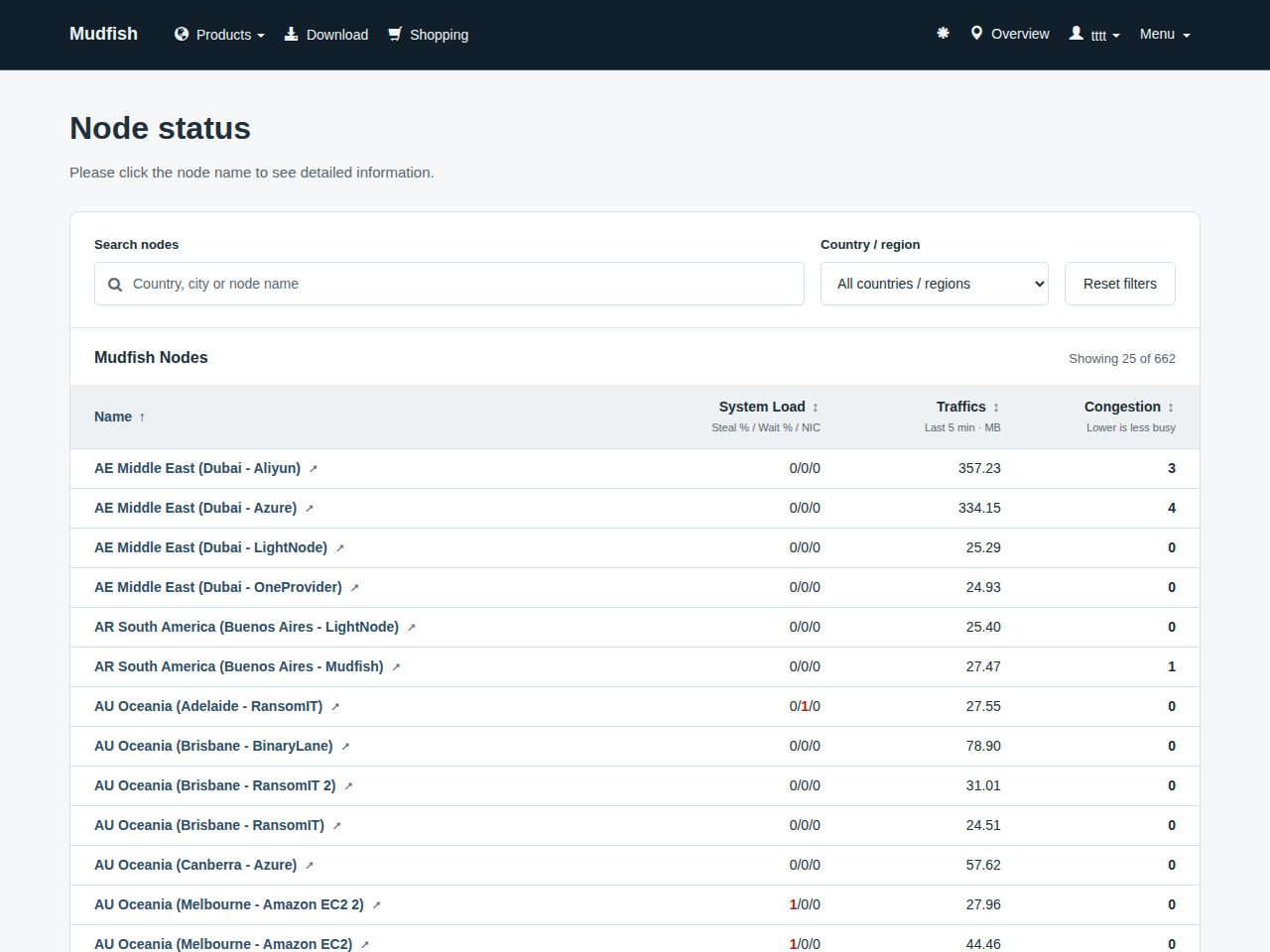
- Proxy IP: the public IP of the Mudfish node you want to use. Find it at https://mudfish.net/server/status by selecting the node.
- Port:
18080(HTTP proxy). - Username and password: your Mudfish account credentials.
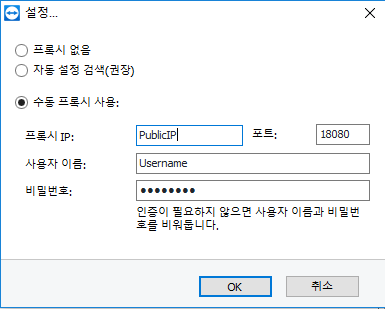
This screenshot is in Korean: “수동 프록시 사용” means “Use manual proxy”, “프록시 IP” means “Proxy IP”, “포트” means “Port”, “사용자 이름” means “Username”, and “비밀번호” means “Password”. The values shown are placeholders.
Method 2: Proxifier
Follow Mudfish with Proxifier to route the TeamViewer process through Mudfish using Proxifier or a similar application. This method does not require installing the Mudfish package.