Mudfish with KakaoTalk
Method 1: The KakaoTalk item
Sign in to Mudfish and open “Item → Equip Items”. Under the “Site” tab, equip the KakaoTalk item. See Items for details.
Method 2: KakaoTalk's proxy settings
The KakaoTalk proxy implementation described here does not support the Proxy Authentication header, so it cannot use the public IP of a Mudfish HTTP proxy. Use the node's internal IP through a running Mudfish connection instead:
-
Start Mudfish Launcher.
-
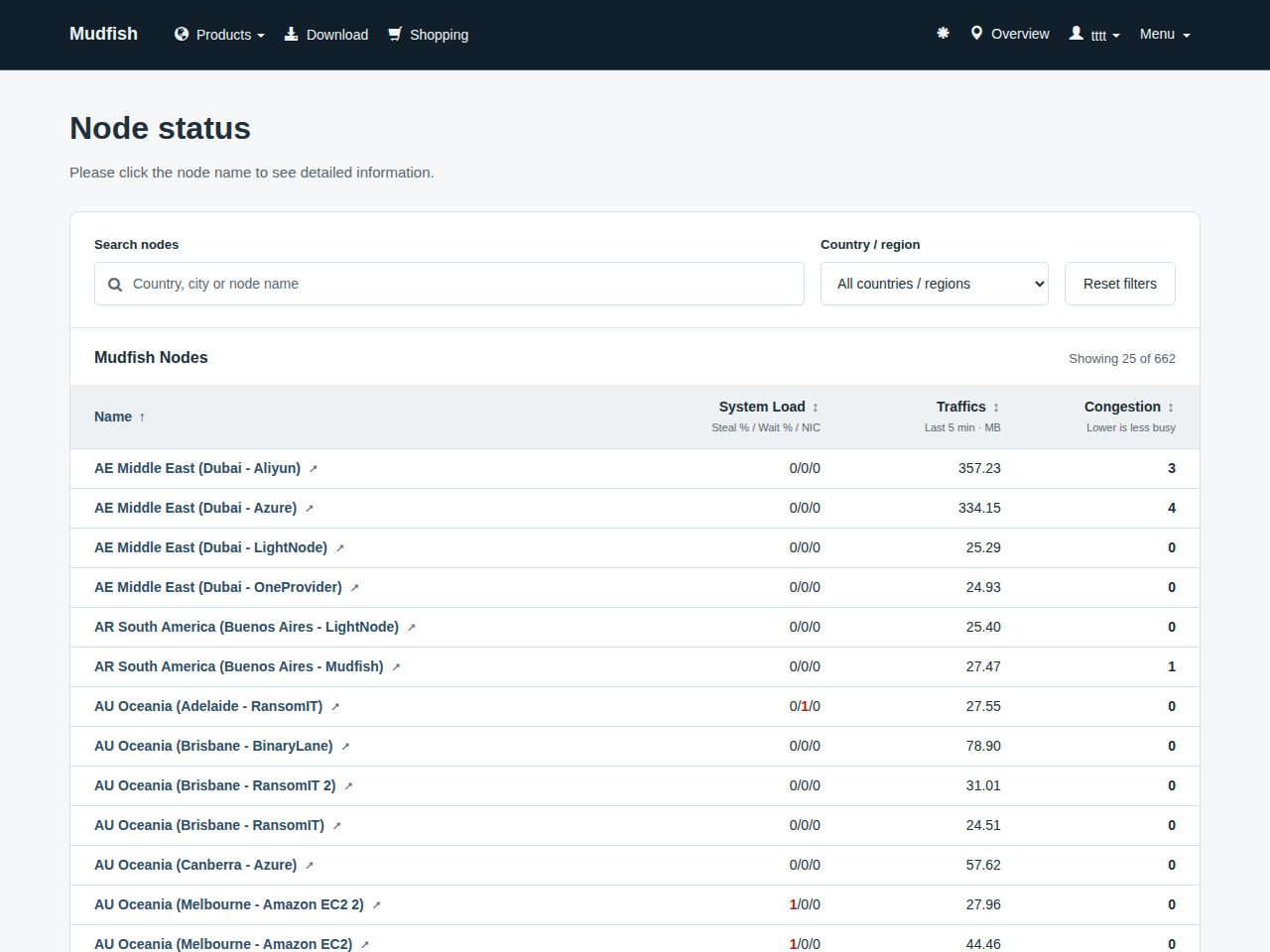
At https://mudfish.net/server/status, select the node you want to use and find its internal IP address.
-
Enter that address in KakaoTalk's proxy settings:
- IP address: the node's internal IP. For example, the documented address for
KR Asia (S. Korea - KT4 IDC) is
10.248.240.1. - Port:
8080.
- IP address: the node's internal IP. For example, the documented address for
KR Asia (S. Korea - KT4 IDC) is
-
Save the settings and restart KakaoTalk completely.
The internal HTTP proxy address is reachable only while Mudfish is running.
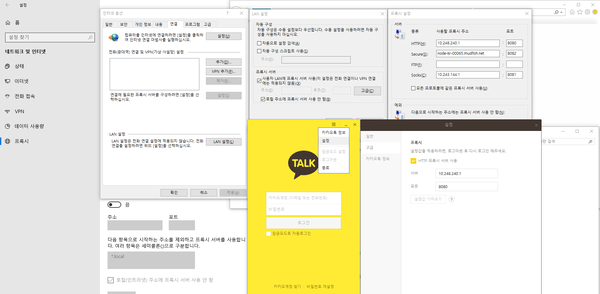
This Korean screenshot shows the location of the proxy settings. “설정” means “Settings” and “프록시 서버 사용” means “Use proxy server”. Enter the node address and port listed above; the other Windows dialogs shown are not additional steps.
Method 3: Proxifier
Follow Mudfish with Proxifier to route the KakaoTalk process through a proxy. This method does not require installing the Mudfish package.
Method 4: Full VPN mode
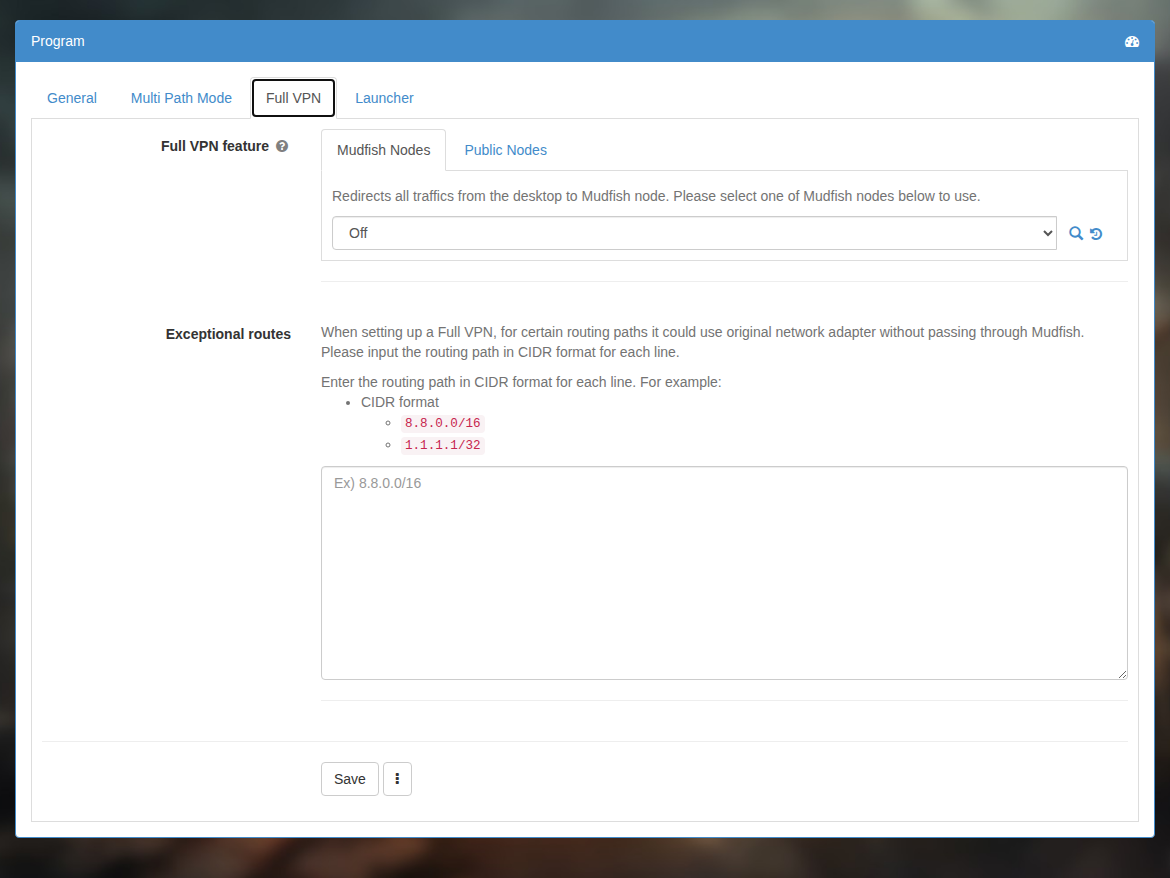
Enable Full VPN mode to route all of the computer's traffic, including KakaoTalk, through Mudfish.