mudrun Command-Line Options
The mudrun process, also called Mudfish Launcher, provides the Mudfish user interface.
mudrun command-line options
The following options are available:
-
-a <addr>Sets the address on which Mudfish Launcher listens. The default is 127.0.0.1 (loopback). Set
<addr>to0.0.0.0to listen on all interfaces. -
-BDoes not open the operating system's default browser when Mudfish Launcher starts.
-
-DDumps the HTTP response bodies for requests made by Mudfish Launcher to files. This lets you examine the messages received from the Mudfish master server in detail.
-
-IUses IP Helper instead of DHCP when the Mudfish Core program assigns a private IP address in the operating system.
-
-NUses a TUN driver instead of the TAP driver provided by OpenVPN. This can be an alternative when the TAP driver cannot be installed correctly on Windows.
-
-OThis option was available through Mudfish Cloud VPN v5.6.2. It is no longer available starting with v5.7.1.
Connects to the Mudfish master server using the older ports, such as 10007 and 10008, instead of the usual ports 80 or 443.
This can be used when a network firewall prevents access to the master server.
-
-p <password>Supplies your password for automatic login when specifying your username and password directly.
-
-P <port>Sets the port on which Mudfish Launcher listens. The default is TCP 8282.
-
-SUses plain text instead of SSL to communicate with the Mudfish master server.
-
-sUses SSL for communication between your browser and Mudfish Launcher. The browser connects to https://ui.mudfish.net:8282 instead of http://127.0.0.1:8282.
-
-tForces Mudfish Launcher to format its requests to the master server as HTTP requests.
-
-u <username>Supplies your username for automatic login when specifying your username and password directly.
-
-X <proxy_ip:proxy_port>This option was available through Mudfish Cloud VPN v5.6.2. It is no longer available starting with v5.7.1.
Connects through an HTTP proxy when a firewall makes it difficult to access Mudfish. For detailed examples, see Connecting to Mudfish from China (Korean).
Applying options
Windows
The following example applies both -I and -D:
-
Open Mudfish Cloud VPN in the Windows Start menu.
-
Right-click Mudfish Launcher and select Properties.
-
Edit the command in the Target field. The default is usually:
"C:\Program Files\Mudfish Cloud VPN\mudrun.exe"Add
-Iand-Dafter the closing quotation mark:"C:\Program Files\Mudfish Cloud VPN\mudrun.exe" -I -D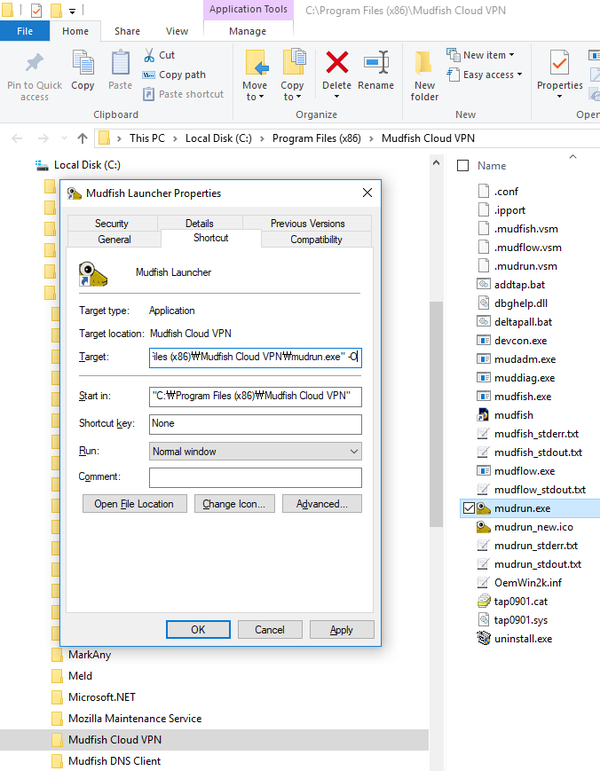
The screenshot shows the same Target field with the older
-Ooption. For this example, use-I -Das shown in the command above.
OS X
On OS X, launch Mudfish from Terminal:
-
Open Applications → Terminal.
-
Run
sudo bashto become root. -
Change to the Mudfish installation directory:
cd /Applications/Mudfish\ Cloud\ VPN.app/Contents/MacOS/ -
Run
./Mudfish\ Cloud\ VPN -cfollowed by the desired option.
This older screenshot uses
-O, which is unavailable starting with v5.7.1. Choose an option supported by your installed version.