Packet Capture with Wireshark
Install and prepare Wireshark
Download Wireshark from its official website. The older Windows setup illustrated below uses WinPcap. Use wired Ethernet for that setup: WinPcap may not capture Wi-Fi correctly, while AirPcap is a commercial alternative.
If a legacy capture setup fails on Windows 10 build 1607 or NDIS 6 and later, the original troubleshooting options include Win10Pcap or Npcap.
Before capturing a new game's traffic, close browsers, torrents, downloads and other programs that generate unrelated traffic. This keeps the file smaller and makes analysis easier.
Capture controls in older Wireshark versions
-
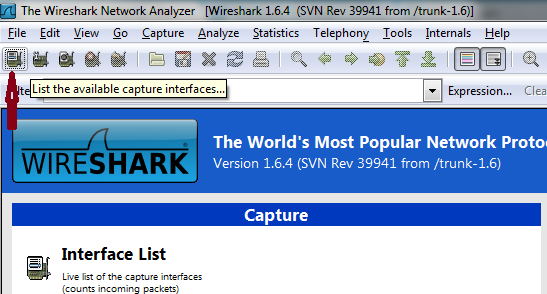
Click “List the available capture interfaces”.
-
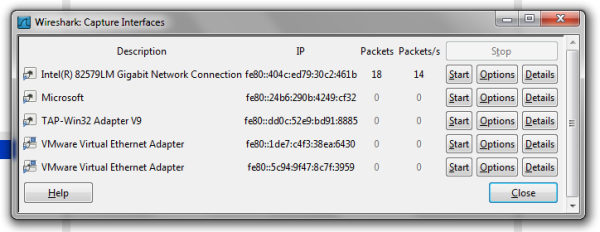
Select the physical adapter connected to the Internet. Its packet count normally keeps increasing. “TAP-Win32 Adapter V9” is Mudfish's virtual adapter; the Intel Ethernet adapter in this example is the physical one. Your adapter name may differ. Click “Start” next to the intended adapter.
-
Play with other users while capturing. A capture made without actual gameplay is not useful for registering the game.
-
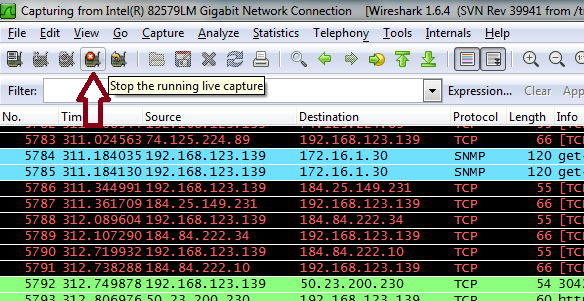
Click “Stop the running live capture”, then use “File → Save”.
How to
There are multiple tutorials available on the internet about how to capture packets using Wireshark as follows:
- How to Use Wireshark to Capture, Filter and Inspect Packets
- Intro to Wireshark - Packet Capture and Protocol Analysis
Instruction
Register new game
If you'd like to register game you're playing at Mudfish. Please follow below:
-
(Optional) Stop all programs which make any network activities.
-
Stop Mudfish program also.
-
Run Wireshark and start to capture packets against network device which is connected with the internet line.
-
Play a game with other users (important).
-
Stop to capture and save to the file.
-
Sends the packet dump file to support@loxch.com
Dump missed IP blocks for mudfish item
Sometimes the technician of mudfish asks you to do the packet dump to get the missed IP blocks if the mudfish item doesn't work properly. Then please try to do as follows:
-
Disable Full VPN mode first.
-
Run Wireshark and start the packet dump. However please perform a dump for the network interface which connects with your ISP. Please don't dump TAP-Win32 adapter v9 because we're looking for missed IP blocked.
-
Please make sure that your items are enabled and run the mudfish launcher. And please wait until your configuration is applied.
-
Progress your steps until the problem is reproduced while Wireshark is doing the packet dump.
-
When it's reproduced, stop to capture and save to the file.
-
Sends the packet dump file to support@loxch.com
Packet captures can contain sensitive information. Email the file to
support@loxch.com; do not upload it to a public forum topic.