Installing GamePing
Download
Open the GamePing download page and choose the option for your device. An internet connection is required.
| Device | What to choose |
|---|---|
| Windows 10/11, 64-bit PC | Either the Windows .exe or .msi installer |
| Apple Silicon Mac (M1, for example), macOS 11 or later | App Store or .dmg under macOS |
| Linux x86_64 PC | .deb for Debian/Ubuntu, .rpm for Fedora, or .AppImage |
| Android phone or tablet | Google Play |
| iPhone or iPad | App Store |
Check the download page for supported environments and available packages. For mobile devices, also check compatibility in the linked app store.
Windows
- Download one installer from the Windows section of the download page.
- Double-click the downloaded
.exeor.msifile. - Follow the installer instructions.
- When installation finishes, find GamePing in the Start menu and open it.
You only need one of the two installer types.
macOS
To use the App Store, follow the App Store link on the download page, install GamePing, and open it.
To use the DMG file:
- Double-click the downloaded
.dmgfile. - Drag GamePing into the Applications folder.
- Open GamePing from the Applications folder.
Android, iPhone, and iPad
- Open the download page on the device you want to use.
- Tap Google Play for Android or App Store for iPhone/iPad.
- Install GamePing from the store, then tap Open.
An APK file is also available on the Android download page. If you are new to GamePing, start with the app store installation.
Linux
Download the package for your distribution and open it with your software installer. To use a terminal, run the commands below from the download folder. The filenames below are examples; replace them with the filenames you downloaded.
Debian / Ubuntu
sudo apt install ./GamePing_0.1.7_amd64.deb
Fedora
sudo dnf install ./GamePing-0.1.7-1.x86_64.rpm
After installing the package, find GamePing in your application menu and open it.
AppImage
Make the downloaded file executable, then run it directly.
chmod +x GamePing_0.1.7_amd64.AppImage
./GamePing_0.1.7_amd64.AppImage
First launch
If the app opens in another language, you can switch to English:
- Select the ☰ button with three horizontal lines in the upper left.
- Select Settings (설정 in Korean).
- Under Language (언어 in Korean), select English. The change takes effect immediately.
- Open ☰ → Game library again.
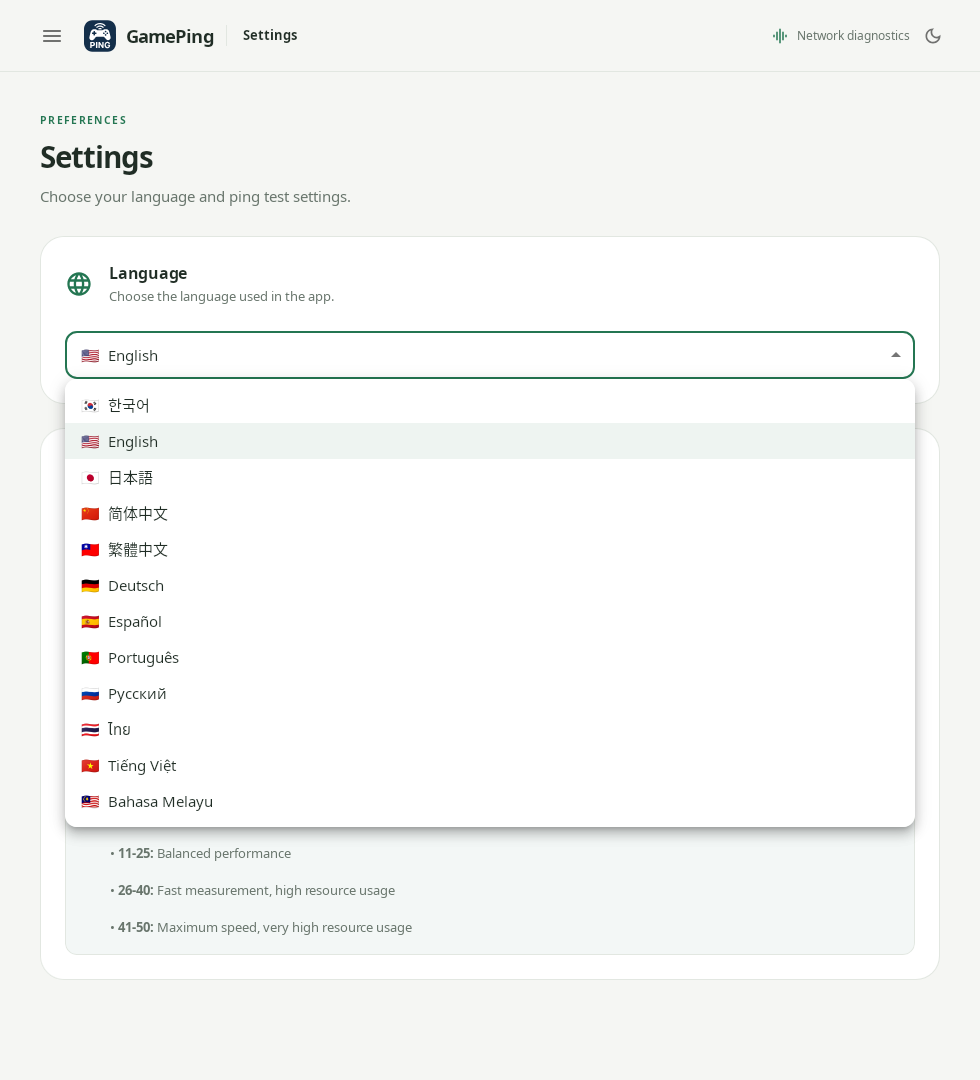
Select English, the second option in this language list.
Wait while the game list loads. Seeing Measuring latency to mudfish nodes is normal. Mudfish nodes are relay servers that a Mudfish VPN connection can pass through; the app is collecting measurements to calculate estimated routes.
Next, follow Your first ping test to choose a game and server.