Your first ping test with GamePing
Follow select a game → select a server location → check the results. You can test without running the game. The menu names in this guide refer to the English interface; captions explain the Korean labels in retained screenshots.
If screenshot text is too small, click the image to view it at its original size.
1. Find your game
- Open GamePing. If you are on another screen, select ☰ → Game library in the upper left.
- Enter the game name in Search by game name.... You can search with just part of the name.
- Select the game in the search results.
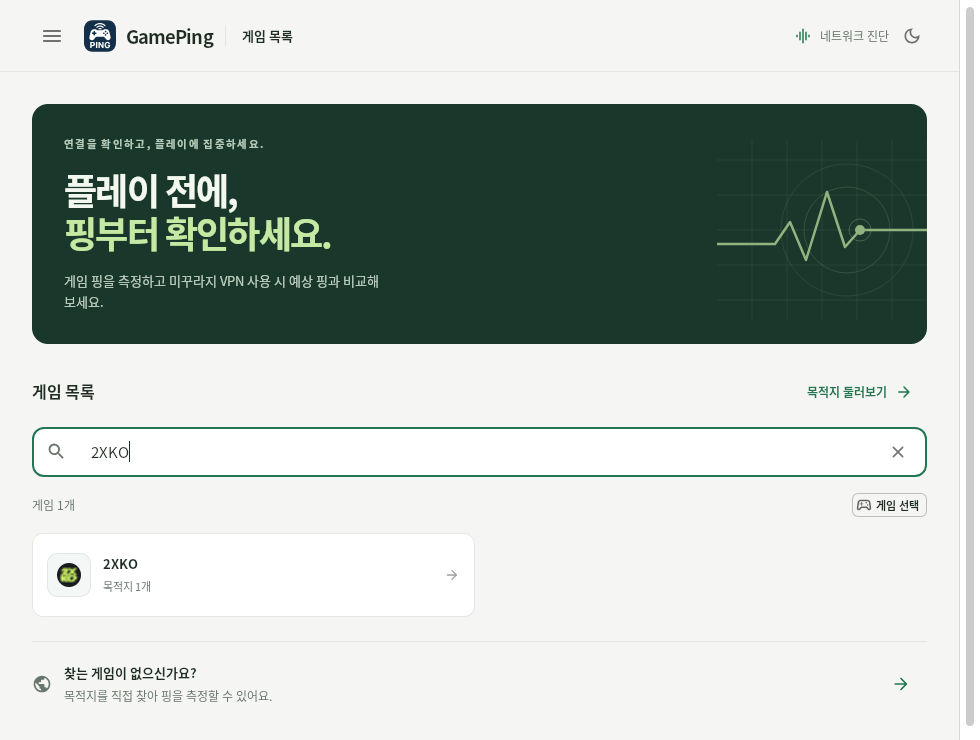
A search for 2XKO in the Korean interface. 게임 목록 means Game library. Select the game below the search field.
Leave the search field empty to see the full list. Use the page numbers below the list to browse more games, or the × button in the search field to clear your search. Your search term may remain when you reopen the app.
2. Choose a server location
Selecting a game opens the server locations registered for it. Choose the location of the server you normally play on. For example, if you play on a Japanese server, select the corresponding Japanese server in the list.
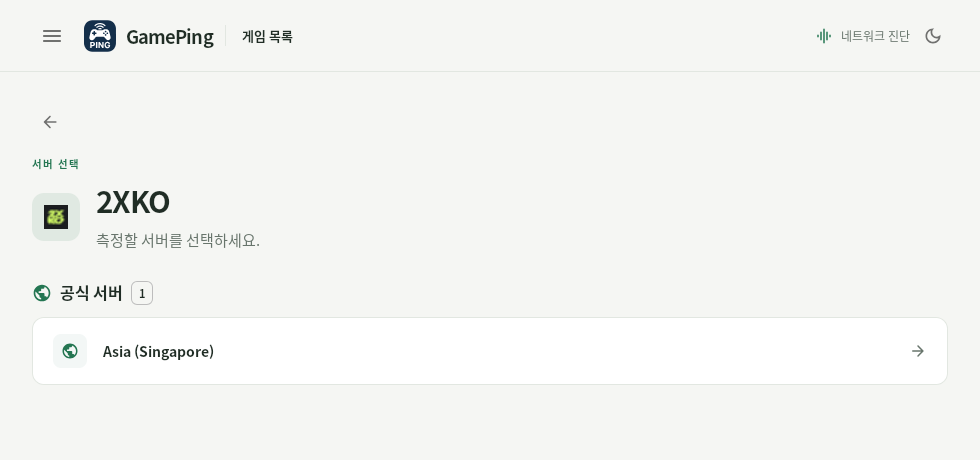
This game has a Singapore server listed. 공식 서버 means Official Servers in this Korean screenshot. Select the server name to start testing. The available servers depend on the game you choose.
Depending on the game, Official Servers and Private Servers may appear in separate groups. If you are unsure which to choose, check the server name and region you use in the game. If you play on a private server, select that server.
3. Watch the automatic measurements
Selecting a server location starts the test without a separate Start button.
- Wait for a number to appear under Current ping.
- Keep the screen open and watch the numbers and Live ping graph change.
- After watching for about a minute, check Average ping and Std Dev together.
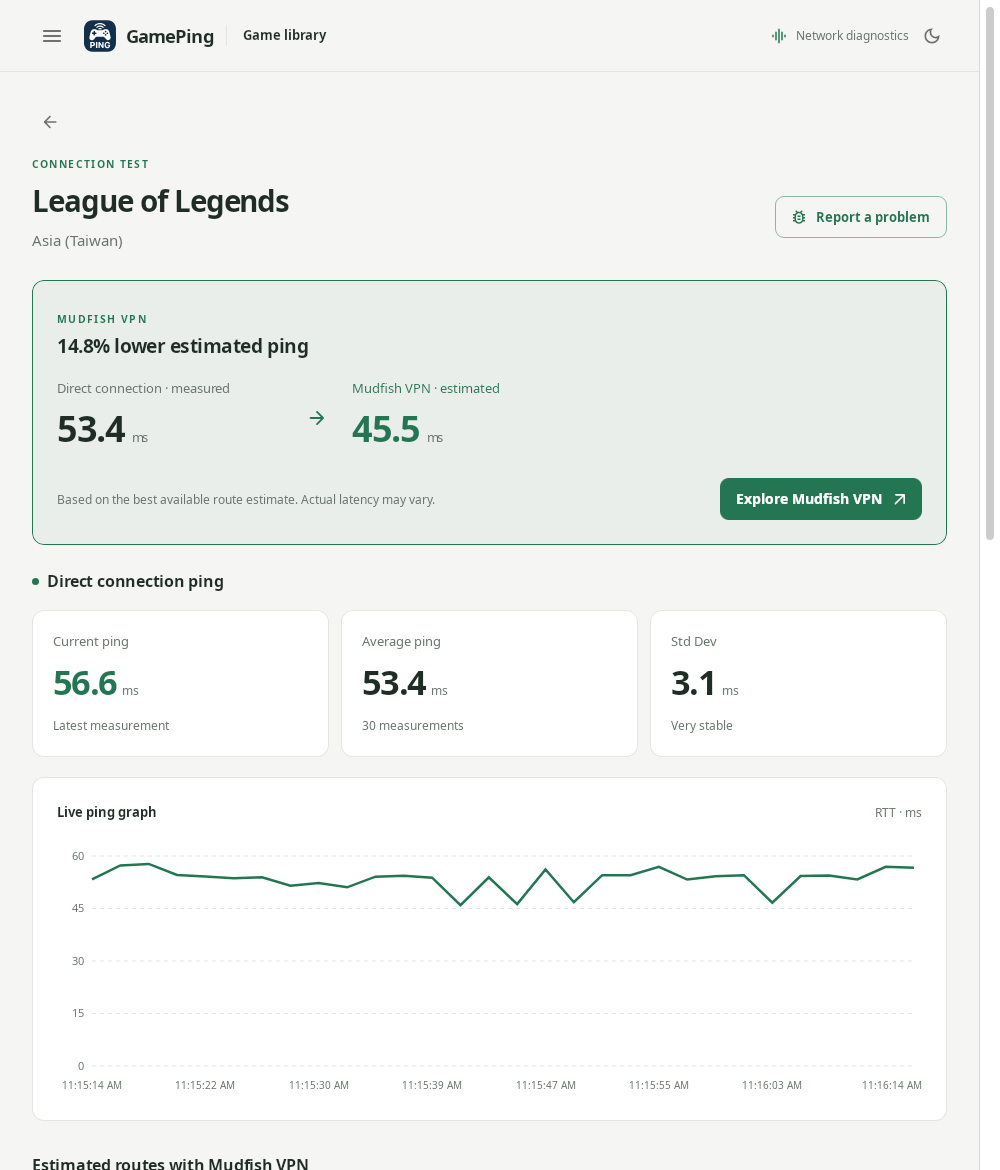
Check the numbers and graph under Direct connection ping. This English example uses League of Legends in Taiwan, rather than the 2XKO server above. The VPN comparison above the measurements is an estimate. The numbers are examples from the capture environment; your results will vary.
After each measurement finishes, the app waits about two seconds before starting the next one. A slow response or a failed test can make this interval longer. The screen reflects up to the 30 most recent measurements. See Reading the results for what each number means.
To test another server, select the ← (Go back) button on the left to return to the server list. Leaving the measurement screen stops direct ping tests for that server. Returning to it starts a new measurement history.
Choose the same game and server, and compare at a similar time and location if possible. Large downloads and internet use by other devices can also affect ping. Write down the numbers you want to compare or take a screenshot before leaving the screen.
Search by destination instead of game
Use Destinations if you have trouble finding a game or want to explore a particular region first. A destination here is a server or region to test.
- Select ☰ → Destinations. You can also select Browse destinations in the game library.
- Enter a name or region in Search by destination name or region....
- Select a destination in the list to start testing automatically.
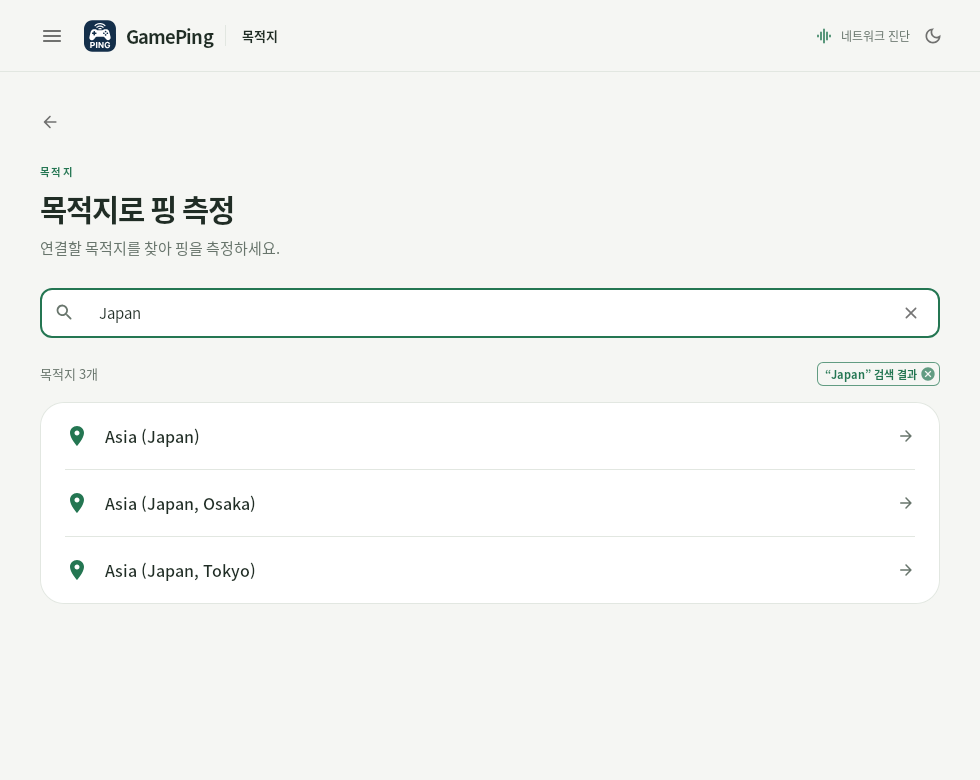
Searching for Japan in the Korean 목적지 (Destinations) screen. If region names appear in English, try searching with names such as Japan or Singapore.
This screen lets you choose from registered destinations. It does not let you enter an arbitrary IP address or add a new server. Different servers in the same region do not necessarily give the same results.
What are the relay tests on the home screen?
After starting, GamePing also automatically measures ping to Mudfish relay nodes. The game library may show progress and a message such as Round 1/3. These measurements are used to calculate estimated Mudfish VPN routes.
You can select a game server and measure its direct ping while this is running. Latency measurement completed! means the relay node tests have finished; it does not mean the repeated tests for your selected game server have finished.
Relay tests repeat periodically while the app is running. The measurement count, average ping, and standard deviation for each relay node are automatically sent to the GamePing server. This continues even if you leave the game server's measurement screen. To stop all testing, quit the app completely.