Connection problems
My game keeps disconnecting.
Use these checks to narrow down where the problem occurs.
Step 1: Try without Mudfish
If the game allows it, play with Mudfish turned off and check whether the problem still occurs.
If it stops disconnecting, possible causes include the route between you and the Mudfish node, the route between that node and the game server, or a problem with the node or its data center.
If it still disconnects, possible causes include your Internet connection, the domestic or international route to the game server, or the game server and its data center.
Step 2: Try another Mudfish node
If the game works without Mudfish but disconnects with it, first change to a different node and test again.

Disconnections become less frequent
The new route may be avoiding the part of the network where packets are delayed. Try other nodes to find the most reliable route for your connection.
Disconnections occur with every node
If you could not test without Mudfish, consider these possible causes:
-
Your Internet connection is overloaded. Open “Status → Nodes” in Mudfish Launcher and inspect the RTT standard deviation for each node.
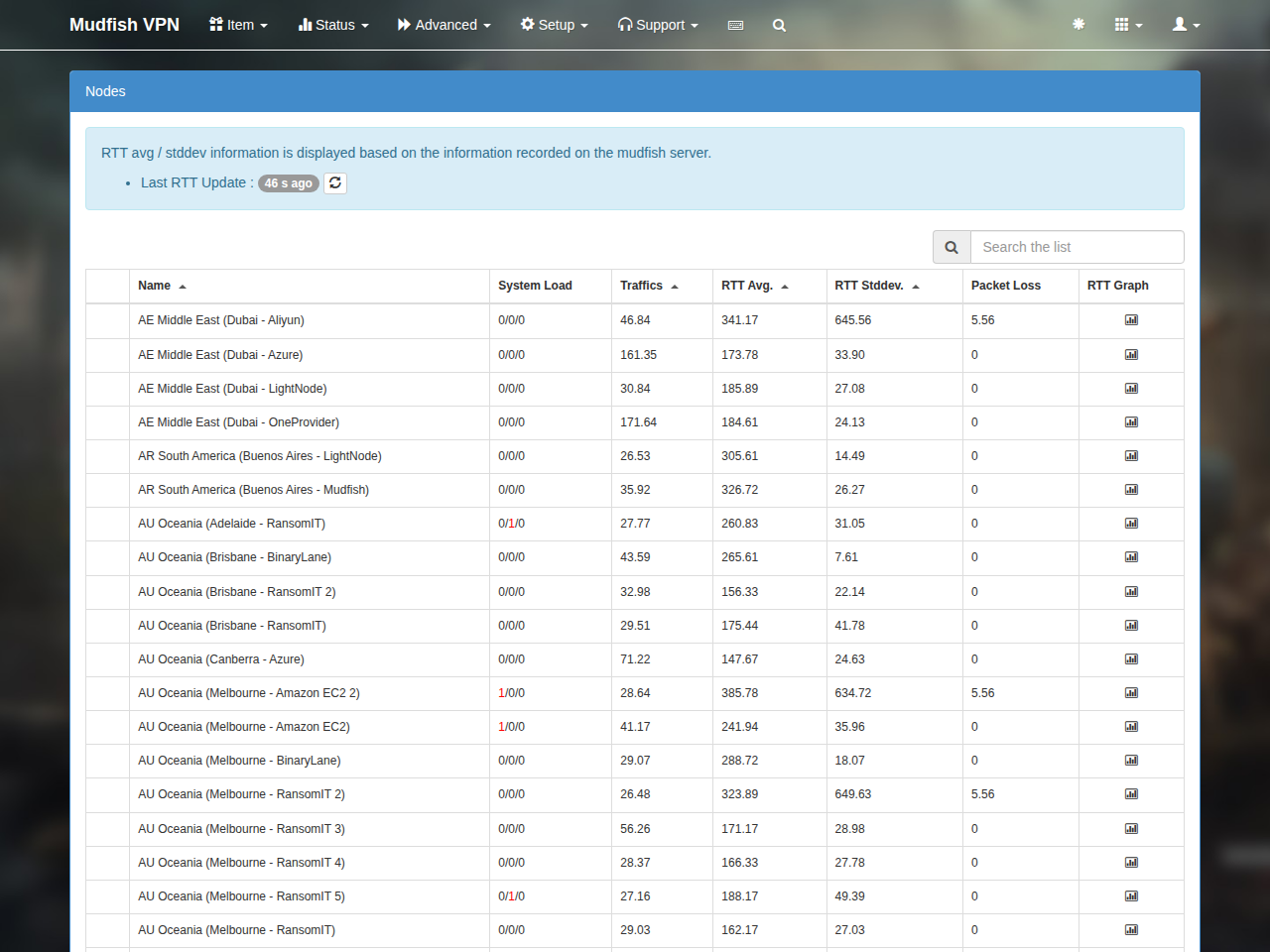
Low, consistent deviations close to zero and below the average RTT suggest stable connections. High deviations across all nodes can indicate congestion on your own connection.
-
An international link is congested, such as a link between South Korea and Japan.
-
The game server's network is congested.
Connections drop frequently.
These checks apply whether you use individual items or Full VPN mode. A router's NAT timeout, a Mudfish node, the game server, or another part of the route can cause the same visible symptom.
Check the Mudfish log
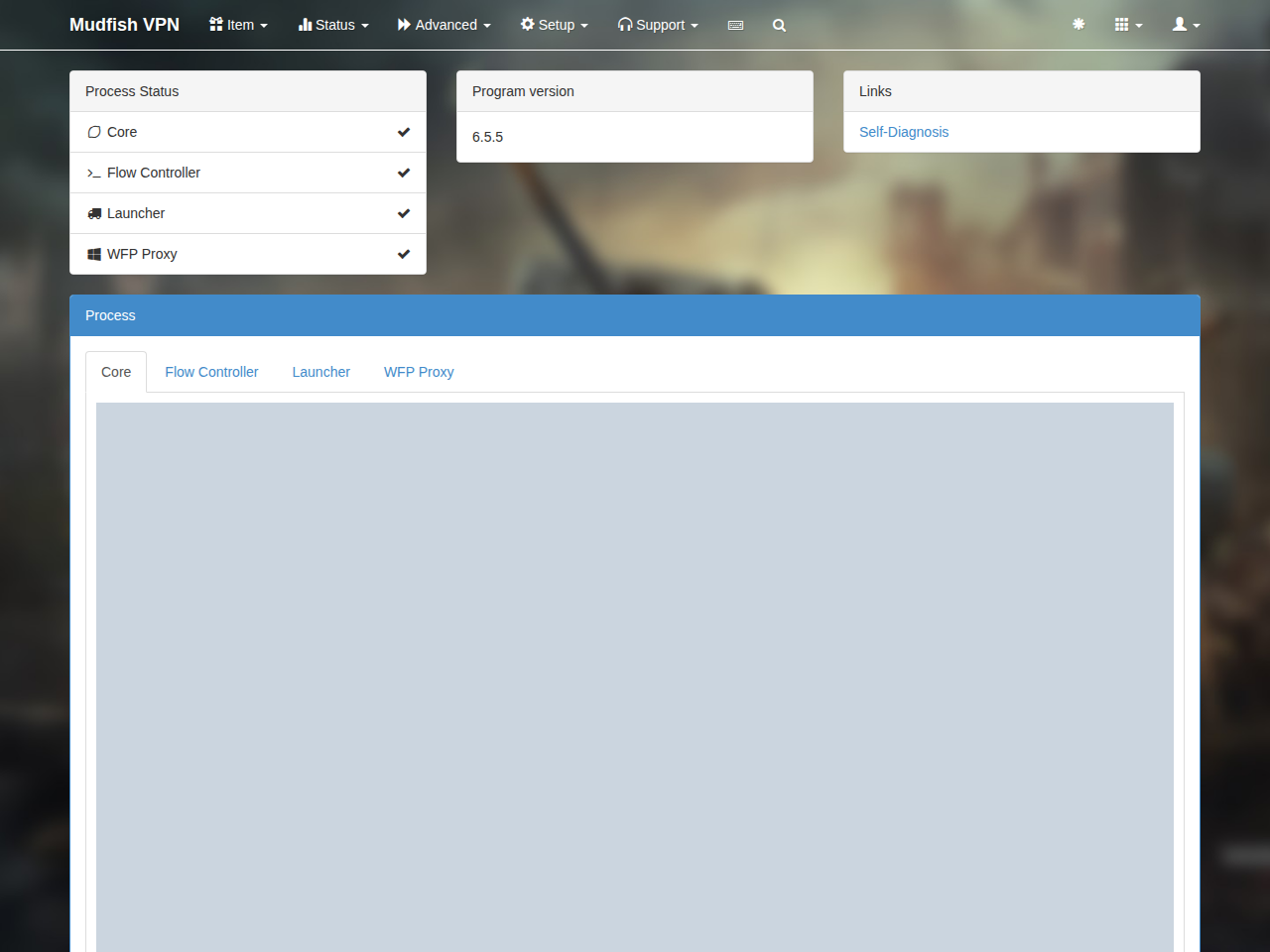
Open “Status → Processes” and inspect the Core log. Errors may be logged at the time of a disconnection. Look them up in the error-code reference. If a code is not documented, post it on the Mudfish forums.
Test without your router
This is not usually the first recommendation, but if disconnections persist, you can briefly connect the computer directly to the Internet connection to check whether the router is involved.
Compare different nodes
Compare how often the connection drops with node A and node B. This helps identify a more stable route.
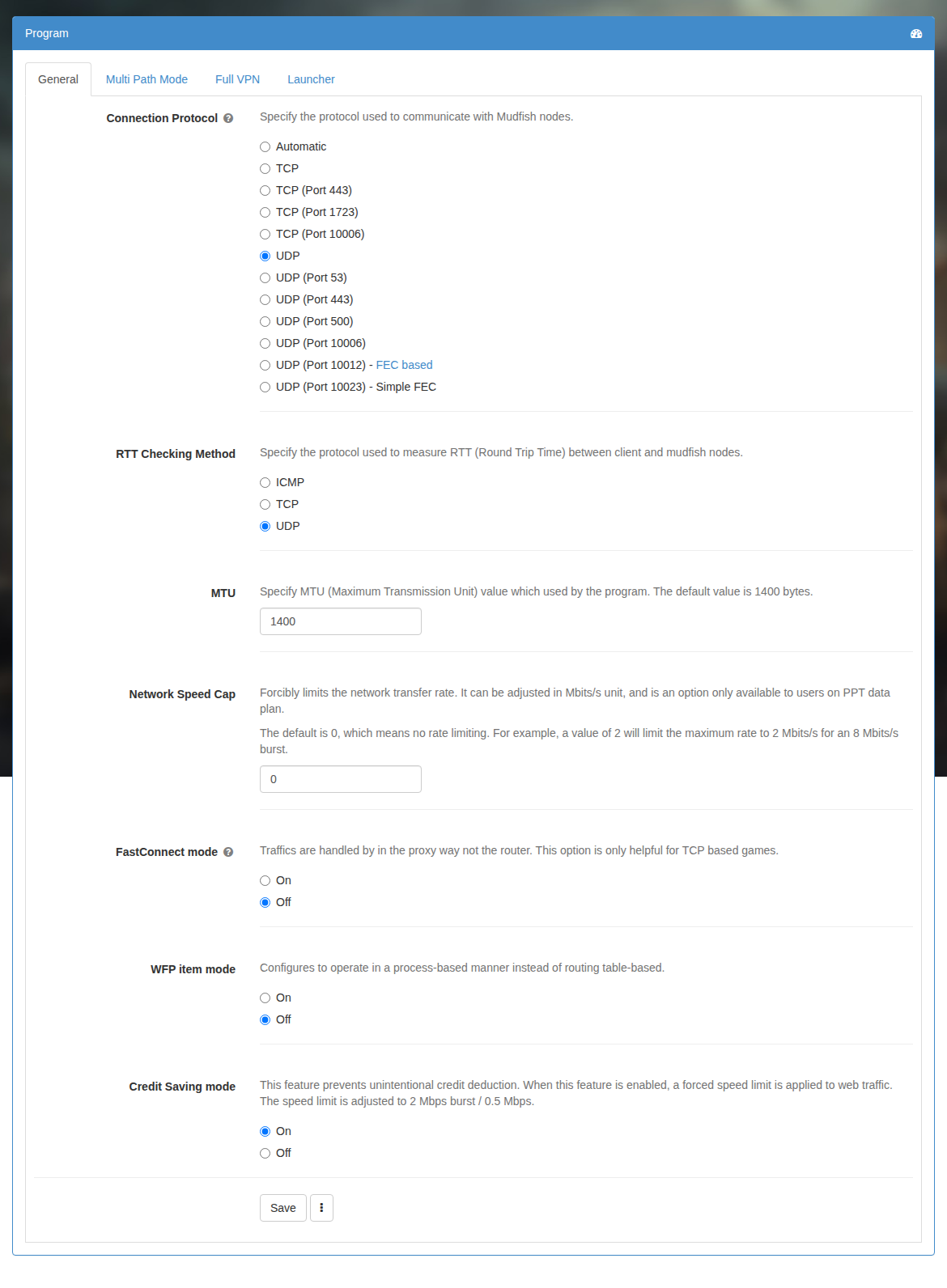
Turn off FastConnect
If FastConnect mode is enabled, turn it off and test again.