Mobile hotspot sharing (Windows 11)
This guide explains how to share an Internet connection with a game console such as a PS5 or Xbox, a PC, or a smartphone through a Windows mobile hotspot, while routing the traffic through Mudfish.
This is one option when you cannot use an ipTIME or OpenWRT router with Mudfish. Once the hotspot is configured, traffic follows this path:
Game console → Mobile hotspot → Mudfish program (host computer) → Mudfish node → Internet
Preparation
Requirements
- A PC or laptop with Wi-Fi, referred to below as the "host computer".
- The game console, PC, or smartphone you want to connect.
Mudfish setup
- Install Mudfish on the host computer.
Instructions
1. Turn off connection sharing
-
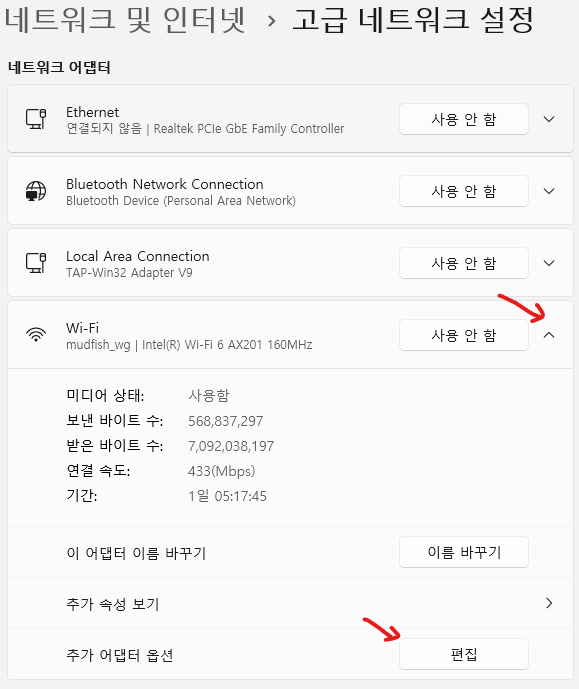
On the host computer, open Settings → Network & internet → Advanced network settings.
-
Find the Wi-Fi network adapter. The host computer must be connected to the Internet through Wi-Fi.
-
Click "Edit" next to "More adapter options".
-
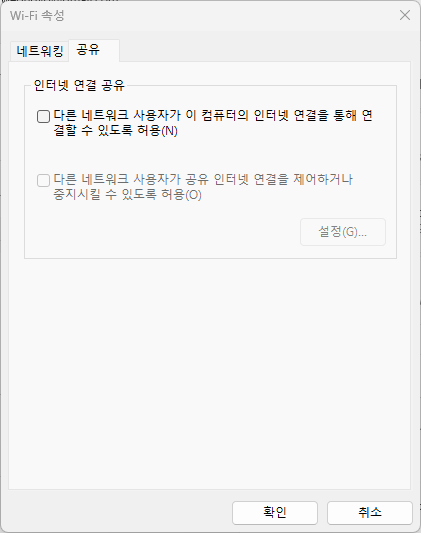
In the properties window, open the "Sharing" tab. If "Allow other network users to connect through this computer's Internet connection" is selected, clear it. Click "OK" to save.
-
Repeat steps 3 and 4 for TAP-Win32 Adapter V9, the adapter created when you installed Mudfish.
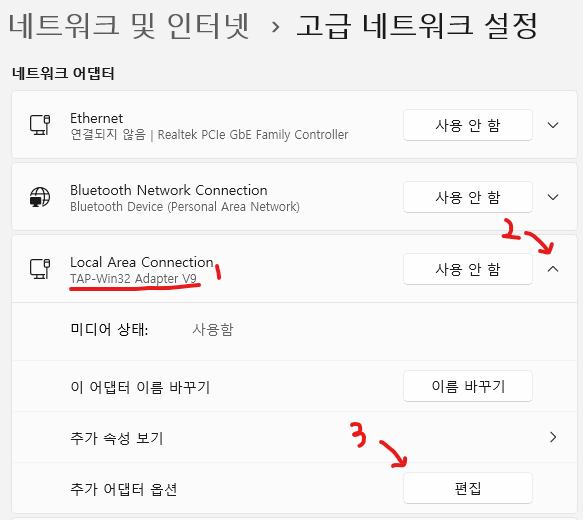
Open "More adapter options" → "Edit" → "Sharing", clear "Allow other network users to connect through this computer's Internet connection" if it is selected, and click "OK".
2. Run Mudfish
-
Launch Mudfish on the host computer, sign in, and connect.
Recommended Mudfish settingsTo keep the setup simple, use the following settings:
- Enable Full VPN mode. Full VPN mode is optional, but using connection sharing without it requires more networking knowledge and configuration. Pinging a remote IP may work while DNS resolution fails. In that case, you must manually configure the DNS server IP to pass through Mudfish too.
- Disable WFP Item mode.
- Disable FastConnect mode.
- Disable NAT Open mode.
-
Wait for configuration to finish.
3. Turn on the mobile hotspot
-
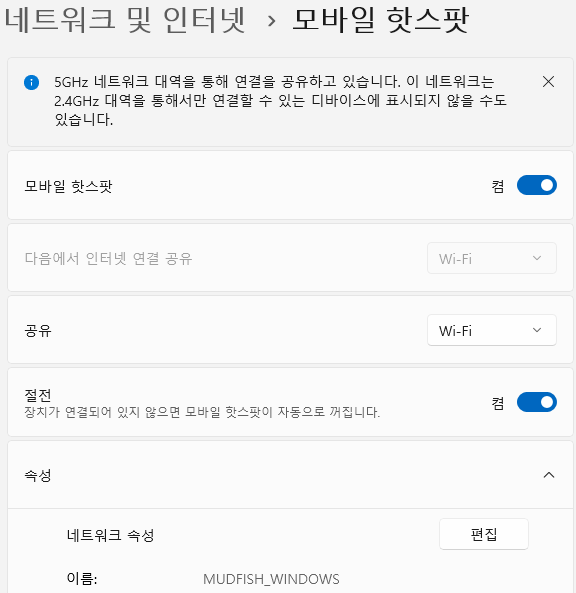
Open Settings → Network & internet → Mobile hotspot.
-
Turn on the mobile hotspot using the configuration shown below.
-
This example uses "MUDFISH_WINDOWS" as the Wi-Fi SSID. Look for this network name when connecting your device.
4. Enable connection sharing again
-
On the host computer, open Settings → Network & internet → Advanced network settings.
-
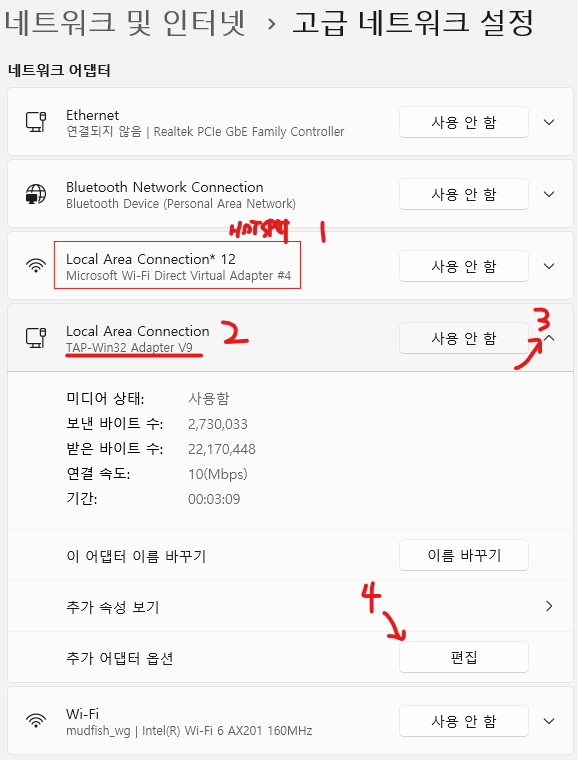
Open the properties of TAP-Win32 Adapter V9 by clicking "Edit".
 Remember
In this example, "Local Area Connection* 12" (Microsoft Wi-Fi Direct Virtual Adapter #4) is the adapter used for the mobile hotspot. The goal is to share the TAP-Win32 Adapter V9 connection with that adapter.
-
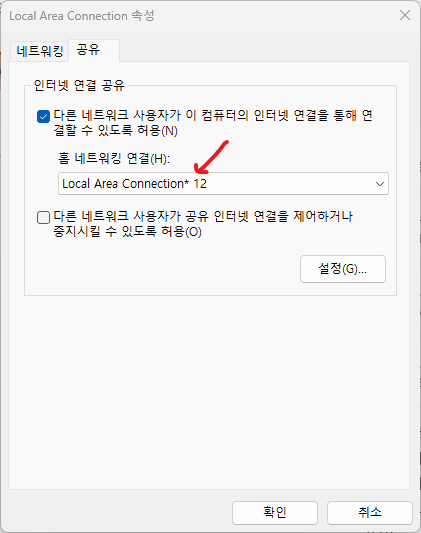
Open the "Sharing" tab, select "Allow other network users to connect through this computer's Internet connection", and click "OK".
-
If your system has several network adapters, a "Home networking connection" list may appear. Select the adapter used by the mobile hotspot. In this example, it is "Local Area Connection* 12".
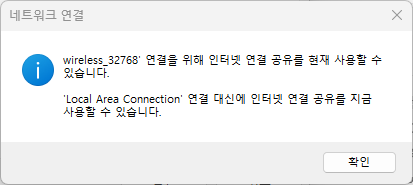
If the dialog shown below appears, you can disregard it.
-
5. Connect your console, PC, or smartphone
-
Find the mobile hotspot on your device. This example uses the SSID "MUDFISH_WINDOWS".
-
Select the hotspot and connect.
-
Check that you can access the Internet through the hotspot.
-
Open https://myip.mudfish.net in a browser to check your IP address. If Full VPN mode is configured, the page shows the Mudfish node's name and IP address.