Reducing RTT with Mudfish
Without Mudfish, packets normally travel directly along your provider's route from your computer to the game server. Mudfish lets you change that route by passing through one or two relay nodes.
This guide describes the routing combinations available in Mudfish v4:
- Basic mode: one relay node.
- Basic mode with FastConnect.
- Advanced mode: two relay nodes.
- Advanced mode with FastConnect, subject to the version limitation below.
Basic mode
This is the default when you equip an item. Click the item on the dashboard, or open “Item → Manage Items” and select it. In its settings, select the node you want to use. The default is “Auto Selection”.
Click the magnifying-glass icon to see RTT information for the complete route: your computer → Mudfish node → destination.

Try several nodes in basic mode before moving on to other combinations.
Basic mode with FastConnect
Enable FastConnect mode to use this combination. See that guide for its behavior and settings.
Advanced mode
If trying different nodes in basic mode does not help, open the item's settings, select “Advanced mode”, and choose two relay nodes. Use the magnifying-glass icon if you need help comparing routes.
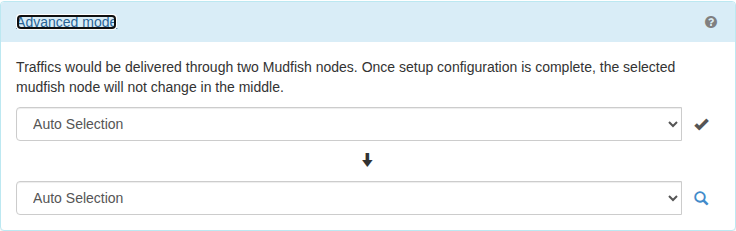
See Advanced Node Mode for details.
Advanced mode with FastConnect
This combination was experimental in early v4 releases. In v4.3.15 and earlier, the combination is not properly supported; turn FastConnect off if advanced mode does not work. See the advanced-mode FAQ.