Checking whether Mudfish works
Test with Full VPN mode
Enable Full VPN mode and restart Mudfish. Visit https://myip.mudfish.net; it should confirm that you are connected through a Mudfish node.
Test with the What's my IP? item
You must equip the free What's my IP? item for this method. A game item alone does not route the MyIP website through Mudfish.
Basic mode
-
Exit all Mudfish processes using the system-tray icon.
-
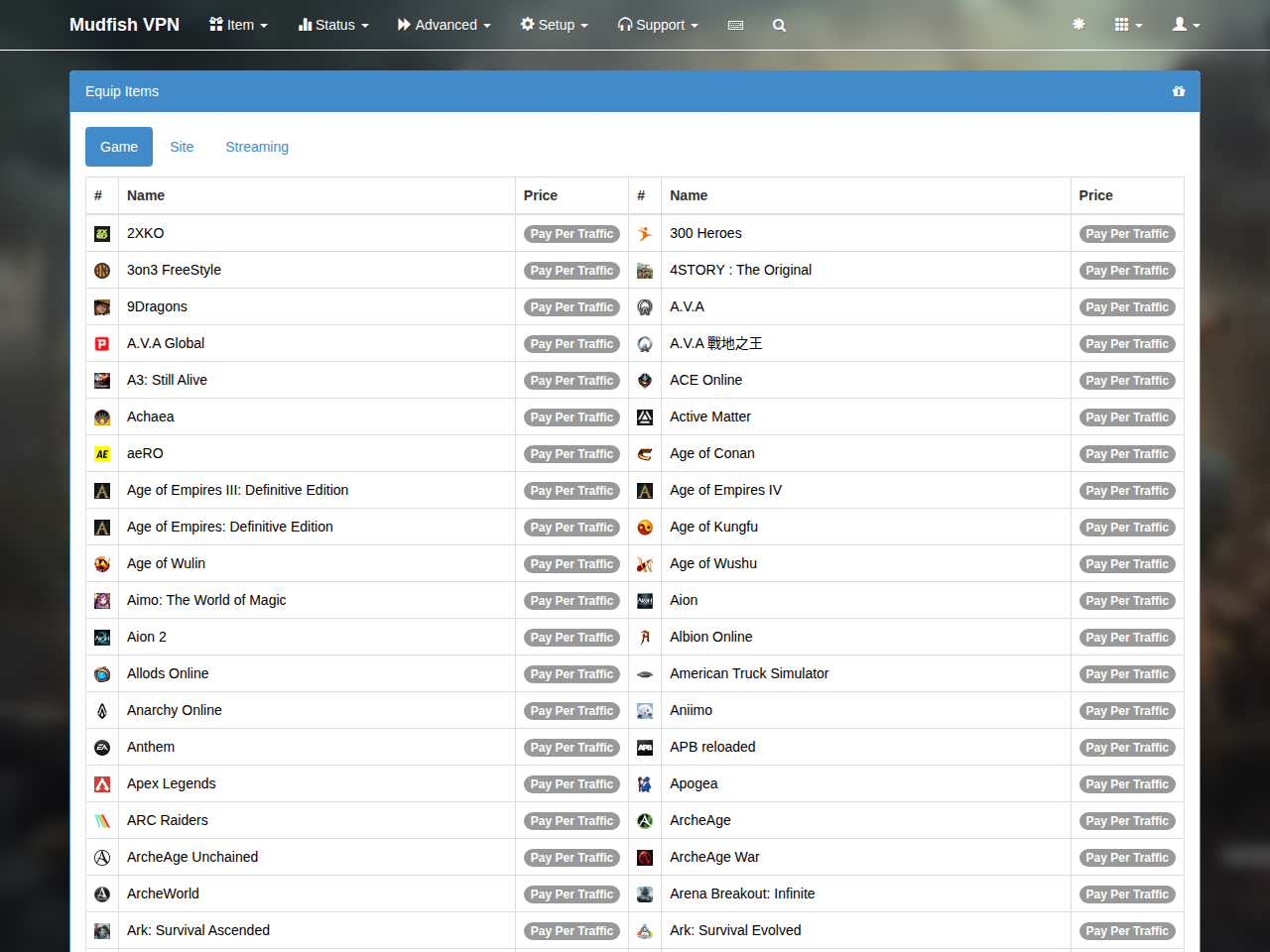
Sign in at https://mudfish.net, open “Item → Equip Items → Site”, and equip “What's my IP?”. If Full VPN is enabled, turn it off for this item test.
-
Start Mudfish, sign in and wait for configuration to complete. If you made the changes through a running Launcher, exit it completely and restart it.

-
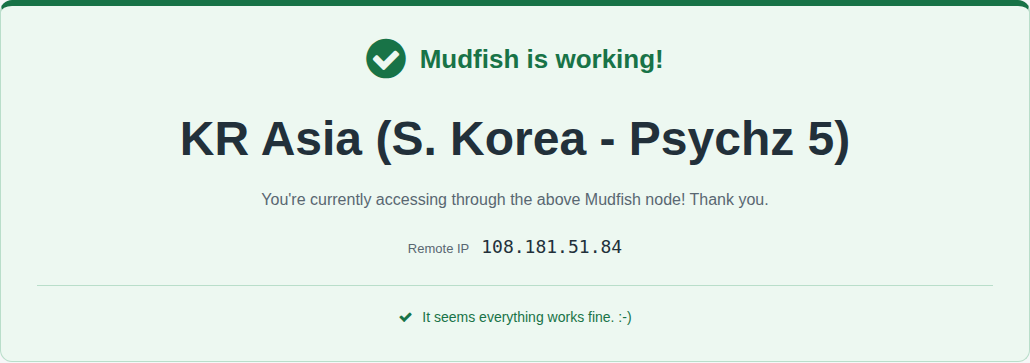
Visit https://myip.mudfish.net and check the success message. The node shown depends on your selection; Auto Selection can choose any suitable node.
See also the item verification guide.
Advanced mode
For a two-node route in Mudfish v4:
-
Start Launcher and sign in.
-
If Full VPN is enabled, turn it off and restart Mudfish.
-
Equip “What's my IP?” under “Item → Equip Items → Site”.
-
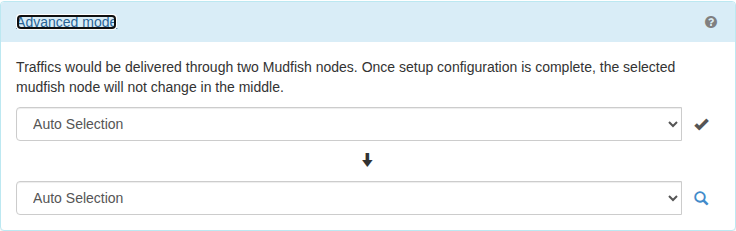
Open the item from the dashboard. Select “Advanced mode” and choose two nodes. Call the first node A and the second node B, then save.
-
Exit Mudfish completely and restart it.
-
Visit https://myip.mudfish.net. The displayed node must be B, the second selected node. This confirms that the advanced-mode route is being used.
Check the real-time traffic graph
While playing with other users, briefly return to the dashboard opened through Launcher. The real-time graph shows whether traffic is passing through the configured item or Full VPN route.
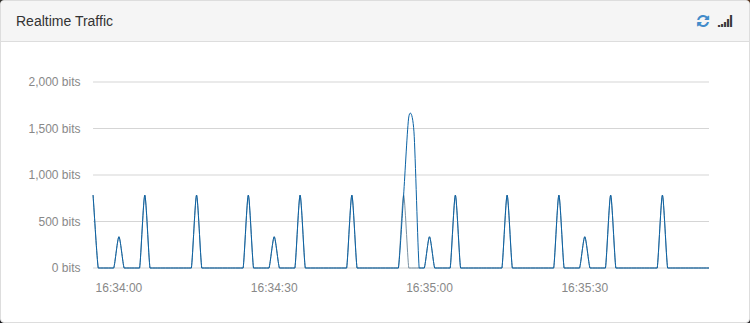
An active graph indicates traffic. A flat graph indicates no traffic, such as after exiting the game.