RTT and ping FAQ
For in-game ping, estimated RTT graphs and command-line measurements, see How to check ping.
What is ping?
Ping measures the round-trip time (RTT) between your computer and a destination. For background, see Ping (Korean) and Lag (Korean).
Is a lower average ping better?
Yes. A lower average means a faster round trip.
Is a lower standard deviation better?
Yes. A standard deviation close to zero indicates a stable connection.
Which matters more: the average or the standard deviation?
Both matter. The average indicates latency, while the standard deviation indicates consistency. Between routes with similar averages, prefer the one with a standard deviation closer to zero.
How do I find the lowest ping?
Look for the route with the lowest RTT all the way from your computer to the game server. For a game listed in Mudfish, use this v4 procedure:
- Start Mudfish Launcher, sign in through it and equip the game's item.
- Click the game on the dashboard.
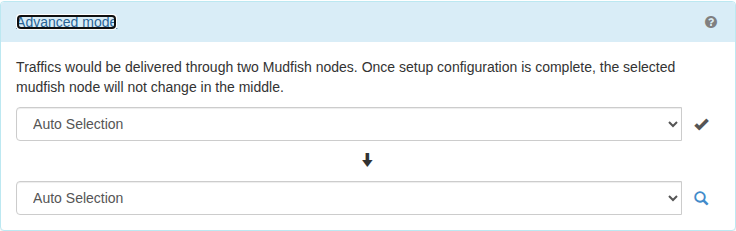
- In the item's “Setup” tab, select “Advanced mode” under node selection and click the magnifying-glass icon.
- Select the game server location in the popup. Mudfish shows calculated routes, including whether using one or two nodes is faster.
For more approaches, see Reducing RTT.
What does a node with good ping mean?
It means a good route over the entire path: your computer → Mudfish node → game server. It does not mean only the latency to the node or only the latency from the node to the game server.
To compare nodes, open the game's item through Launcher, select “Basic mode”, and click the magnifying-glass icon. Choose the game server location in the popup to see estimated graphs and scores. A lower score generally indicates a better route.

My ping has not changed. Is Mudfish working?
Use this checklist to investigate:
| Check | Yes | No |
|---|---|---|
| Does the basic functionality test pass? | ||
| Is game traffic actually passing through Mudfish? 1 | ||
| Is the node set to Auto Selection? 2 | ||
| Have you tried other nodes? 3 | ||
| Have you tried advanced (ADN) mode? 4 | ||
| Have you tried FastConnect? 5 | ||
| Are you using TCP as the connection protocol? 6 |
Why does estimated RTT differ from the game's ping?
Several factors can cause this:
- Different measurement destinations. Mudfish nodes periodically measure RTT to game-server networks and report it to the master server. The target IP may differ from the game's own measurement target. Occasionally the configured Mudfish target may be incorrect.
- Different protocols. Mudfish normally uses TCP for these measurements, while the game may use UDP. Network QoS equipment can prioritize them differently.
- Game-server load. The game may measure responses from the actual game server, while Mudfish measures a host in or near its network. Server load can therefore affect only the game's result.
- Game-network load. Congestion near the game server may not affect Mudfish's measurement target in the same way.
- Load on your computer. Heavy local processing can delay the operating system's handling of traffic and affect the game's measured RTT.
The real-time ping graph sometimes shows 3000 ms.
Mudfish uses 3000 ms to indicate packet loss during the test. Possible causes include:
- Your ISP or Internet connection. Check “Status → Nodes”: problems with many nodes can indicate a local connection problem. If other nodes are fine, your Internet connection may not be the cause.
- The selected Mudfish node. Try another node.
- The game server's network.
Every ping is 3000 ms.
A firewall may prevent RTT measurement between your computer and the nodes, or a server-side problem may prevent measurement between nodes and the game.
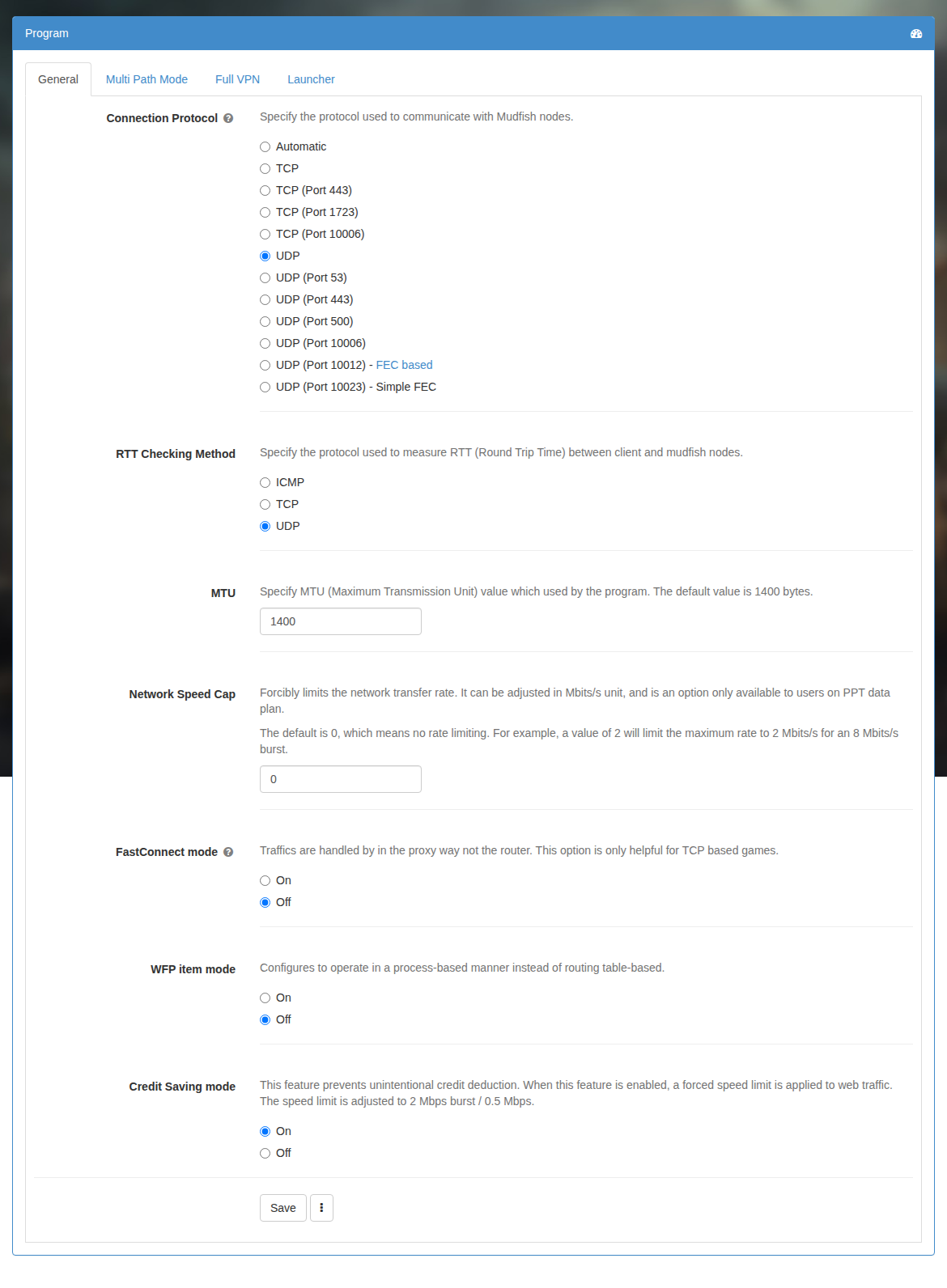
For the first case, open “Setup → Program” and change “RTT Checking Method” to another option among ICMP, TCP and UDP, then restart Mudfish.
For the second case, report the problem on the Mudfish forums so that the measurement can be checked.
Footnotes
-
While playing, check whether the dashboard's real-time traffic graph moves. If it remains flat, game traffic may not be passing through Mudfish. ↩
-
If Auto Selection is enabled, try selecting a node manually. ↩
-
The previously selected node's network may be temporarily congested. ↩
-
If one node cannot avoid congestion, advanced mode routes through two nodes. ↩
-
FastConnect may help games that use TCP. ↩
-
If the default UDP protocol works, there is no need to switch to TCP. ↩