Router FAQ
General router questions
Can I change my game console's NAT type to Open?
The older router setup described here performs NAT at the Mudfish node and does not provide general port forwarding for P2P games. See P2P games.
Mudfish Cloud VPN introduced NAT Open mode in v5.9.1 for supported UDP configurations, but removed it in v6.3.3. See the release notes. Do not assume the feature is available in a router package.
ipTIME routers
If I configure Mudfish from a PC, does it apply to my console?
Yes, if the console is on the ipTIME router's LAN. By default, Mudfish running on the router applies to all devices connected to that LAN.
Can I select only certain devices?
Supported ipTIME routers running Mudfish for routers v2.1.24 or later offer Per-Eaddr mode.
For older configurations without this feature, separate the devices using two routers: Internet → another router → Mudfish ipTIME router. Connect devices that should bypass Mudfish to the other router.
Must I use the console's browser to configure Mudfish?
No. Use a PC or smartphone. The Mudfish UI is normally at http://192.168.0.1:8282. See the ipTIME FAQ for access instructions.
Why are speed tests slow in Full VPN mode?
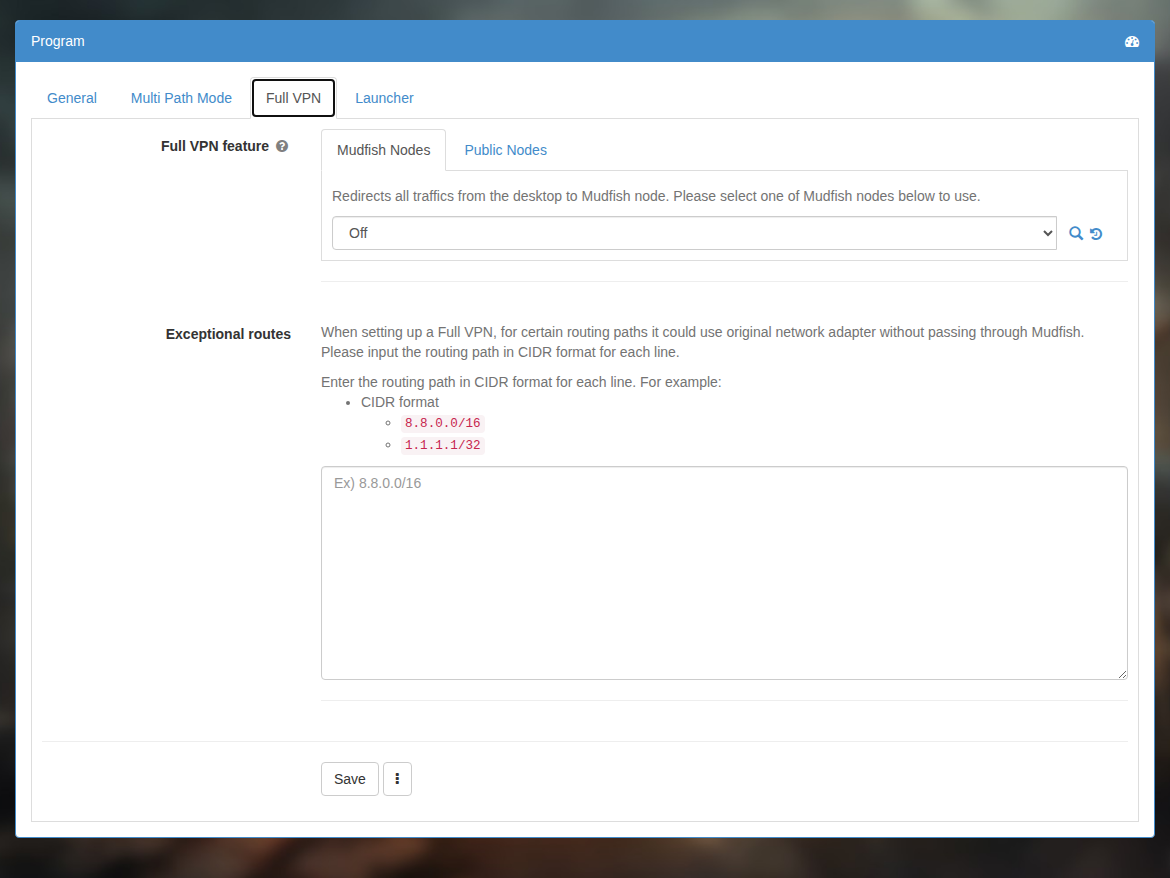
Full VPN sends all traffic passing through the router through the selected Mudfish node. An overseas node or a congested route may lower the speed. Turn Full VPN off and use individual items if you do not need all traffic routed through Mudfish.
Can I use TwinIP (Super DMZ) with Mudfish?
No. This router configuration does not provide the port forwarding needed for that combination, and using both may interrupt Internet access.
Legacy OpenWrt-based Mudfish Game Router
These instructions describe the older Mudfish Game Router. Official Mudfish support for the Xiaomi Mi Wi-Fi Nano model has ended.
What is LuCI?
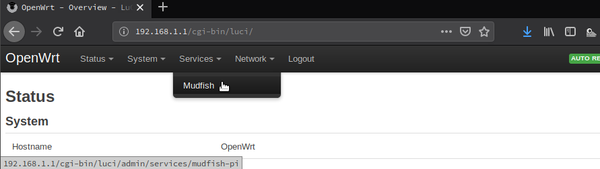
LuCI is the router's web administration interface, normally available at http://192.168.1.1.
I cannot reach 192.168.1.1.
Wi-Fi is disabled by default on a newly supplied Mudfish Game Router. Initially, connect your computer to one of its white LAN ports with an Ethernet cable.
The administration page is accessible from the two white LAN ports or from Wi-Fi after it is enabled. It is not accessible through the blue WAN port.
I have no spare cable. How can I configure wireless access?
You first need access to LuCI to enable Wi-Fi. Temporarily arrange the devices as follows, using your available cables:
Internet → existing router → Mudfish Game Router → computer.
From that computer, open LuCI and configure wireless access.
How do I enable Wi-Fi?
Wi-Fi is initially disabled, and its default configuration is an open network. Set a wireless password when enabling it.
-
Open LuCI at http://192.168.1.1.
-
Open “Network → Wireless” and enable the “Generic MAC80211 802.11bgn” radio in the wireless overview.
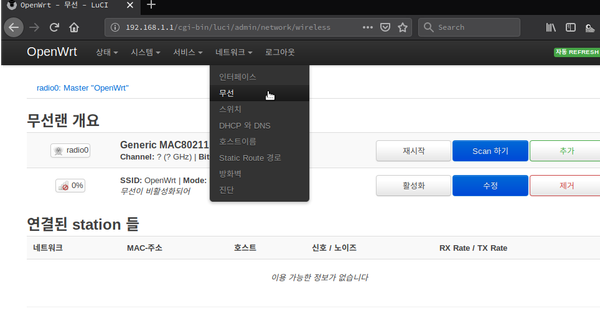
This screenshot is in Korean: “네트워크” means “Network”, “무선” means “Wireless”, and “활성화” means “Enable”.
-
The wireless network normally appears with the SSID “OpenWRT”.