Error Code Reference
Please leave a message at Mudfish Forums (https://forums.mudfish.net) if you can not find an answer.
This document describes Mudfish error codes normally found in log files.
Examples using -O apply to older releases. Mudfish v5.7.1 replaced -O and
-X with -t. Use the option supported by your installed version.
MUDEC_00001
Mudfish Launcher (mudrun) MUST be run as administrator
This error could happen if you're not running Mudfish Launcher as Administrator.
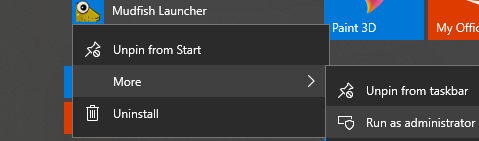
On Windows Vista, 7, 8, 8.1, and 10, right-click Mudfish Launcher and choose Run as administrator. This error is rare on Windows XP.
MUDEC_00002
Failed to connect to the master server.
This error points that it failed to connect to the mudfish master server for various operations.
If this error happens, you need to 'Status -> Process' menu to see "Core" log section. At that menu, please check there's an error or warning message because there's some messages to show the fundamental reasons.
If you're under the network firewall, please check Firewall Issues documents too.
Possible causes include an outage of the master server, a problem with Cloudflare on the firewall bypass route, or local antivirus/firewall software blocking Mudfish. Temporarily disable the suspected blocking software and test again.
MUDEC_00003
No TAP-Win32 Driver found.
Starting with Mudfish Cloud VPN v5.5.9, it is configured to install the Wintun driver in addition to the OpenVPN tap-win32 driver.
If for some reason the TAP-Win32 driver does not work, please consider using the Wintun driver.
Please note that if you run Mudfish Launcher with
-Noption, you can enable this feature. Or you can find the option at 'Setup -> Program -> Launcher' menu.
TAP-Win32 adapter v9 network device is developed by OpenVPN Technologies, Inc and shipped with a part of Mudfish Cloud VPN.
My device isn't installed
Sometimes TAP-Win32 adapter v9 isn't properly installed even if the mudfish package try to install it automatically. To check whether it's installed or not
- Right click on the little computer screen next to your clock and click "Open Network and Sharing Center"
- then go to "Change Adapter Settings".
- Check there is a device called TAP-Windows-Adapter-V9.
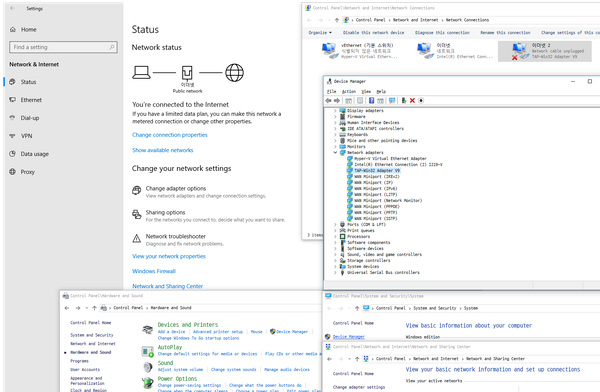
If not, then you can try the following steps.
Workaround #1
If you're using Mudfish Cloud VPN v5.5.8 or above, you can try to use
Wintun driver instead of TAP-Win32 adapter v9 by enabling -N option.
To enable it, you can follow the below steps:
-
Moves "Mudfish Cloud VPN" menu from Start button.
-
Opens the property window of "Mudfish Launcher" icon.
-
Modify the command which found at “Target(T)” box that as default, the following value is set::
"C:\Program Files\Mudfish Cloud VPN\mudrun.exe"
-
Changes the command with
-Noption. For example, looks like below::"C:\Program Files\Mudfish Cloud VPN\mudrun.exe" -N
Workaround #2
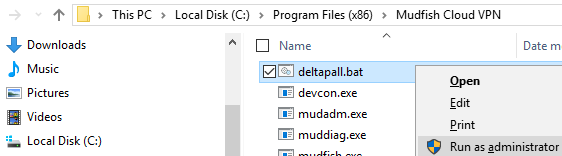
- Moves into the mudfish installation directory (normally
C:\Program Files (x86)\Mudfish Cloud VPN). At there you can finddeltapall.batfile. - Runs it as Administrator.
- Install mudfish package again.
Workaround #3
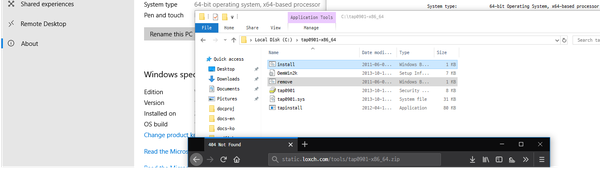
You can install it manually by downloading tap-windows at https://openvpn.net/index.php/open-source/downloads.html link. Or you can try to install TAP-Win32 Driver as follows:
-
Please download a driver in 32-bit or 64-bit for your system.
-
Extract it at the temporary directory.
-
Then run
remove.batandinstall.bat
Workaround #4
- Please check
c:\Windows\inf\setupapi.dev.logfile too because it includes most detailed reason why your windows rejects the installation of TAP-Win32 adapter.
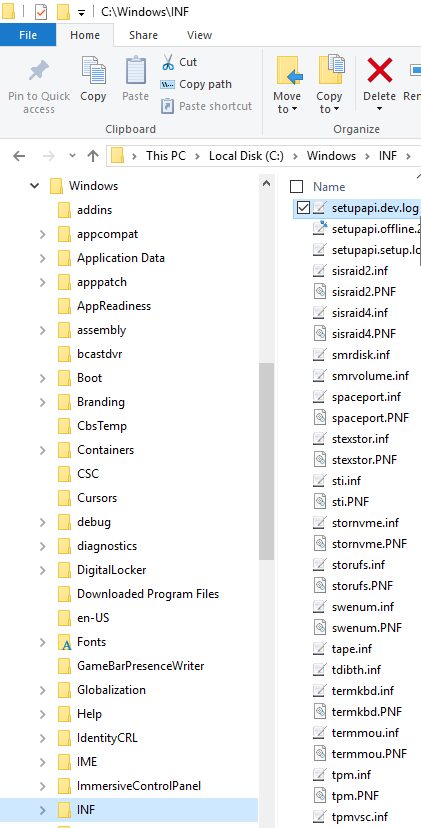
Make sure the package matches your Windows architecture: installing a 32-bit package on 64-bit Windows can leave the driver incorrectly installed. Also make sure TAP-Win32 Adapter v9 is enabled in the adapter list, rather than disabled. The network connection names in the example screenshot include Korean text; identify the adapter by its TAP-Win32 name.
MUDEC_00004
Couldn't connect to aaa.bbb.ccc.ddd:port
Mudfish's internal re(4) virtual network device could not connect to the node at aaa.bbb.ccc.ddd:port.
In TCP mode, this can indicate a node outage or a network problem. Releases after v2.0.18 try up to three times before abandoning the connection and continuing. UDP mode does not display this message, so its absence in UDP mode does not confirm that the node is working.
MUDEC_00005
Failed to send a data to the master server: <errno> <errstr>
This error points that there's a problem to communicate between your desktop
and mudfish authentication server. Please check <errno> <errstr>
message because it tells the reason.
If this issue is persistent, please see Firewall Issues and try to use various option of Mudfish Launcher
MUDEC_00006
failed to send a data to the master server: %s
Mudfish connected to the master server but could not send data. Possible causes include a master server outage, a problem with your internet connection, or an incompatible or corrupted data format between the client and master server.
MUDEC_00007
This has the same cause as MUDEC_00006. See that section for details.
MUDEC_00008
This has the same cause as MUDEC_00006. See that section for details.
MUDEC_00009
This has the same cause as MUDEC_00006. See that section for details.
MUDEC_00012
Mudfish Launcher is already running.
This error means that on your system Mudfish Launcher is already running. Please check the system tray whether there is Mudfish Launcher icon. Or you can try to find mudrun.exe process with Task Manager.

Right-click the Mudfish icon in the system tray and choose Open dashboard. If the browser does not open, choose Show IP/Port and enter the displayed address directly in your browser. To start over, choose Exit from the tray menu, then launch Mudfish again.
MUDEC_00013
Needs to change MTU to <mtu> manually.
This warning usually affects Windows XP, where TAP-Win32 Adapter v9 defaults to an MTU of 1500. You may be able to use Mudfish despite the warning, but some routers or firewalls that discard ICMP packets can cause TCP connection failures or unnecessary retransmissions.
To set the adapter MTU to 1400:
- Open Control Panel → Network Connections.
- Right-click TAP-Win32 Adapter v9 and open Properties.
- Click Configure, open the Advanced tab, and select MTU.
- Change 1500 to 1400 and save the settings.
- Restart Windows XP to apply the change.
MUDEC_00014
Mudfish Launcher uses the port <new_port> instead of <default_port>
This warning means that Mudfish Launcher uses other listening port than TCP 8282. This should be not harmful to use Mudfish. However please check the following things:
-
Other application is using TCP 8282 port.
-
Or Mudfish Launhcer is already running.
You can identify the process using port 8282 with a tool such as TCPView. On legacy versions that provide WPAD, update the browser configuration to use the actual listening port.
MUDEC_00015
Failed to receive information from the master server for MR record: <result> <errno> <err_msg>
This error means that Mudfish program failed to fetch mudfish node information from Mudfish master server.
If <result> value is 0, it means the remote connection terminates
the connection without sending more data. This could indicate that
the master server terminates the connection without sending any data.
If <result> value is larger than 0 but less than 64, it means the master
server sends a part of data only while Mudfish program expects more data.
Normally this means that the connection between your desktop and master
server is unstable.
If <result> value is -1, it means there was an error while fetching the data.
Depending <err_msg>, its meaning could be different:
-
ODR_ETIMEDOUT
This error means that it failed to receive a data from master server within 5 seconds.
It could be caused by
-
Some network firewall blocked a connection to Mudfish master server
-
Or a connection between your ISP and master server isn't stable.
-
Or Mudfish master server is busy.
-
You should restart Mudfish program again to fix this problem. If you think this issue is caused by blocking of network firewall, you can try to see Firewall Issues - Mudfish Master Server.
For a persistent local TCP/IP problem, you can also try netsh winsock reset. See Resetting Winsock.
MUDEC_00016
Failed to receive information from the master server for MR record: <result> <err_msg>
This issue is same error with MUDEC_00015. Please check MUDEC_00015 for details.
The MS-record variant has the same communication failure. ODR_EAGAIN indicates that the expected record has not arrived. ODR_ETIMEOUT means that no data arrived within the time limit. A server outage, unstable network, or locally interrupted connection can cause this. The firewall and Winsock checks in MUDEC_00015 also apply.
MUDEC_00018
failed to receive information from the master server: <result> <err_string>
This error means it failed to get the response from the mudfish master server
for authentication. <result> and <err_string> represent details about why
this issue happens.
You can check Firewall Issues - Mudfish Master Server section for workarounds.
ODR_ETIMEDOUT means the authentication response did not arrive within the timeout. The master server may be unresponsive, or a local antivirus program, personal firewall, or network firewall may be blocking the connection.
MUDEC_00019
Failed to connect to the mudfish master server
The connect(2) call to the master server failed. The server may be unavailable or under maintenance, or your ISP's firewall may be blocking the connection.
MUDEC_00020
Failed to recvfrom(2) the data from master server. Error %ld
Mudfish connected to the master server, but recvfrom(2) failed during data exchange.
- For a temporary connection problem or maintenance outage, exit Mudfish and reconnect, or try again after maintenance finishes.
- For a persistent Windows Winsock problem, try
netsh winsock reset. See Resetting Winsock. - If a firewall at work, school, or another managed network blocks the connection, follow the master server connection guide.
The legacy procedure is to open Start → Mudfish Cloud VPN, right-click Mudfish Launcher, choose Properties, and append -O to Target:
"C:\Program Files\Mudfish Cloud VPN\mudrun.exe" -O
Restart Mudfish afterward. Version 5.7.1 replaced -O with -t; use the option appropriate for your installed version.
MUDEC_00021
Authentication with username '%s' failed - %s
This message indicates an authentication failure. The message after the username provides the reason.
MUDEC_00022
CreateProcess failed with error <no>: <errmsg>
Are you using the latest Mudfish package? The reason of this error is that mudfish couldn't find the default browser path of your OS or a path of cmd.exe. Please try with following examples:
-
Try to install 'Chrome' or 'Firefox' on your system and run. If they ask about setting the default browser, select 'Yes'.
-
Or scan your system with anti virus.
-
If both solutions aren't working, just open your browser then connects to http://127.0.0.1:8282
If the tray icon remains visible, use Show IP/Port to find the actual dashboard address. It may use a port other than 8282. A missing default-browser registry setting or registry damage caused by malware can explain this error.
MUDEC_00023
vr3→chunk→next isn't NULL.
This can occur at startup if Mudfish is already running or if the shared memory used by mudfish.exe is corrupted. End mudfish.exe, mudflow.exe, and mudrun.exe in Task Manager, then restart Mudfish.
MUDEC_00026
Wrong syntax on .conf file
This error means there's wrong syntax on .conf file which is the
configuration file for Mudfish Launcher. To solve this issue,
please delete .conf file
which found at the mudfish installation directory and restart the mudfish.
Exit Mudfish completely before removing the file. The usual installation directory is C:\Program Files (x86)\Mudfish Cloud VPN.
MUDEC_00029
TCP_nodelay(1) to the client (<ip>:<port>) failed: <errno> <errmsg>
With FastConnect mode enabled, Mudfish failed to disable the TCP Nagle algorithm on the connection to your computer. Check <errno> and <errmsg> for the reason.
54 Connection reset by peermeans the connection to your computer has already closed.
If this persists, turn FastConnect mode off and test again.
MUDEC_00031
TOL_connect(<ip>, <port>) failed: <errno> <errmsg>
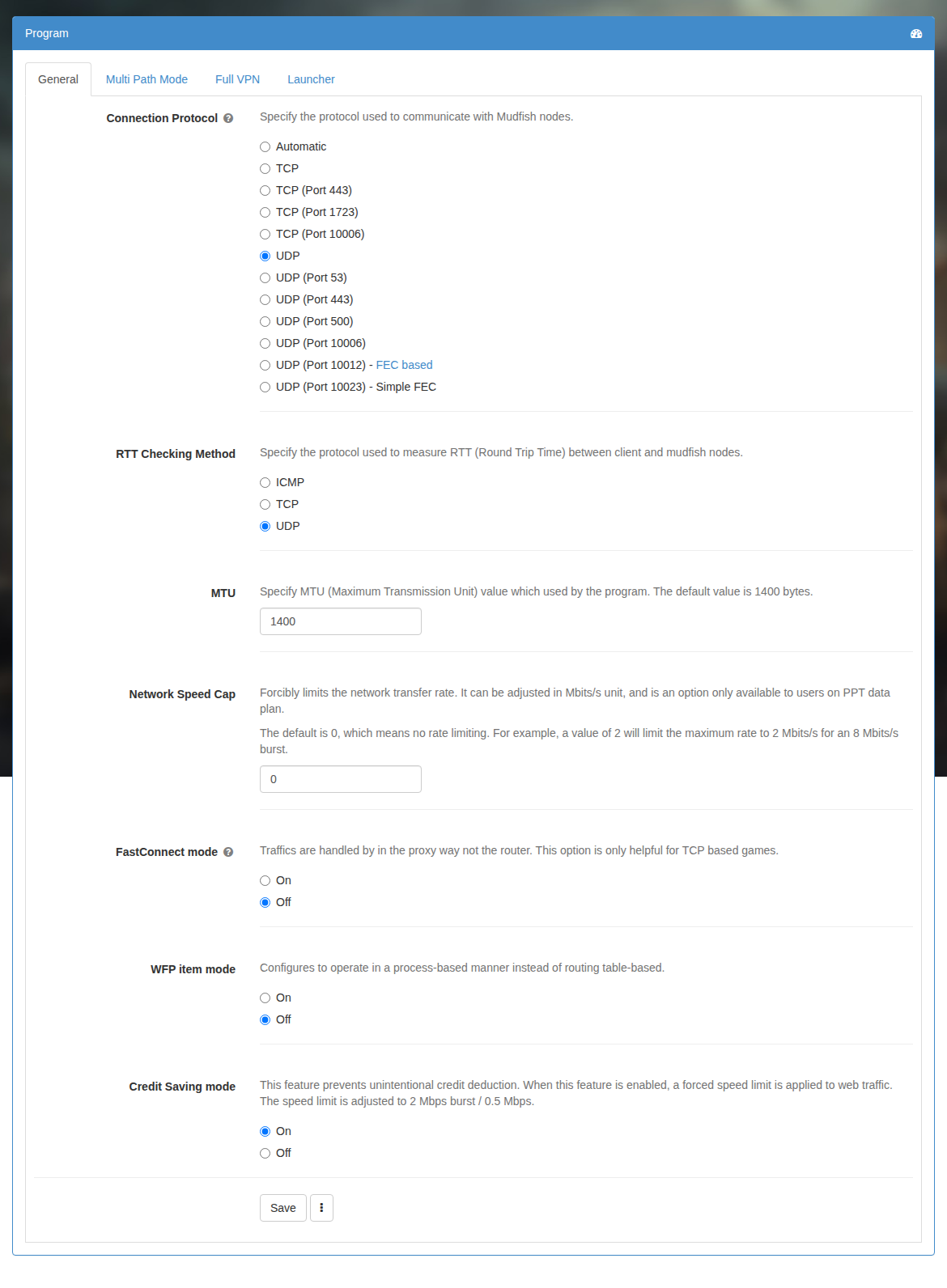
This error message happens if you enabled FastConnect mode. By unknown
reason, it means it failed to connect <ip> and <port> via mudfish node
you'd picked.
If <port> is 8081, it means that it failed to access SOCKS proxy. So as
workaround,
-
You can try to disable FastConnect mode
-
Or you can try to change mudfish node you'd picked to another.
If <port> is 8085, it means that it failed to access the TUNNEL proxy
internally. <errmsg> shows details why it failed:
-
60 Operation timed out
This error means that mudfish tried to connect
<ip>:<port>but no response comes in within a specific time. So the socket is timed out. -
64 Host is down
This error means that there's no routing path to
<ip>in mudfish core. Normally this issue means there's a problem to communicate with mudfish nodes you picked.Please try to change a mudfish node from one to another. If it still shows these error, please send us Problem Report.
You can identify a node from its private IP at https://mudfish.net/server/status.
MUDEC_00032
stp_auth: TOL_read(2) from the backend (<ip>:<port>) failed (ret -1 errno <error_number>)
Mudfish could not complete communication with the SOCKS proxy on the node. The reason depends on <error_number>.
54means ECONNRESET (Connection reset by peer): the node closed the connection first. The node's logs are needed to determine why it closed the connection.
MUDEC_00037
failed to do CONNECT to <ip>:<port> (ver 5 rcode <return_code>)
With FastConnect enabled, your computer requested a connection to <ip>:<port>, but the node's TCP relay could not connect to that destination. The return code explains the failure:
1: a general error, commonly a failure to reach the destination from the node.5: connection refused. The destination port was closed and returned a TCP RST packet.
MUDEC_00038
TCP relay from the client to the backend failed.
Mudfish could not connect to a node. This message usually follows another error that explains the underlying cause.
Open Status → Process, select the Core log, and read the errors immediately before MUDEC_00038. If you cannot interpret them, include those preceding errors when contacting the Mudfish forums.
MUDEC_00040
TOL_accept(2) for A.B.C.D:NUM failed: <error_number>
The meaning depends on <error_number>.
53means ECONNABORTED (Software caused connection abort). The client closed the connection before Mudfish could accept it withaccept(2).
MUDEC_00041
This has the same cause as MUDEC_00299. See that section for details.
MUDEC_00042
Tried to add a entry which already exists on the routing table.
In Mudfish v4, this can mean a Custom item's routing rules overlap another item's rules, or an internal problem prevented duplicate routes from being merged.
In Mudfish v3, Setup → General → Automatically load the routing table is enabled by default. It loads routes saved through the wizard or Setup → Routing Table when Mudfish starts. Reapplying those routes can produce this harmless warning. You do not need to configure them again unless changing nodes. To change nodes without the warning, delete the previous routes in Setup → Routing Table, then configure the new routes.
MUDEC_00043
Failed to write the routing socket message for <destination>/<netmask>/<gateway>/<local_ip> (<errnum> <errmsg>)
This error means it failed to write (insert or delete) the routing table
entry in Mudfish core process due to <errmsg> reason. Most common error
messages are as follows:
-
No such process
This means it could not delete the routing table entry because there's no matching entry.
This is normally not harmful so you can ignore.
-
Network is unreachable (51)
This error means that there's a routing table problem to reach to the mudfish node you'd picked.
Please check the mudfish core process log at 'Status -> Process' menu to see the full errors. And please check there's another error before this error too.
When the message includes cmdval, command 1 with error 51 indicates that inserting a route failed because the network was unreachable. Check earlier Core errors and run the basic functionality check. Command 2 with error 3 means a nonexistent route was being deleted and is usually harmless. Contact the forums for other combinations.
MUDEC_00044
The client isn’t ready yet
This warning message indicates that the DHCP client of your OS wasn't sending IP request with DHCP protocol. Normally this could happen if the firewall of OS blocks DHCP request to TAP-Win32 adapter v9 network device.
To see workarounds, please refer MUDEC_00045 because it's caused by same reason.
MUDEC_00045
The client doesn’t response with DHCP protocol
This error message is shown if your OS doesn't make any DHCP request as client to Mudfish Core program. For these cases,
-
If you're using Windows 10, sometimes this issue is caused by Windows because it doesn't actively try to lease private IP address from TAP-Win32 adapter v9 network device.
-
Please open 'Task Manager'.
-
Or please try to keep "Change Adapter Settings" window open as follows:
-
Right click on the little computer screen next to your clock at system tray.
-
Click "Open Network and Sharing Center"
-
Then click "Change Adapter Settings".
-
Done! Just keep the window open.
-
-
-
If you're using v5.5.8 or above for Windows, you can try to use
-Noption enabling Wintun driver instead of OpenVPN tap driver. To set this option, please check the below steps for-Ioption because its steps is almost same. -
If you're using v4.3.13 or above for Windows, you can try to use
-Ioption for Mudfish Launcher letting it to use IP Helper APIs rather than DHCP to assign IPv4 address. To set it,-
Moves “Mudfish Cloud VPN” menu from Start button.
-
Opens the property window of "Mudfish Launcher" icon.
-
Modify the command which found at “Target(T)” box that as default, the following value is set::
"C:\Program Files\Mudfish Cloud VPN\mudrun.exe"
-
Changes the command with
-Ioption. For example, looks like below::"C:\Program Files\Mudfish Cloud VPN\mudrun.exe" -I
-
If this option is applied properly you can find a log as follow from Mudfish Core process which found at "Status → Process" menu::
[INFO] Setting IP address (ip) with IP Helper.
-
-
If you're using anti-virus or anti-malware programs, test after disabling the real-time monitoring services. For example, Norton Anti-virus program could block and drop DHCP Offer packets from Mudfish Core because it treats packets as part of ARP Spoofing.
-
Check TAP-Win32 adapter v9 network device which is a part of Mudfish Installer.
-
Sometimes DHCP feature is disabled by other VPN programs. For Mudfish, it must be enabled.
-
Check the device is enabled.
-
If IPv6 is enabled for TAP-Win32 adapter v9 network device, please disable it completely. Sometimes this solves the problem.
-
You can also disable and re-enable TAP-Win32 Adapter v9 several times, then restart Mudfish. Its IPv4 settings must use Obtain an IP address automatically. Restart the operating system if the problem persists.
MUDEC_00048
wrong sid number <sidno> (tag <tagno>)
The SID value is invalid. If this persists, remove .mudfish.vsm, .mudflow.vsm, and .mudrun.vsm from the installation directory, then restart Mudfish.
MUDEC_00049
no entry for SID
For this case, please check MUDEC_01643 for details.
MUDEC_00051
Failed to set the default route.
This error means that it failed to set the default route internally for mudfish core program. Normally it's caused that it failed to fetch the mudfish node information or not permitted by various reason. For most of cases, it's related with mudfish credit.
-
Please check your account has a mudfish credit.
-
If your data plan is Subscription based, please make sure that at least one paid item is equipped.
For the Subscription plan, check that a valid subscription voucher is equipped. If the route still cannot be set, contact the Mudfish forums.
MUDEC_00056
arp: AA:BB:CC:DD:EE:FF is using my IP address 0.0.0.0 on reX
Another user is using the same internal private IP address assigned to you. This can follow a failure of the master server's private-IP management service, or resuming a computer from sleep or hibernation without first exiting Mudfish. Service incidents may be announced on Mudfish's Facebook page.
Restart Mudfish when this error occurs.
MUDEC_00057
Couldn't find the static node X for default route
The node selected as Mudfish's internal default gateway is unavailable.
MUDEC_00058
No gateway found.
This usually occurs when your account has insufficient Mudfish credit. Purchase credit before trying again; see Pricing.
MUDEC_00059
ODR_write() error to <ip>: <err_num> <err_msg>
This error means that it failed to send the data via mudfish node whose
public IP is <ip> because it encountered <err_msg>. The details
about error messages are as follows:
-
ODR_ENOTCONN
It failed to connect to the mudfish node due to failure of TCP handshake.
-
ODR_EAGAIN
This error means that the connection isn't established yet but it tried to send the data to the mudfish node.
If this issue is always happening, please try to change a mudfish node to another one.
If this error happens, please try to change the mudfish node or Connection Protocols.
Other reported errors include:
10060 ODR_ETIMEDOUT: the node did not acknowledge the transmitted data.10054 ODR_ECONNRESET: the node closed the connection.
Select another node and check whether the error persists.
MUDEC_00060
ODR_sendto() error to <ip>: <err_num> <err_msg>
This error means that it failed to send the data via mudfish node whose
public IP is <ip> because it encountered <err_msg>. The details
about error messages are as follows:
-
ODR_ENETUNREACH
Network is unreachable. A socket operation was attempted to an unreachable network. This usually means the local software knows no route to reach the remote host.
If this issue is persistent, please check Connection Protocols and try to change the connection protocol to another.
Other reported errors include:
ODR_EHOSTUNREACH: no route to the node exists, possibly because of an incorrect routing table.ODR_ENOBUFS: socket buffers or an internal queue are full, preventing packets from reaching the node.
Check the path MTU between your computer and the node. You can send a Problem Report through Support → Report a Problem for help determining an appropriate value.
MUDEC_00062
ODR_read() for hdr error from <ip>: <err_msg>
This error means that a connection between your desktop and
mudfish node <ip> you used is aborted by <err_msg> reason. The details
about error messages are as follows:
-
ODR_ECONNABORTED
The virtual circuit was terminated due to a time-out or other failure. The application should close the socket as it is no longer usable.
-
ODR_ECONNRESET
The virtual circuit was terminated by the reset packet from the mudfish node (peer). It means the connection between mudfish node and your desktop is corrupted or there's a problem at mudfish node side. Normally this issue isn't from your side. It could be a problem of the mudfish node you'd picked.
Please try to use other mudfish nodes.
-
ODR_ETIMEDOUT
The connection has been dropped, because of a network failure or because the system on the other end went down without notice. Normally this error means that mudfish node doesn't send any packets to you anymore.
If you are not using the node identified by <ip>, the message can be ignored.
MUDEC_00064
ODR_read() for payload error from <ip>: <err_msg>"
Please check MUDEC_00062 error link for details because it's from the same reason.
This is a TCP payload read failure. ODR_ECONNABORTED can indicate that the local operating system, firewall, or antivirus software terminated the connection. ODR_ETIMEDOUT means the node did not send the expected payload in time. Try another node or connection protocol.
MUDEC_00066
ODR_recvfrom() error from <ip>: <errno> <err_msg>
This error means that it failed to receive the data from <ip>. This
IP points the public IP of mudfish node you used. You need to check
the error number and message for details:
-
10090 ODR_EMSGSIZE
This points that the message was too large to fit into the buffer pointed to by the mudfish and was truncated. This error isn't a common because the received data is over MCLBYTES (normally it's around 2 KB).
If you stil encounter this issue, please consider to change Connection Protocols to TCP-based one.
ODR_ECONNRESET can also be reported after an outgoing UDP packet receives an ICMP "TTL expired in transit" response from an intermediate router.
MUDEC_00071
Couldn't connect to A.B.C.D:E for TCP: <num> <string>
Mudfish Core could not establish a TCP connection to the node at A.B.C.D:E. Check the error number and string. The node may be down, its service may have failed, a firewall may block it, or your internet connection may have no route to it.
ODR_ETIMEDOUT means that no response arrived within the connection timeout. A firewall can cause this. Follow the firewall troubleshooting guide.
MUDEC_00074
Failed to connect A.B.C.D:E
This has the same cause as MUDEC_00071. See that section for details.
MUDEC_00075
Failed to open a socket to main server for heartbeat.
Mudfish could not prepare a socket for sending heartbeats to the master server. Open Status → Process → Core and inspect the errors before MUDEC_00075 for the underlying cause.
MUDEC_00079
Failed to connect the master server <ip>:<port>: <err_msg>
This error means that you can't connect to the master server using
<ip>:<port>. Are you under network firewall? If then it could be
possible if the firewall blocks an access to mudfish sites.
For this case, please check Mudfish Master Server link for details how to avoid.
The authentication service itself may also be unavailable.
MUDEC_00080
TOL_sendto(2) error to <device_name> <private_ip> <node name> for heartbeat. (<rcode> <errno>)
Why?
This error message means it failed to send a heartbeat packet to the
target mudfish node <node name>.
However if its error level is "[INFO]" not "[ERROR]", you can ignore this error message because it doesn't affect your connection
Solution
-
Please try to change a mudfish node
<node name>to others -
Or please try to change "Connection Protocol" found under "Setup → Program" menu.
-
Or please contact to the mudfish forums.
You can identify the node from its private IP at https://mudfish.net/server/status. A temporary outage of an unused node can be ignored. If heartbeats to all nodes fail, a network firewall policy may be responsible; try a different connection protocol, such as TCP instead of UDP.
MUDEC_00084
Too many failure to the backend.
Repeated attempts to connect to the node failed. This commonly appears with MUDEC_00071 or MUDEC_00074. Identify the affected node and report it through the Mudfish forums or support@loxch.com.
MUDEC_00086
ReadFile() error (handle <handle_no>): <errno> <errmsg>
This error is related with TAP-Win32 adapter v9 network adapter when it
failed to do 'read' operation. For details, <errno> and <errmsg> shows
the detailed message about why:
-
2 The system cannot find the file specified.
This message means that it failed to find a file associated with TAP-Win32 adapter v9 adapter. This error could happen when some other processes aborted the network adapter forcibly.
For error 2, also check for an incomplete TAP installation or multiple TAP-Win32 adapters and follow MUDEC_00003 to repair the driver.
Error 995, "The I/O operation has been aborted because of either a thread exit or an application request," means a read was interrupted. Check for another application that intercepts, disconnects, or otherwise interferes with the TAP adapter while Mudfish is running.
MUDEC_00089
This has the same cause as MUDEC_00086. See that section for details.
MUDEC_00091
RegOpenKeyEx() error: <num> <error_msg>
Mudfish could not modify the TAP-Win32 Adapter v9 TCP/IP parameters in the Windows registry.
5 Access is deniedmeans registry read/write access was denied. Antivirus or firewall software may be restricting access.
This message usually does not significantly affect Mudfish operation and can be ignored.
MUDEC_00104
CreateProcess failed (<errno>).
This message means that on Windows it failed to set MTU for the tap/tun driver.
<errno> points more details why:
-
2 ERROR_FILE_NOT_FOUND
The system cannot find the file specified. Please make sure that tun/tap driver is installed correctly. For details, please check MUDEC_00003 error code.
For 2 ERROR_FILE_NOT_FOUND, also verify that %SystemRoot%\system32\netsh.exe exists. Mudfish uses it to change the adapter MTU. If it has been deleted or damaged, investigate the cause, including possible malware, and restore the file.
MUDEC_00110
No panel found for ID <uuid>. Trying the next.
Windows provided the basic information for TAP-Win32 Adapter v9 with this UUID, but its detailed configuration was missing. A previous VPN installation may have left inconsistent or damaged registry entries.
Run the basic functionality check. If it succeeds, you can ignore this message. Otherwise, repair the TAP adapter using MUDEC_00003.
MUDEC_00111
This has the same cause as MUDEC_00192. See that section for details.
MUDEC_00112
This has the same cause as MUDEC_00086. See that section for details.
MUDEC_00114
This has the same cause as MUDEC_00062. See that section for details.
MUDEC_00115
ODR_write() failed: <written>, <written_expected>, <errno>
This error points that there's a problem in the internal CLI communication of
mudfish core process. <errno> explains more details:
-
10053 ODR_ECONNABORTED
Software caused connection abort. An established connection was aborted by the software in your host computer, possibly due to a data transmission time-out or protocol error.
For most of cases, this error is not harmful so you can ignore this issue. And please check your AV (anti-virus) or firewall programs if there's something running because it could cause this issue.
For related connection-abort explanations, see MUDEC_00062.
MUDEC_00123
This has the same cause as MUDEC_00139. See that section for details.
MUDEC_00124
CreateIpForwardEntry() failed: <errno> <err_msg>
This error means that Mudfish core process failed to insert the routing
path into your host OS. <errno> and <err_msg> points an exact reason of
this failure. Known error messages are as follows:
-
87 One or more arguments are not correct.
This error means it passed the invalid arguments for calling CreateIpForwardEntry() function. If you encounter this issue, please send Problem Report for details.
-
1168 Element not found.
This error means that it failed to find the default gateway or the interface index used to set the routing path.
Please check that other VPN programs are running
160 ERROR_BAD_ARGUMENTS also indicates invalid arguments to CreateIpForwardEntry(). Send a Problem Report if you encounter this value.
MUDEC_00125
No default routing path found
In Full VPN mode, Mudfish could not find the operating system's default gateway in the routing table. This can happen on an unsupported operating system. If the problem persists, send a Problem Report.
MUDEC_00126
ODR_CreateIpForwardEntry failed: IP <ip>/<netmask>/<nexthop> (ifindex <idx> metric <metric1>)
This error means that it failed to create the forwarning entry (routing table) for Windows. Please check 'Status → Process' menu for previous errors first. Normally you can see MUDEC_00124 error before this error which shows a reason error message.
MUDEC_00129
ODR_CreateIpForwardEntry failed: IP <ip>/<netmask>/<gateway> (ifindex <interface_index> metric <metric_value>)
This error means that Mudfish core process failed to insert the routing
path (<ip>, <netmask> and <gateway>) into your host OS.
Sometimes this issue could be triggered by wrong <metric_value> value.
If you want to try to change the metric value of TAP-Windows Adapter v9,
please check the below link:
MUDEC_00137
msk0: ODR_writev() error: <err_string>
This is an error in Mudfish's internal msk(4) virtual network device.
ODR_ENOENT(The system cannot find the file specified) means its connection to TAP-Win32 Adapter v9 was lost. For example, latency-tuning utilities can restart all network adapters after changing registry settings, interrupting Mudfish.
MUDEC_00137 (router)
ODR_writev() error: <errmsg>
If <errmsg> points ODR_EIO, please ignore this error message because it's
not harmful.
MUDEC_00139
ODR_read() error: <errno> <errmsg>
This error means that it failed to read a data from tap(4) driver
(in Windows, it's called as TAP-Win32 adapter v9). <errno> and <errmsg>
points details:
-
10011 ODR_ENOENT
Please check MUDEC_00086 error section and see '2 The system cannot find the file specified.' entry for details.
-
10019 ODR_ENODEV
When this issue happens, please check your OS or system whether there's a process running to kill or block the operation of Mudfish.
Normally this issue means that some 3rd-party program intercepts the network device what Mudfish is using.
Run the basic functionality check first to determine whether the TAP adapter works at all.
MUDEC_00145
udp_relay: TOL_sendto(2) failed to <private_ip>: <error_num> <error_msg>
This error could happen if you're using
FastConnect mode.
It indicates that it failed to send packets to mudfish node whose private
IP is <private_ip> due to <error_msg>.
-
No buffer space available
It means too many connections are made from your desktop to Mudfish so no more resources are available to keep the connections.
-
Host is down
It means the connection between your desktop and mudfish node you'd picked isn't established yet.
If you turn off FastConnect mode, no longer you'll see this error. Or please terminate the programs which make the network traffics.
You can also try another node. Error 55 indicates insufficient socket buffer space; error 64 indicates that the node is unreachable.
MUDEC_00167
Failed to connect to the master server
Mudfish could not connect to the authentication service on the master server. See MUDEC_00079.
MUDEC_00176
tcprelay: Failed to find SID for destination <ip>
With FastConnect enabled, Mudfish received a connection for <ip> but could not determine which node should handle it. Turn FastConnect off to test. If your game works normally, you can ignore the message.
MUDEC_00177
tcprelay: Failed to find information for sid <number>.
With FastConnect enabled, the node identified by <number> could not be found internally. Mudfish needs to send traffic through that node but has not received its information.
Select a different node in the item's settings. The previously selected node may be unreachable and marked down.
MUDEC_00178
udprelay: Failed to find SID for destination <ip>
With FastConnect enabled, Mudfish could not determine which node should handle UDP traffic to <ip>. If your game works normally, you can ignore this message. Its log level was reduced to informational in v4.2.7.
MUDEC_00179
Path MTU is wrong.
In my personal opinion, if it doesn't affect your game connection, it doesn't require to be fixed. However if it affects, it could be little complicated:
-
First please read about what Path MTU (https://en.wikipedia.org/wiki/Path_MTU_Discovery) means. For a short description, it points that your network's pipeline is little bit narrow to send a big packet.
-
However, this issue could be caused by the false positive of Mudfish tool. Using mtupath(https://www.iea-software.com/products/mtupath.cfm) tool, you can check your real Path MTU.
To address this issue, you can check the following items:
-
Check your default MTU set on your network device driver. For example, if you tried or used a fast-pick kind of utilities before, these sometimes changed your MTU value forcibly without notificiation. With visiting the advanced option of each network drivier, you can check it.
-
Or tried to change the MTU value of TAP-Win32 adapter with smaller value. Its default value is 1500 (bytes). However it can try with small value (e.g. 1450, 1400, 1300 or a value you'd like to try).
In a message formatted as (X/Y), X is the measured path MTU and Y is the configured value. Check each physical adapter under Properties → Configure → Advanced → MTU, and restore an unexpectedly reduced Ethernet MTU to its usual 1500 bytes.
If the adapters already use 1500, exit Mudfish completely before changing the TAP-Win32 Adapter v9 MTU. Try X - 50; for example, use 1430 when X is 1480. Changing it while connected interrupts communication with the node. Windows XP requires a reboot to apply the change.
MUDEC_00180
TCP_socket(2) failed: <errno> <err_string>
This error could happen if you enabled FastConnect mode. Depending
on <errno> number, its reason could be different:
-
55 No buffer space available
This message means that Mudfish program could not create a TCP socket anymore due to out of resources allocated for program. This message caused by that your desktop created too many connections to the internet.
Please check the following things:
-
If Full VPN mode is enabled, please turn off if it's not required.
-
Or please terminate any other programs cause the network traffics or connections.
-
Other options are to turn FastConnect off or select a different node.
MUDEC_00181
udp_relay: Failed to find the backend for <ip>
With FastConnect enabled, Mudfish could not find a backend for forwarding data to <ip>.
MUDEC_00182
udp_relay: TOL_socket(2) failed: <errno> <string>
The UDP relay cannot create another socket. Check <errno> for details; this commonly means too many UDP sockets are already in use.
Close applications that create many UDP connections, such as BitTorrent or other applications with heavy network activity. If using Full VPN and FastConnect together, try turning Full VPN off.
MUDEC_00186
Wrong TCP format hdr: <char>
This error means that your connection is something wrong to communicate with mudfish node you'd picked. Or your connection is monitored and filtered by network firewalls.
You can try to use other Connection Protocols or change a mudfish node.
MUDEC_00192
Failed to open '/dev/tap7': <errno> <err_string>
Depending on <errno> code, the fundamental reason could be different.
Please check the following lists.
-
Please use latest Mudfish version available at https://mudfish.net/download link. No longer tuntap driver is used for Mac OS X.
-
Sometimes this issue is caused by that already mudfish process is running. Please check 'mudfish' process is running and kill it.
MUDEC_00196
SID <sid> <location> isn't alive
This message means that one of mudfish nodes whose SID is <sid> and
used by your configuration is down. You can see the name of the mudfish node
at <location> part.
-
You need to check your Full VPN mode configuration if you enabled it because it's currently pointing dead node so your traffic could detour another nodes.
-
If your data plan is Subscription, please check that your voucher is expired or your voucher exceeds the monthly traffic limit.
<location>points((null))if your account doesn't have a valid voucher.
Check the node settings of each equipped item as well as Full VPN. Try a different node. Verify your account credit and, for Subscription, the monthly usage shown at https://mudfish.net/admin/front.
MUDEC_00235
Too many heartbeat errors. Please check your firewalls.
This message points that your connections used for data path with mudfish nodes are continually encountering the delivery failure. Depending on your network environment, your connection could be blocked by ISP or country (e.g. Great Firewall of China). Please check Firewall Issues link and try with different protocol or mac address.
Here are some information you can check:
-
Check 'Status -> Process' menu to see "Core" log section and check if there's an error or warning message there.
-
Check a mudfish node you're picked is good to connect. You can try to test How to check the basic functionality whether a mudfish node you used is working fine on your machine.
MUDEC_00238
Packet loss rate <lossrate> to <nodename>
This message means that you're using <nodename> for mudfish configuration
but mudfish found that your connection between your desktop and mudfish node
you picked is unstable. <nodename> points the name of mudfish node you
selected. <lossrate> points the packet loss rate. To solve this issue,
you should:
-
If you're familiar with WinMTR, please check How to use WinMTR link and test to the public IP of mudfish node you picked. The public IP of mudfish node is found at http://mudfish.net/server/status link.
It'll show where this packet loss is from.
-
Please check your ISP first. Sometimes this issue could be caused by your ISP side.
-
If your ISP works fine, please try to change mudfish node to another. Sometimes this could be helpful to solve this issue.
You can also try a TCP connection protocol, or change Setup → Program → RTT Checking Method to TCP. A higher loss percentage indicates a less stable path.
MUDEC_00251
Failed to connect the master server.
Mudfish could not connect to the master server. Open Status → Process → Launcher and inspect the messages before this error. The preceding error usually explains the cause.
MUDEC_00253
Failed to connect the master server.
This error means that it failed to connect to the mudfish master server to get the user configuration.
Please check 'Status -> Process' menu to see "Launcher" log section and check if there's an error or warning message there before showing this error.
MUDEC_00254
authc_read() failed: <result>
This issue points that it failed the configuration information from the mudfish master server. So it means that there's a problem to communicate with the master server.
You need to check Firewall Issues - Mudfish Master Server section for workarounds.
See also MUDEC_00020 for temporary outages, Winsock problems, and firewall troubleshooting.
MUDEC_00255
Wrong result size. (<received_size> / <expected_size>)
This issue points that it failed to receive the user configuration from
mudfish authentication server. This error means that
it only received <received_size> bytes while Mudfish expects
<expected_size> bytes long.
You need to check Firewall Issues - Mudfish Master Server section for workarounds.
MUDEC_00256
Failed to connect to the master server.
This issue points that it failed to connect to the mudfish authentication server.
You need to check Firewall Issues - Mudfish Master Server section for workarounds if it's from the network firewall issue.
MUDEC_00258
Failed to fetch the configuration. <result>
This error is same one with MUDEC_00254.
MUDEC_00260
sendmsg(2) for DHCP server failed: <errno> <errmsg>
This error means something is wrong internally in Mudfish Core to lease the private IP for the client. You can encounter the following errors:
-
65 No route to host
This error means that no route to the destination IP.
If you still encounter this issue with the complete restart of Mudfish program,
please check
MUDEC_00045
link and try to use -I option and test.
MUDEC_00262
ODR_sendto() error to <ip_addr> Message too long. Check your path MTU. (curmtu <value> buflen <value>
This error means there is a MTU (Maximem Transmission Unit) error
from your desktop to mudfish node you're using whose IP address is
<ip_addr>.
Workaround #1
This workaround is recommended rather than workaround #2 not to lose any performance. To fix this problem, you should modify MTU value of TAP-Win32 adapter v9 network adapter and follow these steps:
-
Open Network Connections by clicking the Start button, and then clicking Control Panel. In the search box, type adapter, and then, under Network and Sharing Center, click View network connections.
-
Right-click TAP-Win32 adapter v9 connection, and then click Properties. Administrator permission required If you're prompted for an administrator password or confirmation, type the password or provide confirmation.
-
Click Configure button at Networking tab.
-
At Advanced tab, you can find MTU property. So you can reduce its value (e.g. 1400, 1300 and etc) from 1500 (default value) until this message is gone.
Workaround #2
Sometimes this issue is solved by changing the connection protocol from UDP to TCP.
-
Visits 'Setup → Program' menu.
-
Changes to TCP based protocol / port.
Before changing MTU, remove Muddog if installed and check whether another VPN is modifying the routing table. Exit Mudfish completely before changing the TAP adapter MTU. Start at 1400 and reduce it in steps of 50, such as 1350 and 1300, until the error stops. Windows XP requires a restart.
You can also change the MTU under Setup → Program. Try progressively smaller values, such as 1400 (the documented default), 1300, and 1200.
MUDEC_00269
udp_relay: TOL_sendmsg(2) to <ip>:<port> failed: <errnum> <errmsg>
This error message is shown only if you turned on
FastConnect mode. This
shows that it failed to send a UDP packet to <ip>:<port> through Mudfish.
<errnum> <errmsg> represents a detail reason as follows:
-
55 No buffer space available
This means no more buffer space on UDP socket used by UDP proxy of Mudfish. Normally it points that there's a problem to communicate with mudfish node.
To solve this problem:
- You can try to turn off FastConnect mode.
- Or you can try to use other mudfish nodes.
- Or you can try to change the connection protocol to another.
Programs that open many connections, such as torrent clients, can exhaust the available sockets and buffers.
Error 65 No route to host means Core could not find a route to <ip>:<port>. You can ignore it if Mudfish still works. If FastConnect becomes unusable, send a Problem Report.
MUDEC_00279
arp: <ip> moved from <macaddr> to <macaddr> on <interface>
This error means that something is wrong at Mudfish services. Please contact to us via Mudfish Forums to fix this.
MUDEC_00280
This has the same cause as MUDEC_00020. See that section for details.
MUDEC_00281
Failed to fetch the routing table.
This error means Mudfish failed to receive the routing table information from master server. Sometimes it could be failed due to network issue but if it keeps persistent, please try to follow below:
- Please try netsh winsock reset.
You can also try the firewall bypass option described in the master server connection guide: -t on v5.7.1 and later, or the legacy -O option on older versions.
MUDEC_00282
Failed to receive heartbeat resp -1
This error means Mudfish failed to receive a heartbeat response from the master server. Sometimes it could be failed due to network issue but if it keeps persistent, it means one of followings:
-
Network Firewall could block your connection.
-
A connection between your ISP and mudfish master server isn't stable.
An occasional occurrence may be ignored. Repeated failures can make the master server treat your session as disconnected and disrupt service.
MUDEC_00283
Too many heartbeat gap (<timediff> / <success_count>). Exit.
This fatal error means the client's current heartbeat differs too much from the last heartbeat known to the master server. If <timediff> exceeds 1800 seconds (30 minutes), Mudfish Core exits.
This can happen after resuming from hibernation or after a long network outage. Restart Mudfish.
MUDEC_00285
CryptAcquireContext failed with error <errno>: <errmsg>
This issue could happen while Mudfish try to check the permission of creating the encryption key.
-
Ox8009001a Keyset as registered is invalid.
If you encounter this error, there's a possiblity that the keystore file is corrupted. Please try to test whether the below steps are helpful:
- Open the explorer and moves to
C:\ProgramData\Application Data\Microsoft\Crypto\RSA\directory. - Renames
S-1-5-18direcotry toS-1-5-18.old. - Then moves
C:\Users\<username>\AppData\Roaming\Microsoft\Crypto\direcotry. - Renames
RSAdirecotry toRSA.old. - Then reboot the machine.
- Open the explorer and moves to
-
0x80090024 The profile for the user is a temporary profile
Please check MUDEC_00286 section for workarounds.
MUDEC_00286
MUDEC_00286: CryptAcquireContext, newkeyset failed with error: <errno> <errmsg>
This error could happen at very beginning while Mudfish Launcher is executed. It means it failed to initialize the random key generator using current your account. Normally this issue happens because the password for account isn't set. To solve this problem you can try to
-
Create an other user account for Windows OS then try with it.
-
Or set a password for current user's password.
Restart after setting a password. If a new password-protected account does not help, exit Mudfish, open %APPDATA%\Microsoft\Crypto\ in File Explorer, rename RSA to RSA.old, and restart the computer. If that does not help, try renaming Keys to Keys.old and restart again.
MUDEC_00299
write(2) error for command <command>: <errnum> <errmsg>
On Linux, execution of <command> failed. Check <errnum> and <errmsg> for the reason.
9 Bad file descriptorcan mean that the process executing the command crashed unexpectedly. Contact Mudfish support through the forums.
On an ipTIME router, turn the router completely off and back on. If the error persists, check Status → Process → Core for WARN or ERROR messages. Include the logs and router model when requesting support; you can provide a link to a text paste such as Pastebin.
MUDEC_00305
Failed to receive information from the master server for MR record: <result> <errmsg>
This error means that it failed to fetch the information of mudfish nodes from mudfish master server.
<errmsg> points the reason about why this issue happens:
-
ODR_ETIMEDOUT
This message means that receiving the data was timed out. So it means the master server didn't respond or there's other network error due to network firewall.
To solve this problem you can try to
-
Checks Firewall - Mudfish Master Server document if you feel the connection blocked by network firewall.
-
Use other mudfish nodes or restart the mudfish problem.
MUDEC_00306
Failed to receive information from the master server for MS record: <result> <errmsg>
This issue is same error with MUDEC_00305. Please check MUDEC_00305 for details.
MUDEC_00309
Failed to write the routing socket message: <errno> <errmsg>
This error means that it failed to add the rouing table entry in the mudfish
core. <errno> and <errmsg> indicate why it was failed. Here's detailed
error messages:
-
51 Network is unreachable
This error means it's not possible to connect the mudfish node you'd picked. For this case, please try to change a mudfish node from one to another.
Check Status → Process → Core for errors before MUDEC_00309. Another initialization failure may have prevented the internal network from being configured.
MUDEC_00314
Failed to get any OS level event for reconnecting.
This error means that Mudfish back-end virtual driver couldn't get any events from OS (Windows / Windows / Mac OS X) regarding to the connection. This issue could happens if your network firewall on desktop or other network blocks the connection between your desktop and mudfish node you'd picked.
To solve this problem you can try to do
-
Try to use other mudfish nodes.
-
Or change Connection Protocols to another.
MUDEC_00316
Failed to receive information. <index> / <rs_count> / <result> / <size>
This error message means that you failed to get the routing table information after authentication.
If this error happens, you need to 'Status -> Process' menu to see "Core" log section. At that menu, please check there's an error or warning message because there's some messages to show the fundamental reasons.
Normally if <result> is 0, it means that the connection was abnormally
aborted by EOF (End of File). This means that the connection was closed from
the server side.
Normally if <result> is -1, you can see MUDEC_00440
or MUDEC_00441 error code.
The fields are the current routing-table index, the total number of records to download, the received record size, and the expected size, respectively.
MUDEC_00319
Failed to authenticate using ID/PWD
This error means that it failed to authenticate using your current username and password.
However if your password works to visit the mudifish web site but doesn't work with Mudfish Launcher, please visit http://accounts.en.loxch.com and try to change your password to simple combination. Then try it again.
First inspect Status → Process → Core for WARN or ERROR messages before MUDEC_00319; an earlier internal error may explain the authentication failure.
MUDEC_00320
Failed to fetch the static node information.
This error means that it failed to fetch the static node information from the mudfish master server. For most of cases this error could happen by one of the followings:
-
When the connection between your ISP and mudfish master server is unstable.
-
Or when something blocks the connection to the mudfish master server.
-
Or your OS system has a wrong winsock setup.
To solve this problem, please try the followings:
-
You can reset your winsock setup described at https://www.home-network-help.com/netsh-winsock.html link.
-
Or try to use
-Oor-toptions mentioned at Firewall Issues - Mudfish Master Server section.
MUDEC_00330
Slowed down due to speed limitation.
This error is caused by that your data plan is Subscription. At Subscription it has a speed cap so your traffics could be dropped by mudfish program if its limitation is hit.
To solve this problem, you can try one of the following things:
-
You can try to change your data plan to PPT (Pay Per Traffic).
-
Or terminate the program making network activities to reduce the network traffic usage.
-
Or you can upgrade your voucher type for Subscription data plan. For details, you can visit https://mudfish.net/admin/user/dataplan/modify link.
-
Or you can exclude the web traffics (TCP port 80 and TCP/UDP port 443) if you feeld that this issue is from the web traffic.
This menu is found at "Setup -> Program -> Exception Rule"
MUDEC_00332
WSAIoctl() error for ODR_socket(): <errno>
An ioctl() call failed while configuring a socket to prevent fragmentation.
10013 (WSAEACCESS)indicates that the operating system blocked theWSAIoctl()call. Check recently installed personal firewalls, security modules, or antivirus software that may be blocking it.
MUDEC_00333
Failed to fetch static node <sid> information.
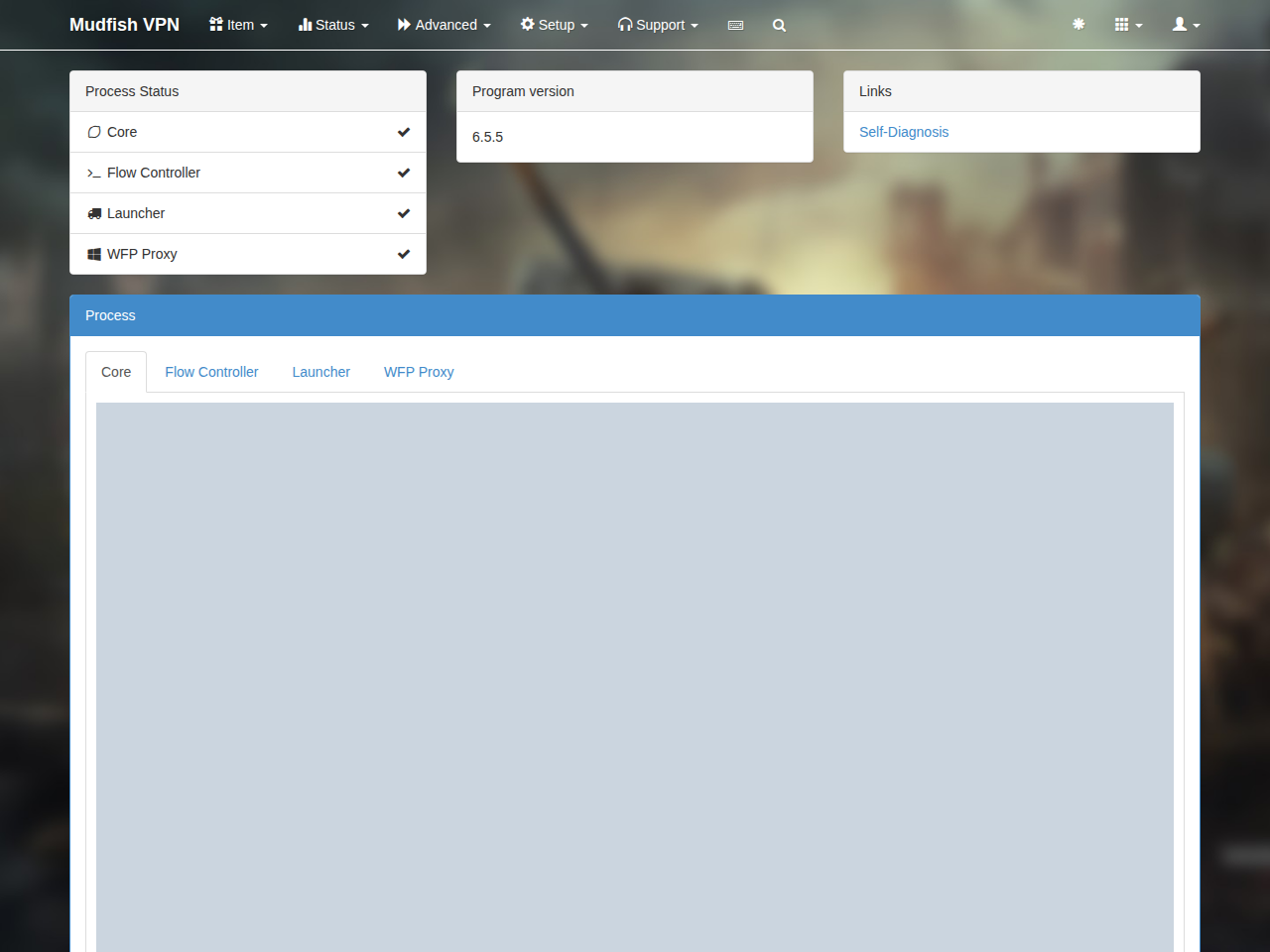
This error means it failed to lease IP address to communicate with
a node <sid> link. When this issue still happens, please visit
'Status → Process' menu to see the core logs. It'll show other error or
warning messages which happened before this error.
MUDEC_00338
Failed to receive a data. (res <ret> / <expected_size>)
This error points that it failed to receive a data from the mudfish master
server. It means that it tried to read <expected_size> but failed with
<ret>.
When this issue still happens, please visit 'Status → Process' menu to see the core logs. It'll show other error or warning messages which happened before this error.
If this issue is still happening, please check
Firewall Issues
document and try to use -O or -t option.
Also inspect the Launcher log in Status → Process for preceding errors.
MUDEC_00350
Failed to connect to the mudfish master server.
This error means that it failed to connect to the master server of mudfish for authentication. Please check 'Status -> Process' menu to see the core logs. You can find other error or warning level messages before this code.
Inspect the Launcher log too; the authentication connection failure can be preceded by a more specific error there.
MUDEC_00351
Failed to recvfrom(2) the data from master server. Error <errno> <errmsg>
This error means it failed to connect to the master server of Mudfish for authentication.
-
Please check whether you're under the network firewall.
-
Or try to use
-Oor-toptions mentioned at Firewall Issues - Mudfish Master Server section.
The receive operation may have failed inside the operating system, or returned too little data or no data. Check whether the failure is temporary or persistent; ISP, international network, or authentication service problems are possible causes. While the error is occurring, inspect Status → Process → Launcher for earlier MUDEC errors or warnings. Contact the forums if it persists.
MUDEC_00352
[WARN] Authentication with username '<username>' failed - Wrong username/password
The authentication server was reachable, but it could not validate your username and password.
- Try the same credentials at https://mudfish.net/admin/front.
- If website login works but the client fails, try a simpler password combination and test again.
- If neither step resolves the issue, contact the Mudfish forums.
MUDEC_00357
Your account isn't activated.
This error means that the mudfish authentication server blocks your connection because too many tries for ID/PWD authentication within 1 minutes.
Please check your browser or mudfish programs whether it does wrong or not. So please wait around 5 minutes and try to login again.
Exit Mudfish completely before waiting five minutes and retrying.
MUDEC_00362
ODR_bind() for CLI failed: m_arg <m_arg> <errno> <errmsg>
Mudfish could not configure the CLI listening socket at the IP address and port specified by <m_arg>.
10049 ODR_EADDRNOTAVAILmeans "Cannot assign requested address": the socket could not bind to the specified IP address. This may occur on an ipTIME Mudfish router.
MUDEC_00373
Failed to get the gateway IP address.
Mudfish could not find the selected node's gateway IP in its node list. The node may be stopped or offline because of a network problem. Select another node if the error persists.
MUDEC_00400
Too many requests in short time
Too many requests were sent to the shortest-path calculation service in a short time. Close the affected page or stop making requests, wait 10–20 seconds, and then retry the button that triggered the error.
MUDEC_00401
Not enough information to calculate shortest pathes.
This error means that RTT server of the mudfish side failed to find the user's RTT information. For this case, please check How to update RTT information and try to test.
MUDEC_00405
VSS_open(<hostname>:<port>) failed: <errnum> <os_errno>
This error means you failed to connect <hostname>:<port>. The reason
depends on <errnum> as follows:
-
2 (SELECT_TIMEOUT)
This means that the connection was timed out. For most of cases, this issue is caused by the network firewall.
-
5 (GETADDRINFO_ERROR)
This means that it failed to perform DNS resolving for the domain. Sometimes this issue could happen your DNS requests are inspected by network firewall.
MUDEC_00407
Failed to connect the RTT server.
This error points that it failed to connect a mudfish RTT server which used to get various information. This issue could be triggered by various reason:
- Mudfish RTT server could be down. Not operating properly.
- Or the connection to mudfish RTT server is blocked by something (e.g. network firewall).
If you're under the network firewall, please check Firewall Issues documents.
MUDEC_00408
Hit the speed cap.
This error is caused by that your data plan is Subscription. At Subscription it has a speed cap so your traffics could be dropped by mudfish nodes if its limitation is hit.
To solve this problem, you can try one of the following things:
-
You can try to change your data plan to PPT (Pay Per Traffic).
-
Or terminate the program making network activities to reduce the network traffic usage.
-
Or you can upgrade your voucher type for Subscription data plan. For details, you can visit https://mudfish.net/admin/user/dataplan/modify link.
The client-side message Failed to connect the RTT server uses the same code; see MUDEC_00409. The speed-cap message above is generated by a node, whereas MUDEC_00330 reports the client-side speed cap.
MUDEC_00409
Failed to connect the RTT server.
This error means that it failed to connect to the master server of mudfish for RTT information. Please check 'Status -> Process' menu to see the core logs. It'll show more details about why.
Check the Flow Controller log in Status → Process as well. Try the master server connection guide. If the problem persists, send a Problem Report and contact support.
MUDEC_00410
Failed to connect the master server.
This error means that it failed to connect to the master server of mudfish for authentication. Please check 'Status -> Process' menu to see the core logs. It'll show more details about why.
Also check preceding errors in the Launcher log under Status → Process.
MUDEC_00413
Failed to connect the master server <ip:port>
This error means that it's failed to connect to the master server using
<ip:port>. Normally these IP and port are one of mudfish master servers.
However the log level of this message is '[INFO]' level because Mudfish tries to use other IP and port and connect for retry. So you can ignore this message if you can't see any WARN or ERROR messages after that.
MUDEC_00414
Failed to connect <ip:port> due to <error_code>.
This error points that mudflow (Mudfish Flow Controller) process failed to
connect <ip:port>. Normally <ip> points the private IP address of
mudfish node you picked. <error_code> points the specific reason why
it failed:
-
WSAEACCES
This error means your Windows OS blocks the connection. For most of cases it's caused by AV (Anti Virus) program.
Please try to add mudfish processes as follows to the exceptional list:
- mudfish.exe
- mudflow.exe
- mudrun.exe
MUDEC_00415
Failed to connect <ip:port> (errno error_code)
This error points that it failed to connect <ip:port> to set up
the configuration for Advanced Node / MultiPath Node settings. Normally
<ip:port> is the private IP and port of mudfish node you'd picked.
error_code indicates the reason:
-
10053 (WSAECONNABORTED)
An established connection was aborted by the software in your host machine.
Are you using AV (anti-virus) / firewall program? Please check that those are blocking a connection of mudfish first.
This message indicates that the connection is aborted by the software you're using on your box.
-
10065 (WSAEHOSTUNREACH)
No route to host. A socket operation was attempted to an unreachable host.
If this issue happens, please try to change a mudfish node setting to another combination.
MUDEC_00416
Failed to connect to <ip>:<port> (errno <errno>)
This error points that it failed to connect <ip:port> to set up
the configuration for Advanced Node / MultiPath Node settings. Normally
<ip:port> is the private IP and port of mudfish node you'd picked.
This error is like MUDEC_00415 but this is happening on Linux or Mac OS X
environments.
error_code indicates the reason:
-
Mac OS X
-
60 (ETIMEDOUT)
Operation timed out. It tried to connect but failed within the timeout.
-
Try another node if the timeout persists.
MUDEC_00421
No mudfish nodes picked for the advanced node for the item <itemid>
This error points that it failed to pick a mudfish node which used for advanced mode or multipath mode. For most of cases, it's related with "Auto Select" option for mudfish node pick-up.
To solve this problem:
-
Checks your mudfish credit status. Sometimes it could be triggered by no mudfish credits.
-
Don't use 'Auto Select' option at item configuration.
-
Or please check How to update RTT information link and try to update your RTT information.
-
If you limited no. of mudfish nodes via 'Setup -> Nodes' menu, please try to reset the limit to the default value.
MUDEC_00424
RTT stddev values are over 15% of your RTT avg to the closest mudfish nodes. Please check your ISP whether there's an issue or network congestion.
This error indicates the RTT standard deviation is more than 15% of the mean value while performing RTT calculcation internally.
If you see this message, it means that the connections to mudfish nodes closest to your current location are unstable. The detailed calculation formula is:
-
Picks 6 mudfish nodes closest to the current user among all mudfish nodes and periodically performs RTT calculation.
-
If all six checked mudfish nodes show an RTT stddev (standard deviation) of more than 15% of the RTT avg (average), a warning message is displayed.
If this error persists, please check the following things:
-
Do you use wireless connection (WIFI) rather than the LAN cable to connect the internet? If you're using WIFI, RTT stddev could be affected by the strength of WIFI signals.
-
Check your ISP or check whether you have internal QoS or firewall settings.
MUDEC_00440
recv(2) error: read <rc> error <errnum>
This error means that it failed to receive the data from the mudfish master
server or nodes. The reason depends on <errnum>:
-
10054 WSAECONNRESET
An existing connection was forcibly closed by the remote host.
-
10060 WSAETIMEDOUT
This message means that receiving the data was timed out. So it means the master server didn't respond or there's other network error due to network firewall or other reason.
Please consider to check Firewall Issues document if you're under the network firewall.
MUDEC_00446
Give up to wait the snode backed for SID <sid>
This error means that the mudfish flow controller (mudflow.exe) can't find a mudfish node information you set. If you see this mesagee, you can check the following things:
-
Checks your mudfish credits. Sometimes this issue is caused by out of mudfish credits.
-
Or visit 'Setup -> Nodes' menu and clear your limitation for picking the mudfish nodes. Sometimes this issue is caused by mismatch of mudfish node information between the mudfish flow controller and the mudfish core.
-
Or if all other things are fine but this issue still happens, please check Mudfish Master Server link and consider to test with
-Ooption.
Select the item's nodes manually instead of using Auto Selection. If the error persists, send a Problem Report.
MUDEC_00463
Failed to send to the routing information (localip <ip> errno <errno>)
This error points that it failed to send the routing table information to the mudfish node you'd picked for Advanced Node Mode. If this issue persists, you can try to change the node mode from Advanced Mode to Basic Mode or Multi-Path Mode.
<errno> indicates why this error happens:
-
10054 (WSAECONNRESET: Connection reset by peer)
An existing connection was forcibly closed by the mudfish node. Normally it means that there's a problem to connect.
This can also affect Multi Path setup. Avoid the node identified by the private IP and try a different combination.
MUDEC_00464
AddIPAddress() failed: <if_index> <errno>
This error could happen if you're using -I option for mudfish launcher.
Depending on <errno>, it could mean different reasons as follows:
-
1168 (ERROR_NOT_FOUND)
This issue means Mudfish can't find
<if_index>network interface from your system.If this issue is still happening, please send us Problem Report.
-
5010 (ERROR_OBJECT_ALREADY_EXISTS)
This error code means there's already a exisiting object to TAP-Win32 network v9 adapter. So you can ignore if mudfish works fine.
Error 1168 can follow an incomplete TAP driver installation or a managed PC policy that blocks drivers, for example at a school or PC cafe. For 5010, if Mudfish is not working normally, restart the computer or test without -I.
MUDEC_00465
Not reachable to mudfish node <ip_addr> for setting ADN / Multi Path mode (found <found> error <error>)
This error could happen if you're using 'Advanced Node Mode' for the game item.
And this message means that it failed to connect to <ip_addr> with <error>.
If this issue is continually happening, please send us Problem Report because we need to check the internal logs.
MUDEC_00467
Failed to recvfrom(3) the flush information (received <received> / expected <expected> / errno <errno> / sid <sid>)
This error means that it failed to receive the data from the mudfish node
you're using. SID <sid> points the unique number of mudfish node you used.
The reason depends on <errno>:
-
10060 WSAETIMEDOUT
This message means that receiving the data was timed out. So it means the mudfish server didn't respond or there's other network error due to network firewall or other reason.
If this issue still persists, please consider to use other mudfish node. Sometimes changing the mudfish node solves this issue.
For Advanced or Multi Path setup, 10060 can indicate that the node did not respond within 20 seconds. You can also switch to Basic mode to test.
MUDEC_00470
Increasing no of fragmented packets.
If the issue is still happening, it means that current network device (NIC) is constantly receiving fragmented packets. You can ignore this error message if you don't have any problems to use mudfish. However the packet loss rate could be affected by fragmented packet.
It is recommended to resolve the issue as much as possible because it increases.
Usually, one of the followings can cause this issue:
-
MTU (Maximum Transmission Unit) of NIC network device has an unusually small value.
-
If MTU value used for communication with the mudfish nodes is larger than expected, this issue could happen.
Please check the following list to resolve this issue.
-
Check MTU (Maximum Transmission Unit) of currently installed network devices. For ethernet its default value is 1500. If it's more smaller, you can reset to the default value.
-
If you enter the mudfish UI 'Settings -> Program' menu, there is an MTU menu. Try setting this value to 1400 (the mudfish default) or 1300.
MUDEC_00477
Too big UDP packet to send.
This error means that your game client is trying to send a bigger UDP packet than what mudfish could handle.
Please visit 'Setup -> Program' menu and adjust your MTU with lowering the value. For example, you can try to test with the following values:
- 1350
- 1250
- 1150
This can occur with a Custom item using P: or with WFP Item mode. You can also reduce the TAP-Win32 Adapter v9 MTU to 1350 or less using MUDEC_00262, or turn WFP Item mode off and test again.
MUDEC_00486
MUDWFP_connect() failed.
The mudwfp.sys driver could not start. Inspect earlier log messages for the underlying cause, commonly MUDEC_00514 or MUDEC_00524.
MUDEC_00496
WSAIoctl() failed: error <errno> retbytes <bytes>
This error means the redirect record associated with the socket failed to
fetch. <errno> indicates more details:
-
10022 (WSAEINVAL)
Normally this error means the mudfish kernel driver for windows filtering platform is conflict with other AV (anti-virus) or firewall programs.
Please check that on your machine there's a program which could intercept your connection and do something. If there's one, you can try to uninstall it and test it again.
As a workaround, you can try
-
Turn off WFP Item mode.
This will disable WFP feature of mudfish and no longer you will encounter this issue.
-
If you still want to use WFP Item mode, you can send the outputs of the following command from Command Prompt to check which the kernel drivers are loaded. Please send the outputs to support@loxch.com email address.
-
driverquery /v -
netsh wfp show stateThis command dumps the WFP status and creates wfpstate.xml file.
-
-
MUDEC_00501
bind failed with error: <errno>
This error means that it failed to bind a socket with specific IP:port for
listener. The <errno> explains why:
-
10048 WSAEADDRINUSE
Only one usage of each socket address (protocol/network address/port) is normally permitted.
Please make sure that all mudfish processes are restarted properly. Normally this error points that a mudfish process is already running.
MUDEC_00505
Failed to lookup the backend for process name: <processname>
Mudfish could not find its internal process information for <processname>. If this persists, send a Problem Report while the problem is occurring so support can inspect the logs.
MUDEC_00514
StartService() failed: <errno>
In the case of this error, it means that the windows service for
Mudfish WFP (Windows Filtering Platform) driver did not run properly.
The detailed reason depends on the value of <errno>.
-
0x7f (ERROR_PROC_NOT_FOUND)
In this case, there can be two cases.
-
This may occur if the mudwfp.sys driver is not installed properly. Please check if the mudfish package was installed properly and there were no errors during the installation process.
-
Or, if the Windows version you are using is 7 or lower. For the WFP feature, it must be at least Windows 8 or higher to work properly.
-
-
0x4fb (ERROR_DRIVER_BLOCKED)
This means that Mudfish WFP kernel driver been blocked from loading. This points that something is blocking to load.
Please check your firewall or AV (anti-virus) programs whether it blocks or not. For most of cases, this issue is triggered by them.
Error 0x2 ERROR_FILE_NOT_FOUND can mean Windows could not load the driver. Check that you installed the correct 32-bit or 64-bit package for your Windows version and reinstall from https://mudfish.net/download.
For 0x4fb, also check the CPU architecture: the Windows WFP driver supports Intel-compatible Windows, not ARM Windows.
MUDEC_00524
Driver initialization IOCTL Failed: <rv>
The MUDWFP driver could not initialize. An earlier error usually explains why. Check mudwfp_proxy_stdout.txt or the mudwfp_proxy log under Status → Process.
MUDEC_00535
DNS poisoning dectected. Please encrypt your DNS request.
This error means that you have a problem to resolve the mudfish domain name as follows:
- api.mudfish.net -> 14.63.218.94
- mudfish.net www.mudfish.net -> 14.63.213.39
- api-loopback.mudfish.net -> 127.0.0.1
So this erro means that any of above domains is resolved as different IP. In middle of your network, something intercepts your DNS request and modifies the DNS response.
This issue could happen if you're under the network firewall or GWF (Great Wall Firewall). To avoid this issue, please check Connecting Mudfish in China link.
To encrypt DNS requests, use DNS over HTTPS if your Windows 10/11 version supports it, or install the Mudfish DNS Client.
MUDEC_00538
<domain> DNS address is poisoned (count <count>). Please encrypt your DNS requests.
This error means that you have a problem to resolve the domain name. In middle of your network, something intercepts your DNS request and modifies the DNS response.
This issue could happen if you're under the network firewall or GWF (Great Wall Firewall). To avoid this issue, please check Connecting Mudfish in China link.
Encrypt DNS requests to address the manipulation described above.
MUDEC_00539
Checking RTT to mudfish nodes are failing. Are you under network firewall?
When mudfish is launched, the program measures RTT (Round Trip Time) between your desktop and mudfish nodes. This error indicates that the RTT measurement is failed or RTT is relatively high (above 1.5 secs).
Please check that you're under network firewall. And try to change 'RTT Checking Method' found at 'Setup -> Program' menu.
MUDEC_00546
NetworkExtension isn't ready yet
This warning means that mudfish core process didn't get any responses from mudfish NetworkExtension module. Please check two things first:
-
Check that VPN Configuration for mudfish is installed properly.
-
System Extension module for mudfish is installed properly. You should explicitly enable the systemextension module for mudfish.
-
Try to install the mudfish package for Intel CPU. Sometimes it solves a problem.
To solve this issue, please try to uninstall mudfish completely and try to reinstall mudfish from the scratch. You can check the following links:
Restart the Mac after checking the VPN profile and system extension. The Intel-package workaround refers to archived releases: Intel packages stopped being distributed in v5.17.0. Older packages are available at https://mudfish.net/releases/.
MUDEC_00547
NetworkExtension doesn't set utun device.
For this case, please check above MUDEC_00546 section. This error means that Mudfish can't see that the utun driver is up for 20 seconds.
MUDEC_00555
Failed to sendto the ping information. (errno <errno>)
This error means you're using "Advanced Node mode" for the game item settings
but failed to send a ping probe to the mudfish nodes you're using. <errno>
indicates details why:
-
10054 (WSAECONNRESET)
Connection reset by peer. An existing connection was forcibly closed by the remote host. This normally results if the peer application on the remote host is suddenly stopped, the host is rebooted, the host or remote network interface is disabled, or the remote host uses a hard close. This error may also result if a connection was broken due to keep-alive activity detecting a failure while one or more operations are in progress.
MUDEC_00556
Failed to connect mudfish short_path server.
This error indicates that mudfish program can't access to
short.mudfish.net
domain using TCP 10012 to get the recommended routing path.
Please check 'Status -> Process' menu to see the detailed error reason.
In the log file, other error messages will exist.
If using Multi Path, try Basic or Advanced mode. If you are familiar with TCP connection testing, test short.mudfish.net:10012. Send a Problem Report if you cannot identify the cause.
MUDEC_00558
Failed to connect mudfish API server.
This error means that there's a problem to calculate the shotest pathes via mudfish API server. However this error message doesn't say the fundamental reason of this failure. There's another error logs before this error line to point the cause.
Please check 'Status -> Process -> Flow Controller' menu to see the detailed error reason.
If this issue persists,
-
If your item uses "Auto Selection" for the node option, please try to change it to a specific node and see if the issue persists.
-
If it doesn't work, please send us Problem Report while this issue is happening. We need to check the internal logs.
MUDEC_00559
Failed to restart all shared-memory stuffs in 5 secs (<mudfish_log>/<mudfish_stat>/<mudflow>/<mudwfp_proxy>)
This error indicates that it failed to restart the shared memory file which used to communicate between mudfish nodes. Normally this issue could happen while you tried to log out.
When you get this issue happen, you need to check the following parts:
<mudfish_log><mudfish_stat><mudflow><mudwfp_proxy>
If the number value of this entry is 1, it means it failed to restart. 0 means it successfully restarted. Normally this issue could happen something is holding the file reference on Windows. It could happen if you're running the personal firewall or anti-virus programs.
MUDEC_00567
vhttp_rxhdr error.
This error indicates that mudfish program failed to parse HTTP response header got from the server specified. Please check 'Status -> Process' menu to see the detailed error reason.
In the log file, other error messages will exist.
MUDEC_00572
VHTTP_rxbody error.
This error indicates that mudfish program failed to send HTTP POST request to the server specified. Please check 'Status -> Process' menu to see the detailed error reason.
In the log file, other error messages will exist.
MUDEC_00577
Out of memory
The system is running out of memory.
- Adding physical RAM is the most effective solution.
- In Task Manager, identify applications using large amounts of memory and close any that you do not need.
- Close browser windows while playing. Closing the browser does not stop Mudfish; it continues running in the system tray.
- Check memory usage by the Mudfish processes too. In rare cases, a Mudfish memory leak may be responsible.
MUDEC_00586
recv(2) error: read <return_value> error <errno>
This error points that there's a problem to receive the data from
mudfish master server or mudfish RTT server. <errno> indicates
the detailed reason:
-
10060 (WSAETIMEDOUT)
Connection timed out. A connection attempt failed because the connected party did not properly respond after a period of time, or the established connection failed because the connected host has failed to respond.
If this issue still happens, please check
Mudfish Master Server
link and consider to test with -O option.
MUDEC_00716
Couldn't connect to <ip_addr>:<port> for TCP: <errno> <errstr>
In Multi Path mode, Mudfish could not connect to the node at <ip_addr>:<port>.
10060 ODR_ETIMEDOUTmeans the connection attempt timed out.
Try adding the affected node to the blacklist under Setup → Nodes.
MUDEC_00719
ODR_write() error to <ip_addr>: <errno> <err_msg>
In Multi Path mode, sending TCP data to the node at <ip_addr> failed.
ODR_ETIMEDOUTmeans transmission stopped making progress for long enough to time out.
You can ignore this message if it does not affect your connection.
MUDEC_00720
ODR_sendto() error to <ip_addr> Message too long. Check your path MTU. (curmtu <value> buflen <value>
For this error, please check MUDEC_00262 error link for details.
However please note that this issue could happen if you're using Multi Path Mode for the game items. So if you disabled the multi path mode, this will not happen.
MUDEC_00722
ODR_sendto() error to <ip>: <errno> <errmsg>
This error points that there's a problem to send the data to the mudfish node
using UDP protocol. <errno> <errmsg> explains more details why:
-
10065 (ODR_EHOSTUNREACH)
A non-existent host is indicated. This normally happens when the destination host is not found.
This issue could happen if you're using Multi-Path mode for the game items but if it doesn't affect to your game connection, you can ignore this issue.
MUDEC_00723
re_broker_write_second() failed.
This can occur in Multi Path mode. Open Status → Process → Core and inspect earlier WARN or ERROR messages. Address those errors or switch from Multi Path to Basic or Advanced mode. You can ignore the message if your connection works normally.
MUDEC_00724
ODR_read() for hdr error from <ip>: <errmsg>
This error points that one of the brokers for Multi-Path support encountered an error. If you don't have a problem with your game connection, you can ignore this issue.
-
<ip>This is a public IP of mudfish node which Multi-Path broker used.
-
<errmsg>Please check MUDEC_00062 error link for details because it's from the same reason.
If the connection is affected, select another node or switch to a UDP connection protocol.
MUDEC_00725
ODR_read() for hdr got EOF from <ip_addr>
The node stopped sending data or returned EOF, indicating that no more data was available. If this repeats, select a different node or try a UDP connection protocol.
MUDEC_00729
ODR_read() for payload error from <ip>: <err_msg>"
Please check MUDEC_00062 error link for details because it's from the same reason.
This payload-read failure can occur in Multi Path mode over TCP. ODR_ECONNABORTED can mean the local OS, antivirus, or firewall closed the connection; ODR_ETIMEDOUT means the node did not provide the payload in time. Try another node or protocol, or turn Multi Path off.
MUDEC_00745
Wrong resp length: <return_value> <errno> <errmsg>
This error means that the response length from the mudfish node is wrong. This issue could happen when Mudfish program tests the connectivity to the mudfish node you picked.
If this issue persists, please consider to change the connection protocol manually. For details, please check Connection Protocols document.
ODR_ETIMEDOUT means no response arrived from the node within the socket timeout.
MUDEC_00746
No pong
A node returned invalid data during a connectivity test by Mudfish Core. The node's service may be malfunctioning. Select a different node if this persists.
MUDEC_00747
re_broker_add() failed.
Open Status → Process → Core and check for WARN or ERROR messages that explain the failure.
MUDEC_00748
No DHCP enabled for TAP-Win32 adapter v9
In case of this error, it means that DHCP setting is not enabled for the TAP-Win32 adapter v9 device installed in the system when Mudfish is installed.
To resolve this issue, please do the following:
-
Go to Control Panel -> Network and Internet -> Change adapter options menu.
-
From there, open the properties window of the TAP-Win32 adapter v9 device.
-
Open the properties of the 'Network -> Internet Protocol Version 4 (TCP/IPv4)' item.
-
Then enable the "Obtain an IP address automatically" function there. Also enable "Obtain DNS server address automatically".
After doing this, restart the mudfish completely and the problem will be solved.
MUDEC_00774
UDP: select timeout for <ip>:<port>
This error means that it failed to get UDP response from <ip>:<port> so
it means the packet loss. However you can ignore this issue because normally
it could happen if your internet isn't stable or there's a problem in Mudfish
node.
UDP filtering along the path can also cause this warning. Prefer a node whose RTT probes receive replies.
MUDEC_00781
TCP: select timeout for <ip>:<port>
This error means that it failed to get TCP response from <ip>:<port> so
it means the packet loss. However you can ignore this issue because normally
it could happen if your internet isn't stable or there's a problem in Mudfish
node.
MUDEC_00791
Failed to fwrite(3) for UN v2: <errno>
Communication with the Mudfish RTT server failed. This server provides node information and statistics.
MUDEC_00799
Failed to set re(4) for multi-path mode (sidfrom <sidfrom> sidto <sidto>). Give up.
Mudfish tried to put one of your connections into multi-path mode (the feature that splits traffic across more than one network path for better speed and stability), but the setup didn't complete in time. After about a minute of retrying, Mudfish gave up on that particular connection.
If this issue happens, please check 'Status -> Process' menu to see "Core" log section. Please check if there's an error or warning message there above this log.
Missing information for either <sidfrom> or <sidto> can prevent configuration. Try another node combination or turn Multi Path off. If it repeats, send a Problem Report so support can inspect the complete logs.
MUDEC_00800
Due to too much data used in this month, your speed cap is more limited.
If your data plan is Subscription, this issue could happen when the monthly maximum usage of the subscription voucher is exceeded.
For detailed usage limits, please refer to Data Plans link.
MUDEC_00842
bind(2) failed: <errno> <errstr>
This error means that it failed to open the socket used to communicate
between mudfish and OpenVPN client. <errno> <errstr> indicates
more details what error means:
-
10048 WSAEADDRINUSE
This error means that it failed to open the UDP socket at 127.0.0.1:23984 on the box.
Please terminate all mudfish processes first and test it again whether it's still the same.
On macOS, 48 Address already in use describes the same occupied UDP port. Check which process owns it if you can use the console. You can ignore this message if you do not use free public nodes in Full VPN mode.
MUDEC_00866
No <domain> host found.
A DNS lookup for <domain> returned NOT FOUND. DNS filtering, including filtering on networks in China, can cause this. Try encrypting DNS requests as described in Connecting Mudfish in China.
MUDEC_00868
UDP: select timeout for <ip>:<port>
An RTT test from your computer to the node at <ip>:<port> did not receive a valid response. This warning does not directly affect the Mudfish connection and can be ignored.
MUDEC_00898
MUDEC_00898: Failed to create Mudfish Wintun adapter <errno>
This error means that calling WintunCreateAdapter() API failed with <errno>
error code. <errno> indicates the detailed reason why.
4319 ERROR_DEVICE_NOT_AVAILABLE means the device is unavailable. Check earlier warnings or errors for the underlying reason.
MUDEC_00904
ODR_CreateIpForwardEntry() failed: IP <addr>/<gw> (ifindex <iface> metric <metric>)
Mudfish detected an unexpected routing-table change. This can happen if Muddog (https://dog.mudfish.net/) is installed or another VPN starts while Mudfish is running. Remove the conflicting VPN software and test again.
MUDEC_00915
<error_msg>
A warning occurred while configuring the Wintun driver. Check <error_msg> for the specific reason.
MUDEC_00916
wintun: MUDEC_00916: <err_msg>
This error means that wintun driver failed to work properly. And its logging
level is ERROR. For details, you need to check <err_msg> part about why.
For Failed to setup adapter (problem code: 0x38, ntstatus: 0x0), inspect C:\Windows\INF\setupapi.dev.log for details. Timed out waiting for device query means the device query received no response.
MUDEC_00921
connect(2) failed: <errno>
This can occur while Mudfish tests whether your computer can access IPv6 networks. It does not affect the Mudfish connection and can be ignored.
10051 WSAENETUNREACHmeans the network is unreachable, which is common when IPv6 connectivity is unavailable.
MUDEC_00989
A valid IPv6 address is in operation. Please note that traffic via IPv6 addresses will not pass through Mudfish.
Please check the below MUDEC_00990 error link for details.
MUDEC_00990
A valid IPv6 address is in operation. Please note that traffic via IPv6 addresses will not pass through Mudfish.
This warning message means that your OS (Operating System) has a valid IPv6 address and accessible to the internet via IPv6 address.
This notification is to inform that Mudfish doesn't handle IPv6 address. So even if Full VPN mode is enabled on Mudfish, IPv6 connection will not be filtered and will not go through Mudfish.
For example, netflix.com domain has both IPv4 and IPv6 addresses. If you
want to watch Netflix via Mudfish, sometimes this issue makes a problem when
the connection is established via IPv6 address.
To solve this issue, you need to disable IPv6 on your system. Please check the following links for details:
You can ignore the warning if it does not affect the connections you intend to route through Mudfish.
MUDEC_01034
SSL_connect(3) failed: syscall (error <errno>)
This error means it failed to connect the mudfish master server for the
authentication. Normally it points the TLS/SSL handshake was not successful,
because a fatal error occurred either at the protocol level or
a connection failure occurred. <errno> explains more details why:
-
10060 (WSAETIMEDOUT)
A connection attempt failed because the connected party did not properly respond after a period of time, or established connection failed because connected host has failed to respond.
This can occur on the firewall bypass route. Check whether your computer or network has a firewall blocking Mudfish.
MUDEC_01038
SSL_connect(3) failed: SSL_ERROR_SYSCALL (error <error_number>)
An SSL connection to the destination failed. The error number gives the reason.
10060 WSAETIMEDOUTmeans the destination did not respond within the connection timeout.
MUDEC_01040
SSL_read() failed (r <return_code> error <error_no>)
An SSL read failed while communicating with a Mudfish service. When <return_code> is -1, <error_no> provides the error code.
5 SSL_ERROR_SYSCALLindicates an unrecoverable underlying socket error. This message alone does not identify the exact cause.
MUDEC_01042
talkc__recv() error.
This error means that it failed to receive the data from the mudfish RTT server.
When this issue occurs, other error/warning messages are also logged. Please find other error/warning messages to check the cause.
MUDEC_01044
Failed to connect mudfish short_path server.
The connection to the service that calculates today's recommended routes failed. See MUDEC_00556.
Unlike that error, this message indicates Mudfish is already using its firewall bypass feature after detecting a possible firewall on your computer or network. Check whether a firewall is blocking Mudfish.
MUDEC_01051
SSL_read(3) failed: syscall (error <errno>)
This error messages means that it failed to read the data from SSL connection.
Normally this message points that the failure was triggered by the system
environment. <errno> points the system error code:
-
10060 WSAETIMEDOUT
A connection attempt failed because the connected party did not properly respond after a period of time, or established connection failed because connected host has failed to respond.
MUDEC_01159
Can't calculate the RTT to the destination using the ICMP protocol.
In the case of this issue, it means that the ping test using the ICMP protocol to the destination of your Mudfish item or Custom item is not working correctly.
This message should be followed by the following message.
-
"If the problem persists, please contact an administrator via the Mudfish forum"
If you are experiencing this issue, it means that the ping test to the destination of the Mudfish item you are using is not working. In this case, you can't fix it on your end because it's a mudfish issue. It requires a help from Mudfish admin to update it.
-
"Please revisit the destination of your Custom item."
If this message follows, it means that the ICMP ping to the destination set by your Custom Item is not working correctly. You will need to resolve this issue yourself.
In this case, the destination IP is incorrect, so please test by entering a new IP that will echo the ICMP ping.
MUDEC_01172
FEC protocol isn’t compatible with MultiPath mode. So disabled MultiPath mode.
This warning can appear when the connection protocol is FEC (UDP port 10012). You can ignore it if you are not using Multi Path mode. If you are using Multi Path, the warning means that mode has been disabled and may not work as configured.
MUDEC_01176
HTTP rx timeout (fd:<fd> <timeout_value> secs)
This error means that it failed to read the data from the remote and it's timed out.
When this issue occurs, other error/warning messages are also logged.
MUDEC_01183
vhttps_rxhdr error.
This error means that it failed to receive HTTP response header.
MUDEC_01195
sqlite3_prepare_v2() failed: <errmsg>
Mudfish Launcher could not prepare a query for its internal SQLite database. This is a launcher issue rather than a node issue and does not affect the game connection.
database is lockedis often temporary: multiple launcher threads may try to access SQLite at the same time. Check whether it happens consistently. If it disappears, it can be ignored.
If it persists, exit Mudfish completely and delete its *.db files from the installation directory. These commonly include .conf.db, .cache.db, and .snapshot.db.
MUDEC_01268
Failed to update the mudfish VPN profile: <err_string>
This error means that the VPN profile for Mudfish VPN has a problem to be
updated. <err_string> explains details why:
-
permission denied
This error means that VPN profile isn't allowed by the user yet. Please check Installation (Desktop) - Mac OS X link and allow it.
MUDEC_01269
Loading the mudfish system extension requires user approval.
This error means that the system extension for Mudfish aren't allowed by the user. The user must grant approval before the manager can activate the Mudfish extension.
Please check Installation (Desktop) - Mac OS X link and allow it.
MUDEC_01274
Failed to measure RTT to <ip> via ICMP.
This error means that it failed to measure RTT (round-trip-time) to <ip> via
ICMP protocol. Normally <ip> points the game server destination of the
mudfish items.
However you can ignore this issue because normally it could happen if your internet isn't stable or there's a problem in Mudfish game item. It doesn't hurt your connection via Mudfish.
MUDEC_01318
udprelay_direct: TOL_sendmsg(2) to <ip>: <port> failed: <errno> <errormsg>
This relates to Setup → Program → Exception Rule. Turning off Exclude web traffic or the configured Custom traffic exclusion can stop the message.
55 No buffer space availablemeans UDP forwarding has filled the socket buffer. The message does not explain why the buffer remains full.
MUDEC_01429
No mudfish nodes picked for the basic node
Mudfish could not choose a node for the item's Basic mode because required information was missing.
- Check that your account has credit.
- Select a node manually instead of using Auto Selection.
- Update RTT information and try again.
- Clear any node-list restrictions under Setup → Nodes and test again.
MUDEC_01432
Failed to connect mudfish API server.
Mudfish could not receive information from its recommended-route calculation service.
- Select a node manually instead of using Auto Selection.
- Update RTT information and test again.
- Try the
-toption described in the master server connection guide.
MUDEC_01439
Auto Selection is enabled without destination information. Open the item settings and select a node manually.
This commonly occurs with Custom items. Auto Selection needs the item's destination information to choose a node. Open the item's settings and choose a specific node instead of Auto Selection.
MUDEC_01459
Detected something has deleted the mudfish IP from the routing table: <ip>. Try to restore it.
When the mudfish program starts, it monitors the routing table to detect if the mudfish IP address is deleted from the routing table. If it's detected, it will log this error message.
So this error means that the mudfish IP address was deleted from the routing table by 3rd party software. Please check if there's any software that deletes the mudfish IP address from the routing table. Normally it could be triggered by antivirus or personal firewall or other VPN software.
For a detailed investigation, send a Problem Report.
MUDEC_01643
no entry for SID
This issue could happen by multiple reasons as follows:
-
If you just bought the mudfish credit, you need to restart the mudfish program completely. Sometimes you can encounter this issue when you try to connect a mudfish node without restarting the problem.
-
If your data plan is "Subscription", please check the following things:
-
You need to equip the Subscription voucher. Please check it at http://mudfish.net/admin/user/dataplan/modify link.
-
If you used "Monthly maximum traffics" for the voucher, you can encounter this issue. You need to buy another subscription voucher.
-
-
If a negative credit or no credit in your current account.
-
If your equipped item is configured with invaild / dead mudfish node.
-
If the mudfish node information doesn't be served by master server because of temporarily matter or permanently shutdown of the service.
-
If you limits the list of mudfish nodes at 'Setup -> Nodes' menu, sometimes this issue could happen. To solve this issue, you can clear the list limitation.
A node's access-control policy can also prevent access. On Xiaomi Youth routers, packages v2.1.13 and earlier may fail to retrieve the node list; update the router package. Other nodes may still work normally, but items configured to use the unavailable node must be reconfigured.